Account and Data
Your Account panel shows which GospelGrasp account you are using, summarizes your study activity, and gives you control over your account data. It is also where you can review your plan, share an invite when available, sign out, or request account deletion.
What the Account panel does
Section titled “What the Account panel does”From Account, you can:
- Confirm your email address and account level.
- Review your study streak, sessions, total study time, and books studied.
- See recent study sessions.
- Review your current plan and available AI Study unlocks.
- View other plans when GospelGrasp is offering plan changes in the app.
- Export a copy of your account data.
- Share or redeem an invite code.
- Sign out without deleting your saved work.
- Request permanent deletion of your account and its data.
When you might use it
Section titled “When you might use it”Open Account when you want to check which account is signed in, review your recent activity, or understand what your plan includes. You will also use it before moving to another account, saving a copy of your data, or requesting account deletion.
Where to find Account
Section titled “Where to find Account”Tap Account, the circle containing your initial in the top navigation. Account opens over the screen you were using.
Tap the X to close Account and return to that screen.
See it in GospelGrasp
Section titled “See it in GospelGrasp”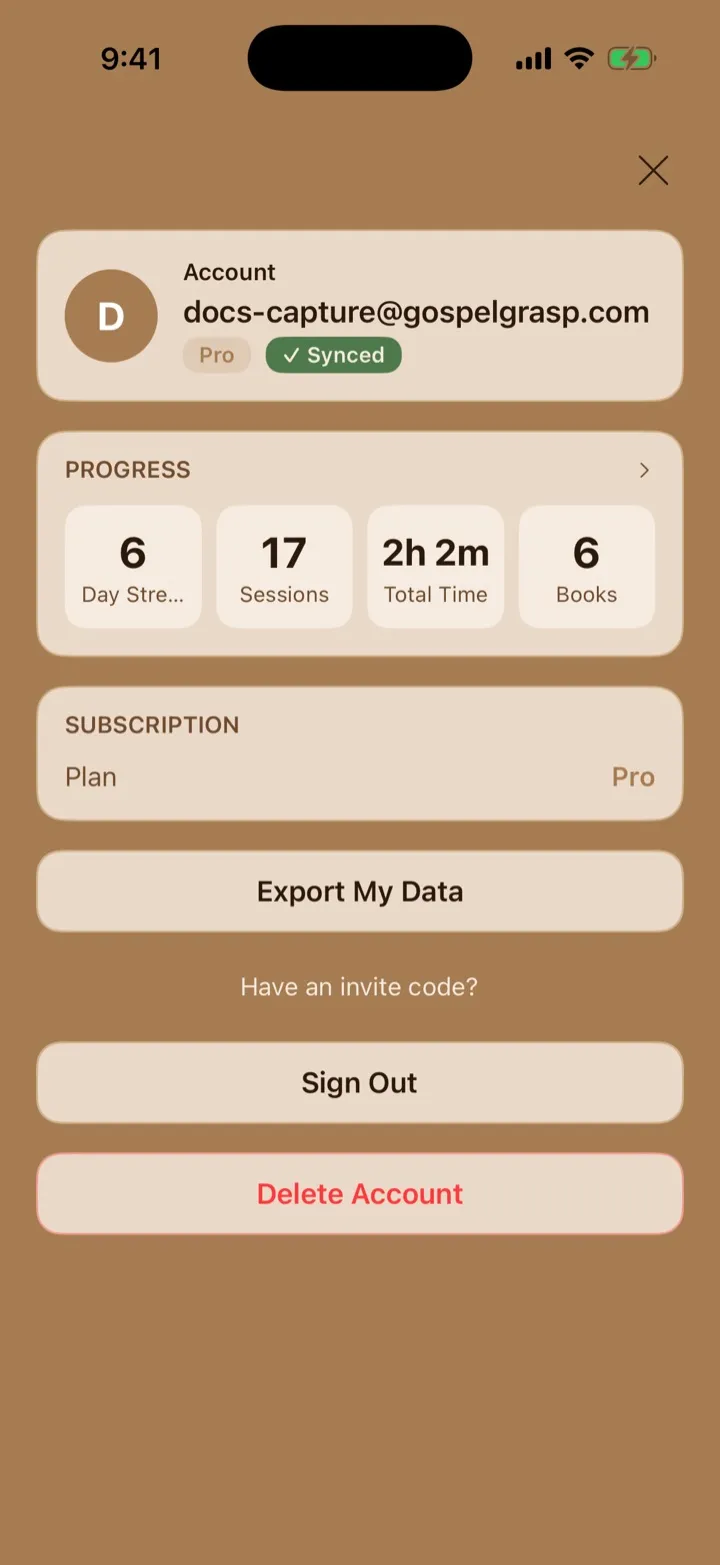
Account shows which account is signed in and whether its data is synced.
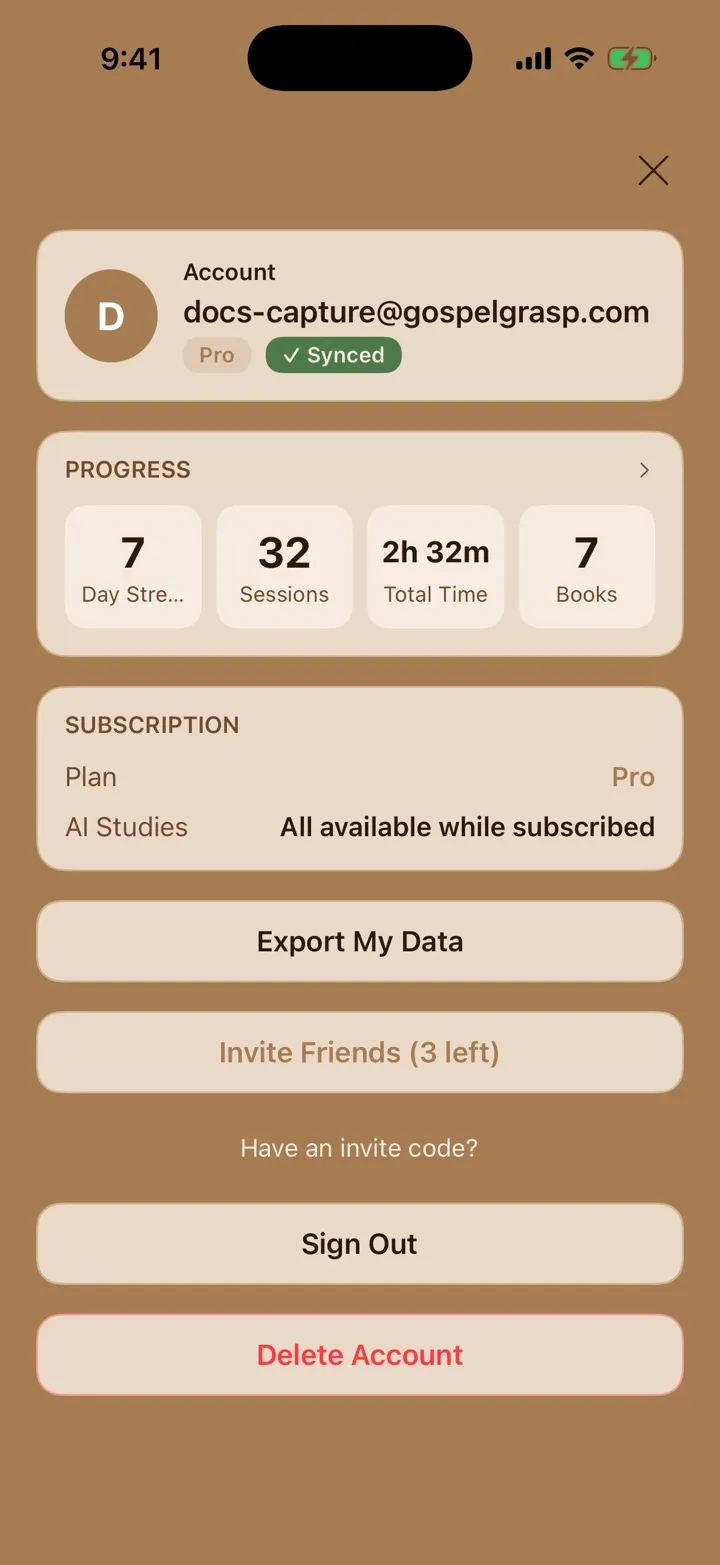
Invite Friends appears when your account has an active referral code and shows how many uses remain.
Sign Out ends authentication without deleting your local notes, recordings, or progress.
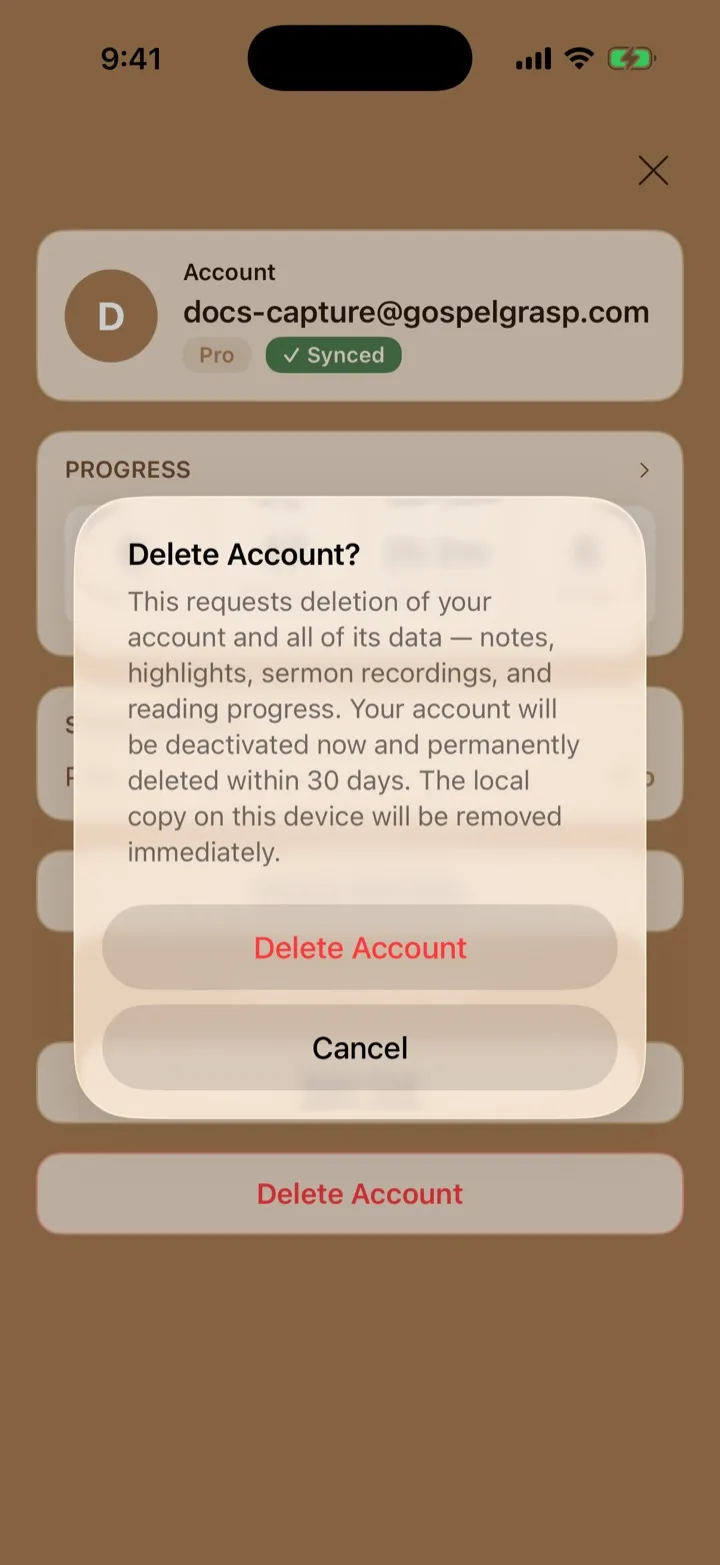
Delete Account is a separate destructive action with a detailed warning.
Review your account identity
Section titled “Review your account identity”The card at the top shows:
- The email address used for the signed-in account.
- An avatar made from the first letter of that email address.
- Your account level, such as Free, 4F, or Pro.
- A Synced badge identifying the signed-in account used for account-based activity.
The Synced badge does not mean that every recent change has already reached the service. Sync still depends on your connection and whether your plan includes the type of Cloud Sync involved.
Review your progress
Section titled “Review your progress”The Progress card can show study activity collected for your account:
- Day Streak is the number of consecutive study days in your current streak.
- Sessions is the number of completed study sessions recorded for the account.
- Total Time is the combined active time from those sessions.
- Books is the number of different Bible books included in your study sessions.
Expand Progress to open Recent studying. Each row shows the observed Bible range and active study time recorded for that session. A session within one chapter can appear as John 3:16–18; one that crosses chapters or books can appear as John 3:16–4:12 or John 3:16–Acts 1:2. Older sessions may show only a book or chapter. If the list is long, scroll inside it to see more sessions.
Progress information requires a signed-in account and an internet connection. If GospelGrasp cannot load it, the Progress card may be hidden until you reopen Account with a connection.
Review your plan
Section titled “Review your plan”The Subscription card identifies your current plan.
- Free keeps supported personal work on the device. Features that require Cloud Sync or another plan remain unavailable.
- 4F means Free for Faithful Followers. It connects additional access to a regular Bible-study commitment.
- Pro includes the full available AI Study catalog and other Pro features.
For an active or trial 4F account, the card may also show the study-day streak, total qualifying days, enrollment date, and trial end date. For Free and 4F accounts, it can show how many AI Study unlocks are available. Pro accounts show that all available AI Studies remain accessible while subscribed.
The specific features, prices, and limits shown in GospelGrasp can change as the available plans are updated.
View available plans
Section titled “View available plans”When plan changes are being offered in the app, tap View all plans. A plan screen opens and marks your current plan.
Tap Plans at the top to return to Account. If View all plans is absent, plan selection is not currently available from this version of the app.
Export your account data
Section titled “Export your account data”- Tap Export My Data.
- Wait while GospelGrasp prepares the export.
- Use the iOS sharing menu to save the file or send it to another location.
The export is a JSON file. JSON is a structured text format used to organize data so it can be read by software or inspected in a text editor. It is meant to provide a portable copy of your account data, not a polished report.
Exporting requires an internet connection. You can request up to two exports per day. If you reach that limit, wait until the next day before trying again.
Invite a friend
Section titled “Invite a friend”Invite Friends appears only when your account has an active referral code. The number in parentheses shows how many times the invite can still be used.
- Tap Invite Friends.
- Choose an app or person from the iOS sharing menu.
- Send the message and referral link.
The person receiving the invite must use the referral during the first 14 days after creating an account. GospelGrasp normally offers a 14-day introductory trial to the first eligible account on a recognized device. An accepted referral makes that trial 30 days in total. It does not add 30 days after the standard trial.
The extended trial is intended for someone who is new to GospelGrasp. If the device has already been connected to another GospelGrasp account or has already received a trial, a new account on the device begins on Free. Your invitation remains available for someone else: it is not deducted from your remaining uses, and it does not create a referral reward.
An invite link does not expire merely because time has passed since it was shared. It can be used while the inviter still has invitations available, but the recipient must accept it during the first 14 days after creating an account.
When the invited person uses your link, creates a GospelGrasp account, and begins using the app within seven days, you receive two weeks of Pro. You also receive two additional invite uses. If the person continues with Free or 4F and does not purchase Pro, your reward remains two weeks.
If that person later purchases Pro, you receive another two weeks. This brings your total reward for that referral to four weeks of Pro.
Referral rewards can be withheld or limited when GospelGrasp detects misuse or when the account has reached the current referral-reward limit.
Redeem an invite code
Section titled “Redeem an invite code”If you received a code without following its link:
- Tap Have an invite code?
- Enter the code.
- Tap Redeem.
The code must be accepted during the first 14 days after your account was created. If your account and device are eligible for an introductory trial, a successful redemption gives you 30 total days of Pro trial access.
GospelGrasp offers one introductory trial per recognized device. If the device has already been connected to another account or has received a trial, your account remains on Free and the invitation remains available to the person who shared it. The code can also be rejected if it is invalid, has no uses remaining, belongs to your own account, was already redeemed, or is outside the redemption period.
Several people may create accounts while using the same home, church, school, or workplace internet connection. Sharing an internet connection does not by itself make someone ineligible. Trial eligibility is based on the device and account history, not only the network being used. If many accounts are created from one network in a short time, GospelGrasp may temporarily ask later users to wait before trying again.
Redeeming a code requires an internet connection.
How your data is saved and synced
Section titled “How your data is saved and synced”GospelGrasp saves supported work on your device first. This allows you to keep reading and creating supported content when your connection is interrupted.
Cloud Sync for notes, highlights, and Study Stacks
Section titled “Cloud Sync for notes, highlights, and Study Stacks”On a plan that includes Cloud Sync, such as 4F or Pro, GospelGrasp syncs:
- Notes.
- Highlights and highlight categories.
- Study Stack names and saved passages.
These changes are sent when a connection is available. They can then appear on another supported device signed in to the same account. Free accounts keep this content on the device without Cloud Sync.
Reading and study activity
Section titled “Reading and study activity”Completed study sessions are saved on the device before they are sent to your signed-in account. GospelGrasp tries again after you sign in, return to the app, or regain a connection. It also recovers a saved Reader session after an unexpected app close. This activity supplies the Account progress totals and recent study list, so a recent session may appear after its delayed upload.
Pending activity stays with GospelGrasp’s local app data. Removing the app, erasing its data, or switching to another account before upload can prevent that activity from reaching the original account.
Your current Reader position is also saved locally so GospelGrasp can return you to the part of the Bible you were reading. Other guides explain which reading preferences follow your account and which remain specific to one device.
Sermons and other account-based features
Section titled “Sermons and other account-based features”Sermon recordings begin as files on the device. When your account includes Sermons and a connection is available, GospelGrasp processes them for the Sermon Library — sending only the transcript when on-device transcription succeeds, or uploading the audio when it cannot. GospelGrasp does not retain sermon audio: server copies are deleted after transcription, and the device copy is removed once processing completes. Transcripts, summaries, moments, and photos are what the library stores. AI Study access and previously opened studies are tracked separately according to the plan rules described in the AI Study guide.
Crash reports and diagnostics
Section titled “Crash reports and diagnostics”GospelGrasp uses Sentry to receive technical crash and error reports. When you are signed in, those reports include your GospelGrasp account ID and email address. This lets support identify the affected account and contact you when a problem needs follow-up.
Your password and personal study content are not added to this identity. Notes, sermon photos, authentication secrets, and AI Study conversations remain covered by GospelGrasp’s diagnostic masking rules. Signing out clears the account identity from later diagnostic events on that device.
Sign out without deleting your work
Section titled “Sign out without deleting your work”Tap Sign Out when you want to remove this account’s access from the device. GospelGrasp clears the signed-in session and saved login credentials, then returns to Sign In.
Signing out does not delete the account or remove its locally stored:
- Notes and highlights.
- Reading progress.
- Study Stacks.
- Sermons and recordings.
- Pending sermon uploads.
Sign back into the same account to make its retained local content available again. You will need to enter the password before Face ID or Touch ID can be set up again.
If you later sign in with a different GospelGrasp account on the same device, GospelGrasp removes the previous account’s local user content before the new account opens. This prevents one account from seeing another account’s private work.
Avoid signing out while a sermon or another change is still waiting to upload. The local copy is retained, but account-based processing cannot continue until the correct account is signed in again.
Delete your account and data
Section titled “Delete your account and data”- Tap Delete Account.
- Read the warning carefully.
- Tap Delete Account in the confirmation only if you want to continue.
GospelGrasp must reach the account service before deletion can begin. After the request is accepted:
- The account is deactivated immediately.
- The local account data on this device is removed immediately.
- The account and its server data are permanently deleted within 30 days.
The deletion includes notes, highlights, reading progress, Study Stacks, sermon recordings, transcripts, moments, and other information connected to the account. GospelGrasp keeps the device’s trial-use record while the account is in the 30-day deletion period. That record is included in an account data export and is removed when permanent deletion is completed.
If the request fails, GospelGrasp does not remove the account or its local data. Check your connection and try again.
Requirements and limits
Section titled “Requirements and limits”- Account details require a signed-in account.
- Progress, plan details, invites, exports, and account deletion require an internet connection.
- Notes, highlights, and Study Stacks sync across devices only on a plan that includes Cloud Sync.
- Invite Friends appears only for accounts with an active referral code.
- View all plans appears only when plan changes are enabled in the app.
- Data exports are limited to two per day.
- Invite codes must be redeemed within 14 days after account creation.
- GospelGrasp offers one introductory trial per recognized device. The first eligible account receives the standard 14-day trial, or 30 total days when an eligible referral is accepted.
- A reused device, or a device identity GospelGrasp cannot verify, can still create an account, but the account begins on Free without an introductory trial.
If something does not work
Section titled “If something does not work”Progress or subscription information is missing
Section titled “Progress or subscription information is missing”Check your connection and reopen Account. These sections load independently, so one may be hidden even while the rest of Account remains available.
Invite Friends is missing
Section titled “Invite Friends is missing”Your account does not currently have an active referral code, or GospelGrasp could not load its referral information. Reopen Account after checking your connection.
An invite code is rejected
Section titled “An invite code is rejected”Check the code for typing mistakes. The code may also have no uses remaining, already belong to a completed referral, or be outside the 14-day redemption period. GospelGrasp may also be unable to apply the extended trial when the device cannot be recognized or has already received an introductory trial. When trial eligibility is the reason, the invitation remains available to the person who shared it.
My data is not appearing on another device
Section titled “My data is not appearing on another device”Confirm that both devices use the same GospelGrasp account, have an internet connection, and that the account plan includes Cloud Sync for that type of content. Keep the original device and its local data until you have confirmed that important work appears on the other device.
Export My Data fails
Section titled “Export My Data fails”Check your connection and try again. If you already requested two exports today, wait until the next day.
Delete Account fails
Section titled “Delete Account fails”The account and local data remain intact when the request is not accepted. Check your connection and try again later.
Common questions
Section titled “Common questions”Does signing out delete my notes or recordings?
Section titled “Does signing out delete my notes or recordings?”No. Sign Out removes authentication from the device but keeps the same account’s local user content. Delete Account is the destructive action.
Can someone else sign in without seeing my data?
Section titled “Can someone else sign in without seeing my data?”Yes. When GospelGrasp detects that a different account is taking over the device, it removes the previous account’s local user data before opening the new account.
Does Synced mean every feature follows me to another device?
Section titled “Does Synced mean every feature follows me to another device?”No. Some information uses account-based syncing, some requires a plan that includes Cloud Sync, and some preferences remain on one device. Check the guide for the feature you are using before removing its original local copy.
Can more than one person receive a trial on the same Wi-Fi?
Section titled “Can more than one person receive a trial on the same Wi-Fi?”Yes, when they are using different eligible devices. GospelGrasp does not deny a trial merely because several people share the same home, church, school, or workplace internet connection. Each recognized device can receive one introductory trial. If many people register from the same network in a short time, some may need to wait before trying again.
What happens if I create another account on the same device?
Section titled “What happens if I create another account on the same device?”If that device has already been connected to another account or received an introductory trial, the new account begins on Free. It cannot use an invitation to receive another extended trial. The invitation is not deducted from the person who shared it.
Can I undo account deletion from the app?
Section titled “Can I undo account deletion from the app?”No. GospelGrasp does not provide an undo control after the deletion request is accepted. Do not confirm the request unless you intend to delete the account and its data.