Account Access and Onboarding
Your GospelGrasp account keeps you signed in and connects your saved work to the right person. The first-time walkthrough then introduces the main reading and study choices before you begin.
What account access and onboarding do
Section titled “What account access and onboarding do”Before the main app opens, GospelGrasp checks whether you already have a valid sign-in. If you do not, you can:
- Sign in with an existing account.
- Request a password-reset link.
- Use Face ID or Touch ID after a successful password sign-in on that device.
GospelGrasp is currently a closed beta. An administrator creates each beta account and sends a private activation email. You cannot create an account from the app.
After a new account signs in for the first time, GospelGrasp presents a multi-part walkthrough. It introduces Search, Bible translations, GospelGrasp’s Scripture colors, original-language word help, and verse study tools.
When you might use this
Section titled “When you might use this”- When you open GospelGrasp for the first time.
- When you have signed out and need to sign in again.
- When you are using GospelGrasp on another device.
- When you have forgotten your password.
- When GospelGrasp temporarily locks sign-in after too many attempts.
- When you want to choose your starting Bible translation and study aids.
Where to find it
Section titled “Where to find it”When GospelGrasp starts, it briefly shows the GospelGrasp logo, the words Read. Understand. Remember., and a progress bar while it prepares the app. It then opens the Sign In screen if you do not have a usable session.
The Sign In screen includes:
- Email and Password fields.
- The Sign In button.
- Forgot Password?
- Sign in with Face ID or Sign in with Touch ID, when available.
The onboarding walkthrough appears automatically after sign-in when the current account has not already completed or skipped it.
See it in GospelGrasp
Section titled “See it in GospelGrasp”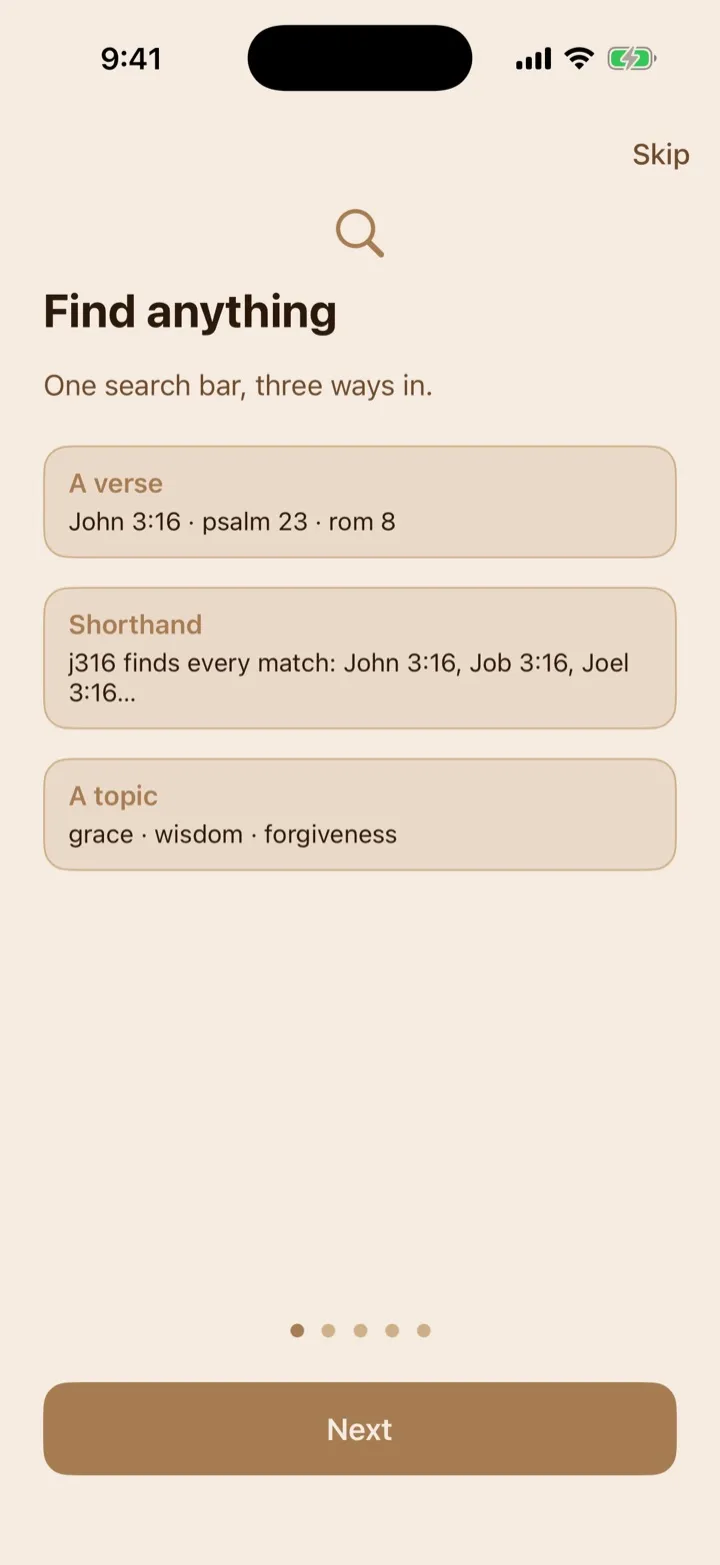
The walkthrough teaches the three kinds of searches you can use.
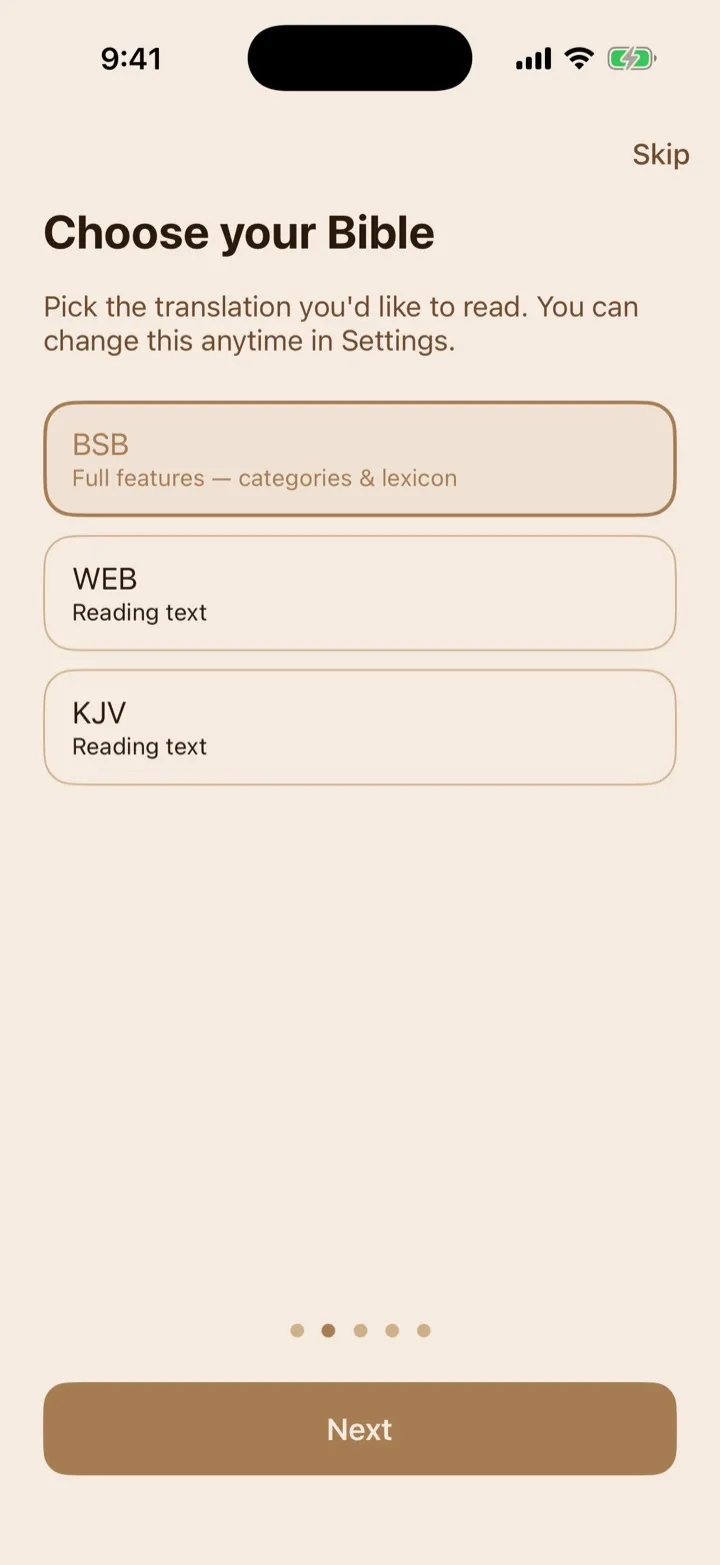
Onboarding lets you pick your Bible translation; you can change it anytime in Settings.
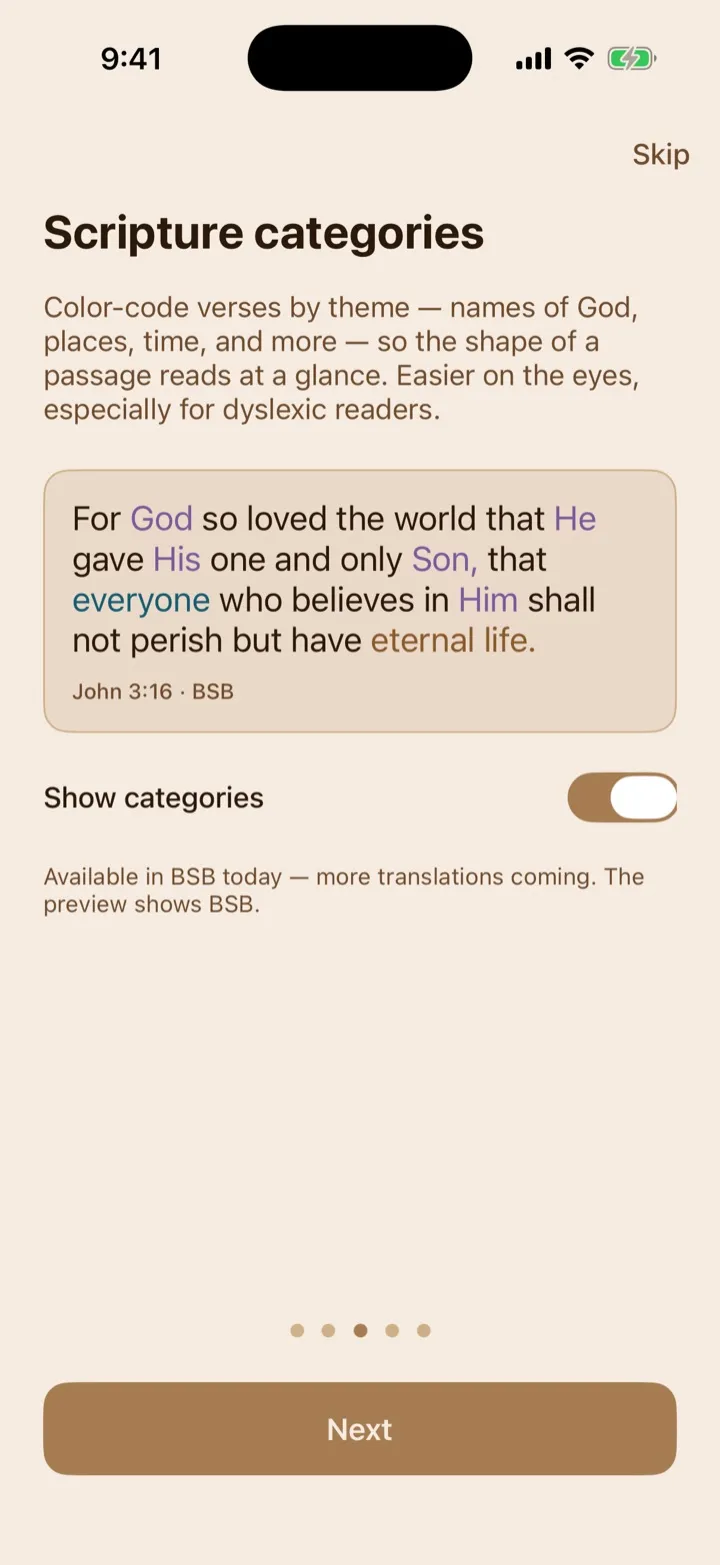
The Scripture categories step previews the color-coded verse text you can turn on or off.
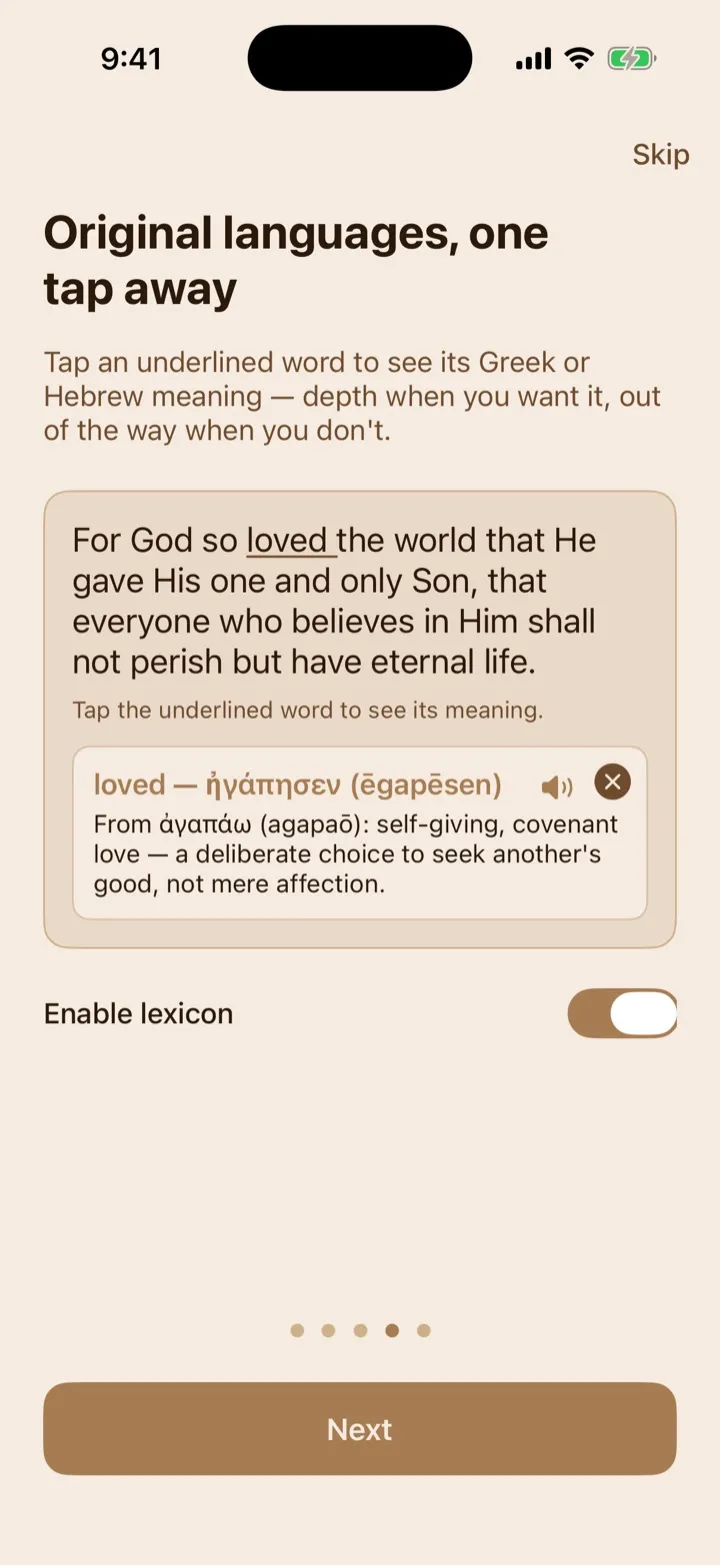
Tap an underlined word in the lesson to preview its original-language details.
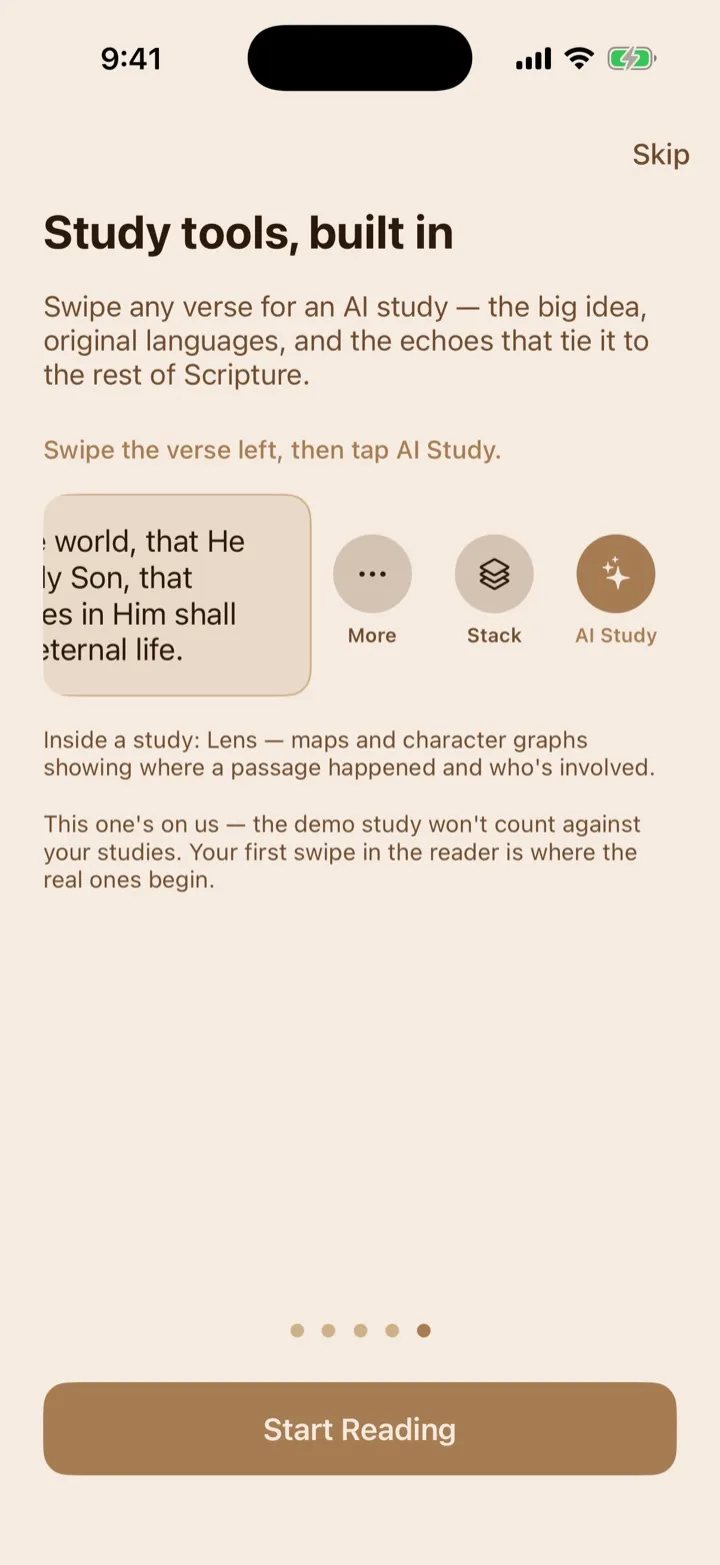
The walkthrough also demonstrates the tools available when you swipe a verse.
How to access your account
Section titled “How to access your account”Activate an invited beta account
Section titled “Activate an invited beta account”- Open the private beta activation email sent to you by GospelGrasp.
- Open the activation link. It expires after seven days and works once.
- On Activate Your Beta Account, enter and confirm a new password.
- Select the checkbox accepting the Terms of Service and Privacy Policy.
- Select the checkbox confirming that you’re at least 13 and consent to GospelGrasp processing your study data. Your study data may reflect your religious beliefs, so the app asks for this permission directly.
- Select Activate Account.
- Return to your personal TestFlight invitation, open GospelGrasp, and sign in with the email address that received the activation and your new password.
Activation confirms your email address and changes the pending beta account to active. If the link expired or was already used, ask the GospelGrasp administrator for a new invitation.
Sign in with your email and password
Section titled “Sign in with your email and password”- Enter the email address used for your GospelGrasp account.
- Enter your password.
- Tap Sign In, or press Go on the keyboard while the Password field is active.
After a successful sign-in, GospelGrasp opens the main app. It also saves the credentials in protected storage on that device so Face ID or Touch ID can be offered later.
If another GospelGrasp account was previously used on the same device, GospelGrasp removes that previous account’s local content before the new account opens. This prevents one person from seeing another person’s notes, highlights, reading progress, or sermons.
Sign in with Face ID or Touch ID
Section titled “Sign in with Face ID or Touch ID”Face ID or Touch ID can appear only when:
- The device supports it and it is set up in iOS or iPadOS.
- You previously signed in successfully with your email and password on that device.
- The saved credentials have not been cleared by signing out.
When those conditions are met, GospelGrasp may show the device’s biometric prompt automatically when the Sign In screen opens. You can also tap Sign in with Face ID or Sign in with Touch ID.
If the biometric check or the saved sign-in fails, GospelGrasp shows Biometric authentication failed. You can still enter your email and password.
Request a password-reset link
Section titled “Request a password-reset link”- From the Sign In screen, tap Forgot Password?
- Enter your account email address.
- Tap Send Reset Link, or press Go on the keyboard.
- Check your email for the password-reset link.
- Open the link and enter your new password twice.
- Select Reset Password.
- After the reset is complete, return to the personal TestFlight invitation sent to your email and open GospelGrasp through TestFlight.
- Sign in to GospelGrasp with your email address and new password.
The reset page does not open GospelGrasp directly or provide a public GospelGrasp TestFlight invitation. Its Open TestFlight button opens Apple’s general TestFlight page. If GospelGrasp is not already visible in TestFlight, return to your personal invitation email and select View in TestFlight.
For privacy, GospelGrasp shows the same success message whether or not the email address belongs to an account. If no message arrives, check that you entered the correct address and look in your spam or junk folder.
Wait through a temporary sign-in lock
Section titled “Wait through a temporary sign-in lock”After too many sign-in attempts, GospelGrasp may show Account locked. Try again in number seconds. The remaining time counts down on the screen, and the Sign In button remains unavailable until the countdown ends.
The account service determines the length of the wait. Let the countdown finish before trying again. If you are not sure of the password, use Forgot Password? instead of continuing to guess.
How to use the first-time walkthrough
Section titled “How to use the first-time walkthrough”The walkthrough has multiple pages. Tap Next to move forward, or swipe between pages. Tap Skip at any time if you do not want to continue.
Your choices are saved only when you tap Start Reading or Skip.
1. Learn the three search formats
Section titled “1. Learn the three search formats”The Find anything page explains that the same search bar accepts:
- A full or abbreviated Bible reference, such as
John 3:16,Psalm 23, orrom 8. - A compact shortcut, such as
j316. - A topic, such as
grace,wisdom, orforgiveness.
A compact shortcut can match more than one Bible book. For example, j316
can show John 3:16, Job 3:16, Joel 3:16, and other matching books. Choose the
result you intended.
This page is an explanation, not a working search field. You can use Search after the walkthrough closes.
2. Choose a Bible translation
Section titled “2. Choose a Bible translation”On Choose your Bible, select the translation you want GospelGrasp to use:
- BSB — Berean Standard Bible. This is the default and currently supports GospelGrasp’s Scripture categories and original-language word help.
- WEB — World English Bible reading text.
- KJV — King James Version reading text.
You can change the translation later in Settings.
3. Preview Scripture categories
Section titled “3. Preview Scripture categories”Scripture categories are colors added by GospelGrasp to identify kinds of information in a passage, such as names of God, places, time, and quantities. They are different from personal highlights that you add yourself.
The walkthrough uses John 3:16 in the BSB to preview those colors.
- Leave Show categories on to use the colors.
- Turn Show categories off if you prefer plain Bible text.
The category preview and current category coverage are available with the BSB. Coverage may vary by passage.
4. Preview original-language word help
Section titled “4. Preview original-language word help”A lexicon is a dictionary for the Bible’s original Greek and Hebrew words. The walkthrough underlines the word “loved” in John 3:16.
- Tap the underlined word loved.
- A small card shows the Greek word, a pronunciation written with English letters, and a short meaning.
- Where the sound button is available, tap it to hear the word.
- Tap the X on the card to close it.
Use Enable lexicon to choose whether supported words should be interactive in the Reader. Turning it off also closes the preview card.
Original-language word help currently requires the BSB and appears only where GospelGrasp has matching word information. The walkthrough itself is a local demonstration; it does not promise that every word in every passage has a lexicon entry.
5. Try the verse study preview
Section titled “5. Try the verse study preview”The Study tools, built in page uses John 3:16 to demonstrate a verse’s swipe actions.
- Swipe the verse to the left.
- Tap AI Study.
- Explore the demonstration study.
- Close the study to return to onboarding.
The demonstration includes a passage explanation, original-language insights, connections to other Bible passages, and Lens examples. Lens can show maps and character relationships connected to a passage.
The demonstration is included in the app, works without an internet connection, and does not use one of your available AI studies. Generated study material elsewhere in GospelGrasp can contain mistakes, so compare it with the Bible and trusted study sources.
The More and Stack actions are visible in this preview so it matches the Reader, but they do not open their full features during onboarding.
Finish with Start Reading
Section titled “Finish with Start Reading”On the last page, tap Start Reading. GospelGrasp saves your walkthrough choices, marks onboarding complete, and opens the Reader.
If the account already has a saved reading position, the Reader returns there. A new account without a saved position starts at John 3:16.
Skip the walkthrough
Section titled “Skip the walkthrough”Tap Skip from any page to close the walkthrough and return to Home. Skipping also marks onboarding complete, so GospelGrasp does not keep showing it on that device.
Because the walkthrough begins with BSB, Show categories on, and Enable lexicon on, tapping Skip without changing anything saves those defaults. If you changed a choice before tapping Skip, GospelGrasp saves the changed choice.
What GospelGrasp saves or syncs
Section titled “What GospelGrasp saves or syncs”- A successful email-and-password sign-in saves credentials in protected storage on that device so Face ID or Touch ID can be offered later.
- Signing out clears the saved credentials and session. It does not delete the same account’s local notes, highlights, progress, sermons, or recordings.
- The selected Bible translation, Show categories choice, and Enable lexicon choice are saved on the device as soon as you finish or skip the walkthrough. GospelGrasp then sends all three choices to your account when a connection is available.
- Completing or skipping onboarding is saved for that account on the device. GospelGrasp syncs your choices first, then syncs completion so the walkthrough does not appear again on another device with old preferences.
- If the device is offline, your choices remain saved there. GospelGrasp keeps them ready to sync and tries again as soon as the app has a connection. Older account settings will not replace choices that are still waiting to sync.
- The onboarding AI Study demonstration is bundled with the app. It does not upload a request or reduce your available studies.
Requirements and limits
Section titled “Requirements and limits”- Activating an invited account, signing in with a password, and requesting a reset link require an internet connection.
- Self-service signup is unavailable during the closed beta. Only an invited, email-confirmed account can sign in.
- A beta activation link expires after seven days and works once.
- A returning account may reopen with local content while temporarily offline if its session was confirmed by GospelGrasp within the previous seven days. An expired or rejected session returns to Sign In.
- Face ID and Touch ID use the biometric settings already configured on the device.
- BSB, WEB, and KJV are the translations currently offered during onboarding.
- Scripture categories and original-language word help currently use BSB coverage and may not be available for every word or passage.
- The walkthrough appears once per account after completion or Skip is saved.
If something does not work
Section titled “If something does not work”Sign In says the email or password is invalid
Section titled “Sign In says the email or password is invalid”Check the spelling of the email address and enter the password again. If you do not remember the password, tap Forgot Password?
Sign In says there is no internet connection
Section titled “Sign In says there is no internet connection”Connect the device to the internet and try again. A new password sign-in cannot be completed offline.
Face ID or Touch ID is not shown
Section titled “Face ID or Touch ID is not shown”Confirm that biometrics are set up in the device’s Settings. You must also have completed a successful email-and-password sign-in on this device since the last time you signed out.
The biometric check fails
Section titled “The biometric check fails”Dismiss the message and sign in with your email and password. A canceled or unsuccessful device check produces the same failure message.
The activation passwords do not match
Section titled “The activation passwords do not match”Enter the same password in New Password and Confirm Password on the activation page.
I do not have an activation email
Section titled “I do not have an activation email”Self-service signup is unavailable. Ask the GospelGrasp administrator whether you were invited. If you were, check the spam or junk folder before requesting a new activation email.
The activation link is invalid or expired
Section titled “The activation link is invalid or expired”The link may be older than seven days, already used, or replaced by a newer invitation. Ask the GospelGrasp administrator to send a new activation email.
The reset email does not arrive
Section titled “The reset email does not arrive”- Confirm that you entered the address used for the account.
- Check the spam or junk folder.
- Wait a few minutes before requesting another link.
- If GospelGrasp shows a “Too many attempts” message, wait for the stated number of seconds.
GospelGrasp does not appear in TestFlight after a password reset
Section titled “GospelGrasp does not appear in TestFlight after a password reset”Return to the personal TestFlight invitation sent to your email and select View in TestFlight. Do not use a public invitation link. After GospelGrasp opens from TestFlight, sign in with your email address and new password.
Onboarding does not appear
Section titled “Onboarding does not appear”The walkthrough does not appear again after that account has completed or skipped it on the device. It can also remain hidden when completion has synced from another device.
A walkthrough choice does not affect the Reader
Section titled “A walkthrough choice does not affect the Reader”Make sure you ended the walkthrough with Start Reading or Skip. The preview changes are not saved until the walkthrough closes through one of those buttons.
Original-language word help requires the BSB and appears only on supported words. Scripture category colors also depend on available BSB passage data.
Common questions
Section titled “Common questions”Do I need an account to use GospelGrasp?
Section titled “Do I need an account to use GospelGrasp?”Yes. The release version requires a signed-in GospelGrasp account before the main app opens.
Does Skip turn off the features shown in onboarding?
Section titled “Does Skip turn off the features shown in onboarding?”No. Skip saves the choices currently shown. If you have not changed them, BSB, Scripture categories, and the lexicon remain selected.
Can I change these choices later?
Section titled “Can I change these choices later?”Yes. Open Settings to change the Bible translation, Scripture categories, and lexicon setting.
Does the onboarding AI Study use one of my studies?
Section titled “Does the onboarding AI Study use one of my studies?”No. The John 3:16 demonstration is included in the app and does not count against your available studies.
Why might onboarding appear again on another device?
Section titled “Why might onboarding appear again on another device?”Completion is saved immediately on the device where you finish or skip. If the first device has not been able to reconnect and sync yet, another device may not know that onboarding was already completed. Once the first device is back online, GospelGrasp syncs the choices and then the completion status.
Does signing out erase my work?
Section titled “Does signing out erase my work?”No. Signing out removes account access and saved credentials from the device, but it keeps that account’s local GospelGrasp content. Account deletion is a separate action.