Study Stacks
Study Stacks are named collections of Scripture. They help you gather verses and selected phrases around a subject, question, sermon, or personal study so you can return to them together.
What Study Stacks do
Section titled “What Study Stacks do”A Study Stack holds Scripture passages you choose. You name each stack and can add a whole verse, a verse range, or selected words from a passage.
For example, you might create stacks named Prayer, Promises, or Questions about Romans. A passage can be saved in more than one stack.
When you might use them
Section titled “When you might use them”- Gather passages about one subject.
- Collect verses for a sermon, lesson, or small-group discussion.
- Keep questions and related passages together while you study.
- Save a particular phrase without adding the entire verse.
- Build a reading list you can revisit in the Reader.
Where to find Study Stacks
Section titled “Where to find Study Stacks”You can open Study Stacks in these places:
- Open the main menu and tap Study Stacks to browse or create stacks.
- In the Reader, select Scripture and tap Stacks on the bottom toolbar to add it to a stack. Tap Stacks without an active selection when you only want to browse your stacks.
- In the Reader, swipe a verse and tap Stack. From Add to Study Stack, tap the + beside an existing stack or enter a name and tap Create to make a new stack and add the verse to it.
See it in GospelGrasp
Section titled “See it in GospelGrasp”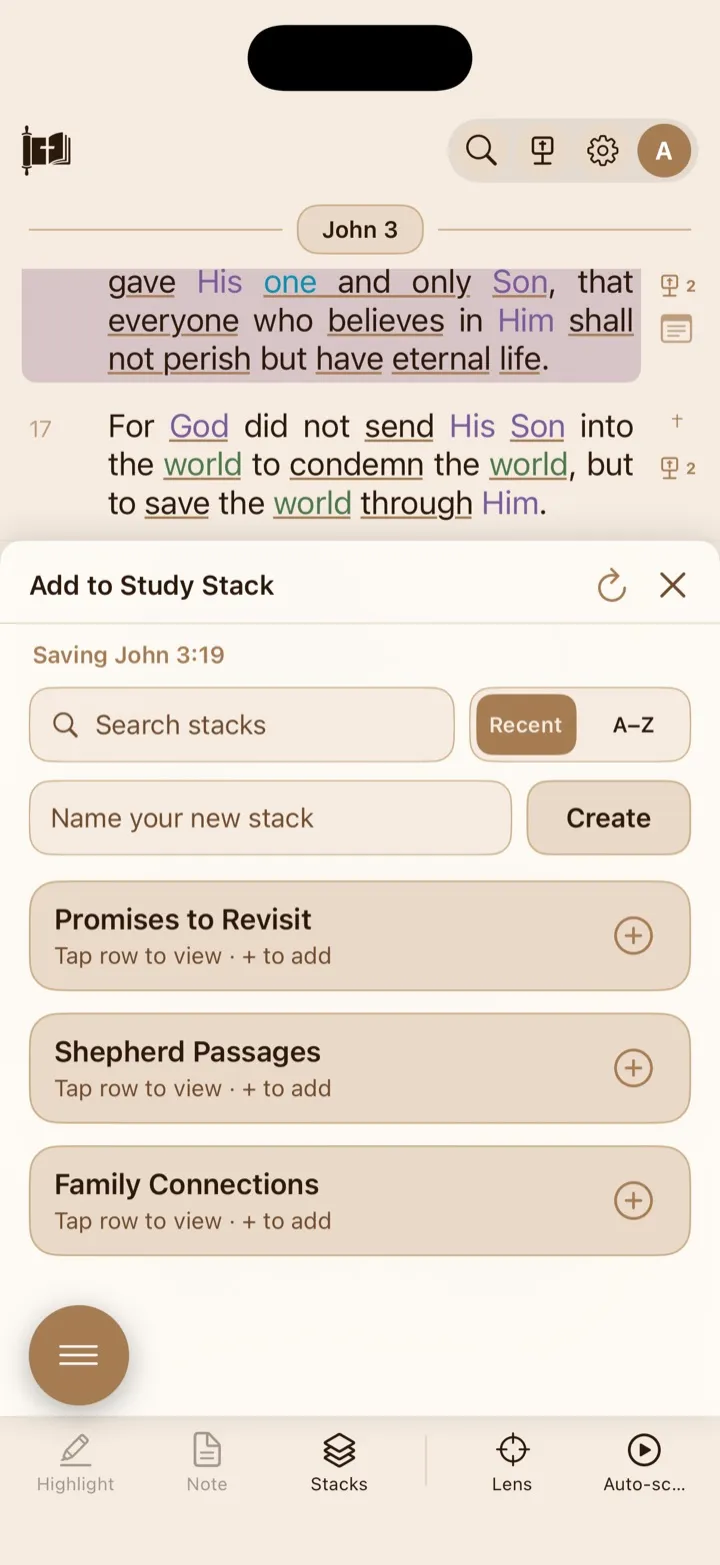
You can choose an existing stack or create one while adding Scripture.
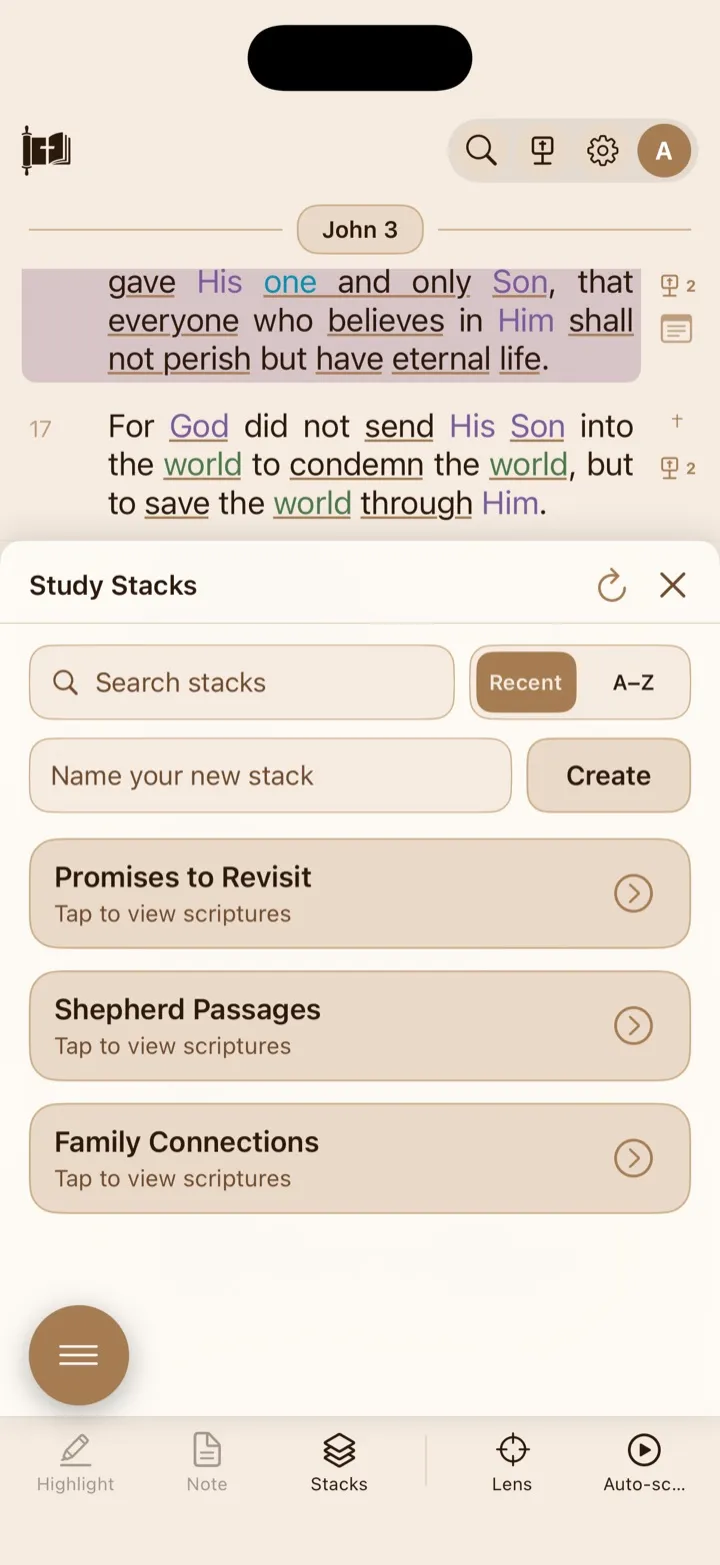
The library helps you find, sort, open, and create stacks.
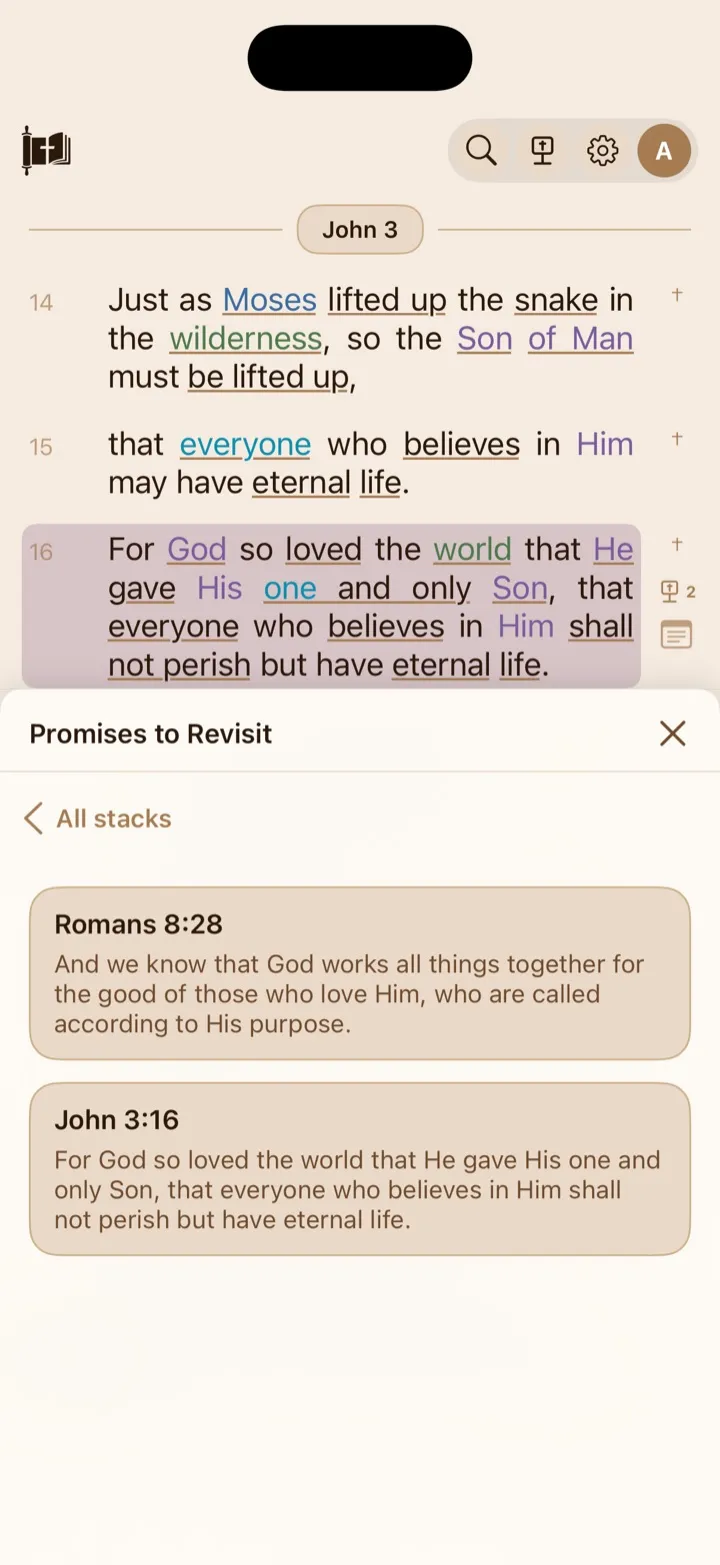
An open stack lists its saved Scripture; tap All stacks to return to the library.
Add Scripture to a stack
Section titled “Add Scripture to a stack”Add a selected word, phrase, or verse range
Section titled “Add a selected word, phrase, or verse range”- In the Reader, select the Scripture you want to save.
- Tap Stacks on the bottom toolbar.
- Under Add to Study Stack, find the stack you want.
- Tap the + beside that stack.
GospelGrasp opens the stack and shows Added to stack name. When you save only part of a verse, the stack displays the selected words. When you save a whole verse or range, it displays the passage text.
If that exact selection is already in the same stack, GospelGrasp does not add a duplicate. It shows Already in stack name instead. The same Scripture can still be added to a different stack.
Add a whole verse from its swipe actions
Section titled “Add a whole verse from its swipe actions”- Swipe the verse in the Reader to reveal its actions.
- Tap Stack.
- Tap the + beside the stack where you want to save the verse.
This saves the whole verse, even when you have not selected individual words.
Create a stack
Section titled “Create a stack”You can create an empty stack from the main menu or create one while adding Scripture.
- Open Study Stacks or Add to Study Stack.
- Tap Name your new stack and enter a name.
- Tap Create.
If Scripture is selected, GospelGrasp creates the stack and adds the selection at the same time. If nothing is selected, it creates an empty stack that you can add to later.
A stack name must contain at least one visible character. GospelGrasp removes extra spaces from the beginning and end of the name.
Find and sort stacks
Section titled “Find and sort stacks”Study Stacks opens with stacks ordered by recent use. Opening a stack or adding Scripture to it moves it toward the top of the Recent list.
- Type part of a stack name in Search stacks to narrow the list.
- Tap Recent to order stacks by recent use.
- Tap A–Z to order stacks alphabetically.
- Tap the circular-arrow sync button to check for changes from other devices without closing the card.
Search ignores capitalization. Clear the search field to show every stack again.
Open a stack and browse its Scripture
Section titled “Open a stack and browse its Scripture”- Open Study Stacks.
- Tap a stack’s row.
- Review the saved Scripture references and passage text.
- Tap All stacks to return to the complete list.
The most recently added passage appears first. If a stack is empty, GospelGrasp shows No scriptures in this stack yet.
When you open Add to Study Stack from a Reader selection, tapping the row lets you inspect a stack without adding the selection. Tap the + when you want to add it.
Open saved Scripture in the Reader
Section titled “Open saved Scripture in the Reader”Tap a saved passage in a stack. GospelGrasp closes Study Stacks and opens that passage in the Reader.
For a range within one chapter, GospelGrasp opens and draws attention to the range. A range that crosses chapters opens at its starting verse.
Delete a saved passage
Section titled “Delete a saved passage”Deleting a passage removes it from that stack immediately. GospelGrasp does not ask you to confirm this action.
- Open the stack.
- Swipe left on the passage you want to remove.
- Tap Delete.
The Scripture remains in the Bible and in any other stack where you saved it. Only this saved copy is removed.
Delete a stack
Section titled “Delete a stack”Deleting a stack also removes every passage saved inside it. GospelGrasp does not ask you to confirm this action.
- Open Study Stacks so you can see the stack list.
- Swipe left on the stack you want to remove.
- Tap Delete.
The Bible passages themselves are not deleted. On a plan that includes Cloud Sync, the deleted stack and its saved items are also removed from your other supported devices and the PWA after syncing.
What GospelGrasp saves or syncs
Section titled “What GospelGrasp saves or syncs”Stacks and their saved Scripture are stored on your device first. You can create, browse, add to, and delete stacks without an internet connection.
On a plan that includes Cloud Sync, such as 4F or Pro, GospelGrasp syncs stack names and saved passages when you are online. 4F means Free for Faithful Followers. Synced stacks can appear on your other supported devices and in the GospelGrasp PWA. Changes made elsewhere can also return to this device.
The Free plan keeps Study Stacks on the device where you created them. They do not sync across devices unless your account moves to a plan that includes Cloud Sync.
Opening Study Stacks asks GospelGrasp to check for synced changes. New stacks, saved passages, and deletions wait on the device when you are offline and sync later when your plan and connection allow it.
Requirements and limits
Section titled “Requirements and limits”- Study Stacks work without an internet connection.
- Cross-device and PWA syncing requires an internet connection and a plan that includes Cloud Sync.
- The current iOS app does not provide a way to rename a stack after creating it.
- Saved passages are ordered with the newest first. They cannot currently be rearranged by hand.
- An exact selection is saved only once within the same stack.
- Deleting a stack or saved passage takes effect immediately without a second confirmation.
If something does not work
Section titled “If something does not work”The Stacks button does not add anything
Section titled “The Stacks button does not add anything”Select a word, phrase, verse, or verse range before tapping Stacks. In Add to Study Stack, tap the + beside the stack. Tapping the stack’s row only opens it for review.
I cannot find a stack
Section titled “I cannot find a stack”- Clear the Search stacks field.
- Switch between Recent and A–Z.
- Tap the circular-arrow sync button if the stack was created on another device.
- Make sure both devices are signed in to the same GospelGrasp account.
The Free plan keeps stacks on the device where they were created.
A stack could not be loaded
Section titled “A stack could not be loaded”Close Study Stacks and open it again. If the stack belongs to another synced device, connect to the internet and use the circular-arrow sync button.
Scripture could not be added
Section titled “Scripture could not be added”If GospelGrasp shows Could not add to stack name, close Study Stacks, select the passage again, and retry. Your existing stack and its saved passages remain unchanged.
Common questions
Section titled “Common questions”Is a Study Stack the same as a highlight?
Section titled “Is a Study Stack the same as a highlight?”No. A highlight colors Scripture in the Reader. A Study Stack collects chosen passages under a name. You can highlight Scripture, add it to a stack, or do both.
Can the same passage be in more than one stack?
Section titled “Can the same passage be in more than one stack?”Yes. GospelGrasp prevents an exact duplicate within one stack, but you can add the same passage to other stacks.
Can I create a stack before I have Scripture to add?
Section titled “Can I create a stack before I have Scripture to add?”Yes. Open Study Stacks from the main menu, enter a name, and tap Create.
Can I use Study Stacks while offline?
Section titled “Can I use Study Stacks while offline?”Yes. GospelGrasp saves changes on your device first. Cloud Sync waits until your plan and connection allow it.