Highlights
Highlights let you mark Scripture you want to notice or return to later. You can highlight a whole verse or a smaller selection, choose a category, and open the saved passage again from one organized list.
What highlights do
Section titled “What highlights do”A highlight saves the Scripture you marked together with the category you chose. Each category has its own color, which can help you recognize why a passage stood out to you.
Highlights are different from Semantic Scripture Colors. A highlight is a personal marking you create and save. Semantic colors are study cues supplied by GospelGrasp that you can show or hide without changing your highlights.
When you might use them
Section titled “When you might use them”- Mark a promise, command, prayer, warning, or other meaningful passage.
- Use different categories to organize what you notice while reading.
- Mark one word or phrase without coloring the whole verse.
- Collect passages you want to review later.
- Return directly from your Highlights list to the passage in the Reader.
Where to find highlights
Section titled “Where to find highlights”You create highlights in the Reader. After you have saved at least one, you can browse them in any of these places:
- Open the main menu and tap Highlights.
- Open Home and tap the Highlights total.
- Open a Bible book’s detail card on Home and tap Highlights to see only highlights from that book.
The Highlights total on Home or a book detail card opens only when at least one matching highlight has been saved.
See it in GospelGrasp
Section titled “See it in GospelGrasp”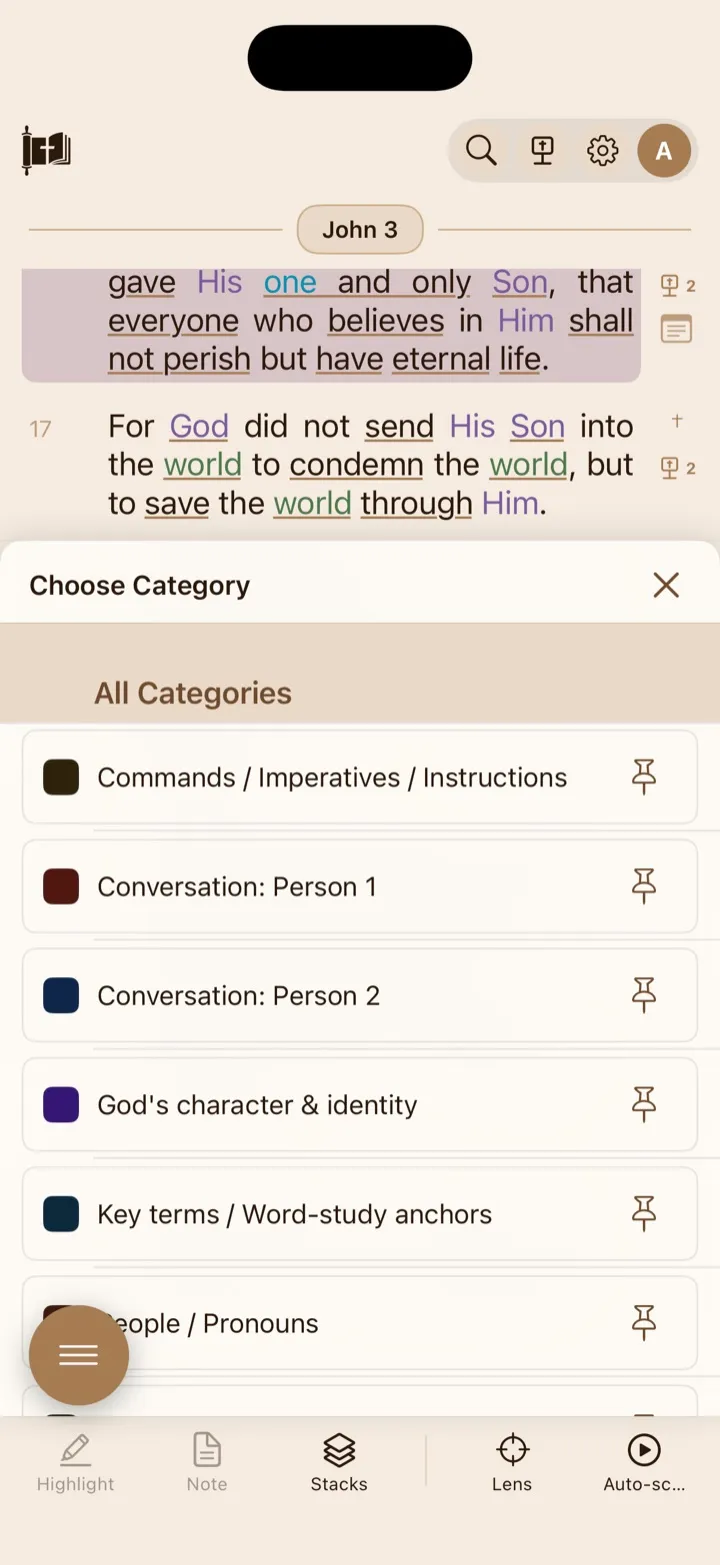
Choose a category to save the selected passage with that highlight color.
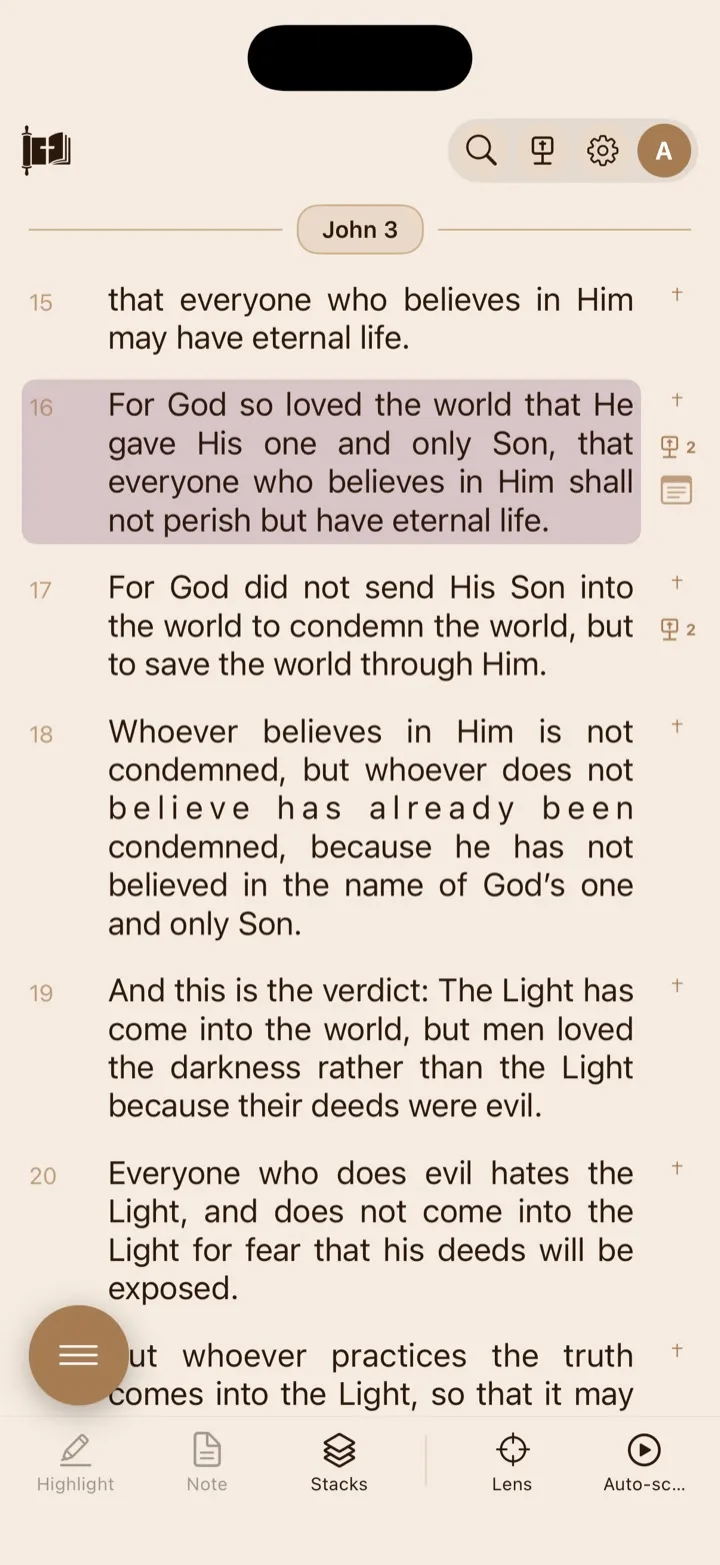
A saved highlight stays visible in the Reader after the selection is dismissed.
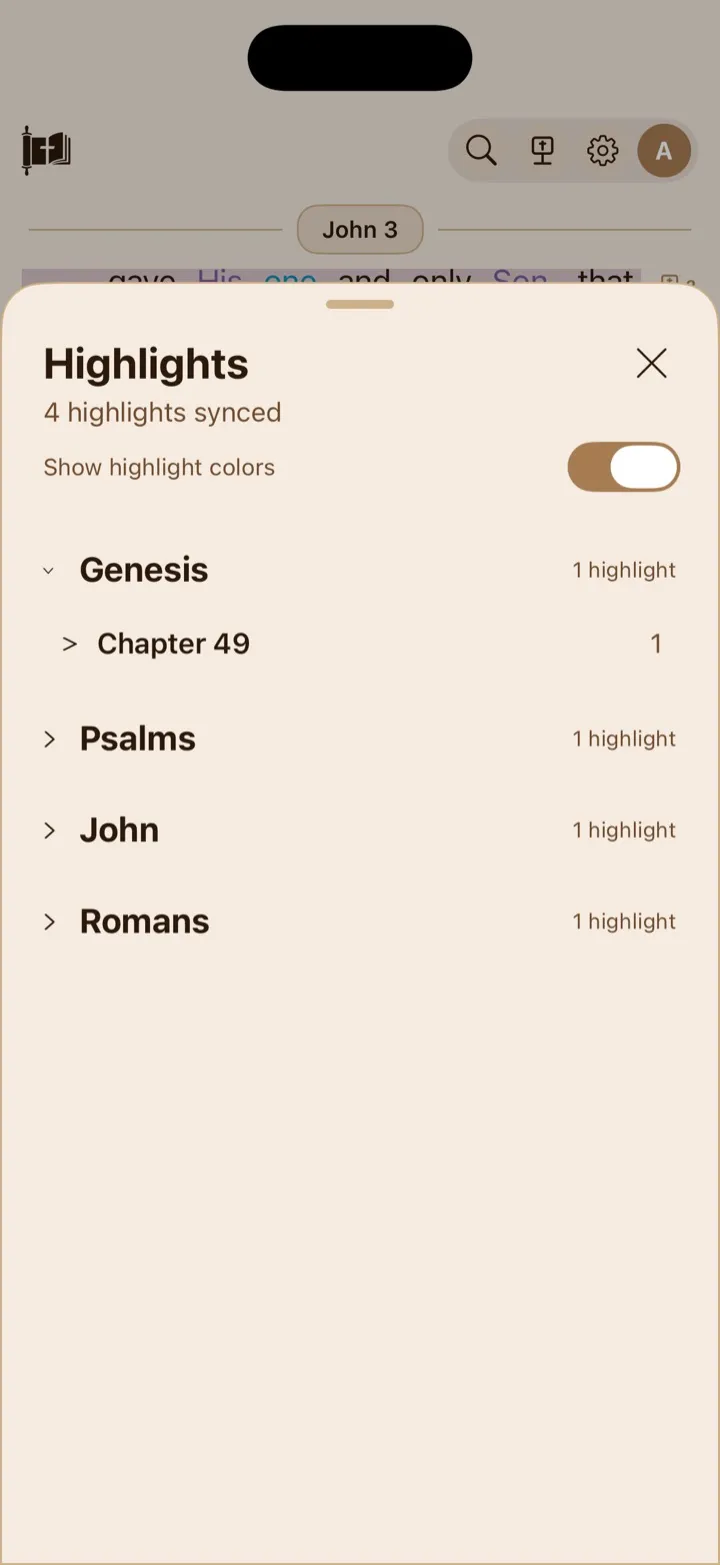
All Highlights organizes your saved passages by book and chapter.
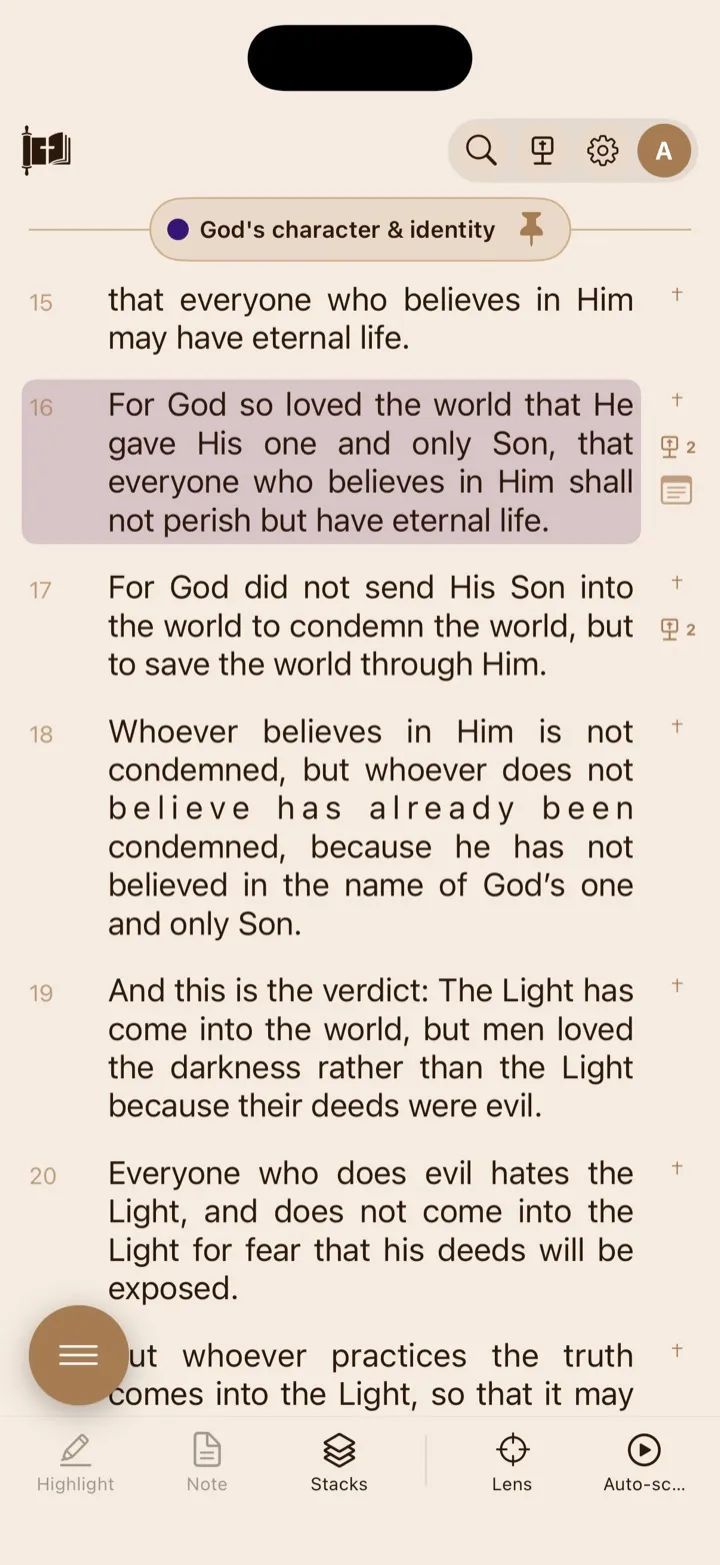
A pinned category stays ready above the Reader for faster repeated highlighting.
Create a highlight
Section titled “Create a highlight”Highlight a word, phrase, or verse range
Section titled “Highlight a word, phrase, or verse range”- In the Reader, select the word or phrase you want to mark. You can extend the selection across more than one verse.
- Tap Highlight on the bottom toolbar.
- In Choose Category, tap the category you want to use.
- GospelGrasp applies the category and closes the category list.
When your selection crosses verse boundaries, GospelGrasp saves the selected part of each verse. It does not automatically highlight the unselected words at the beginning or end of those verses.
Highlight a whole verse
Section titled “Highlight a whole verse”- Tap the verse number to select the entire verse.
- Tap Highlight on the bottom toolbar.
- Tap a category under Choose Category.
The color is applied to the whole verse.
Choose and recognize categories
Section titled “Choose and recognize categories”The category list is arranged to help you find a category quickly:
- Recently Used shows up to three categories you used most recently on this device.
- All Categories shows the other available categories in alphabetical order.
- Pinned appears when you pin a category for faster highlighting during the current reading session.
A category already applied to the current selection has a colored outline and a checkmark. Tap that active category again to remove that exact highlight. If you choose a different category for the exact same selected text, GospelGrasp replaces the earlier category with the new one.
Separate selections can overlap. For example, you can highlight a full phrase with one category and a shorter phrase inside it with another category.
Use a pinned category for repeated highlighting
Section titled “Use a pinned category for repeated highlighting”Pinning keeps one category ready so you can mark several passages without opening Choose Category each time.
- Open Choose Category.
- Tap the pin beside a category that is not already applied.
- Look for the category’s pinned pill near the top of the Reader.
- Tap a verse number, long-press a verse, or select text to apply the pinned category immediately.
- Tap the filled pin in the pill when you are finished.
Only one category can be pinned at a time. Pinning another category replaces the current pin. The pin is for the current Reader session; your saved highlights remain after you unpin it.
Remove highlights while reading
Section titled “Remove highlights while reading”Remove one exact highlight
Section titled “Remove one exact highlight”- Select the same word, phrase, or whole verse again.
- Tap Highlight.
- Tap the checked category that is already applied.
GospelGrasp removes that highlight instead of adding a duplicate.
Remove highlights from part of a selection
Section titled “Remove highlights from part of a selection”- Select the text whose highlighting you want to remove.
- Tap Highlight.
- Tap Remove Selected Highlights.
Only the highlighting that overlaps your selection is removed. If a saved highlight extends beyond your selection, GospelGrasp keeps the highlighted text on either side. When the selection covers three or more verses, confirm the removal before GospelGrasp continues.
Browse all highlights
Section titled “Browse all highlights”- Open the main menu and tap Highlights.
- Tap a Bible book to expand or collapse it.
- Tap a chapter to show or hide its highlights.
- Review each saved reference, category, and Scripture text.
Books follow Bible order, from Genesis through Revelation. Chapters appear in number order. GospelGrasp opens the first available book automatically when you enter the list.
Use Show highlight colors to show or hide category colors in this list. Turning the switch off changes only the list’s appearance. It does not remove, recolor, or edit any highlight.
If you have no saved highlights, the card shows No highlights yet.
View highlights from one Bible book
Section titled “View highlights from one Bible book”- Open Home.
- Tap a Bible book to open its detail card.
- Tap that book’s Highlights total.
The card opens with a title such as John Highlights and shows only that book. Tap Show all books to remove the filter and return to your complete Highlights list.
Open a highlight in the Reader
Section titled “Open a highlight in the Reader”Tap a saved highlight or its Scripture reference. GospelGrasp closes the Highlights card and opens that passage in the Reader.
Delete a highlight from the list
Section titled “Delete a highlight from the list”Removing a highlight deletes that saved marking. If your plan includes cloud sync, the removal also reaches GospelGrasp on your other devices and the PWA after syncing.
- Swipe left on the highlight you want to delete.
- Tap Remove.
- Read the confirmation and tap Remove again.
Tap Cancel if you do not want to delete it.
What GospelGrasp saves or syncs
Section titled “What GospelGrasp saves or syncs”Highlights are saved on your device as soon as you create them, so you can keep highlighting Scripture without a connection.
On a plan that includes Cloud Sync, such as 4F or Pro, GospelGrasp syncs your highlights and highlight categories when you are online. 4F means Free for Faithful Followers. Synced highlights can appear on your other supported devices and in the GospelGrasp PWA. Changes made elsewhere can also return to this device.
The Free plan keeps highlights on the device where you created them. They do not sync across devices unless your account moves to a plan that includes Cloud Sync.
Opening the Highlights card asks GospelGrasp to check for synced changes, then shows the highlights currently available on this device. New highlights and deletions wait safely on the device when you are offline and sync later when your plan and connection allow it.
Requirements and limits
Section titled “Requirements and limits”- You can create and use highlights without an internet connection.
- Cross-device and PWA syncing requires an internet connection and a plan that includes Cloud Sync.
- Recently used categories are remembered on the current device.
- A pinned category lasts only for the current Reader session.
- Show highlight colors affects only the Highlights list you currently opened.
- The main Highlights card groups saved items by book and chapter. To begin with one book already filtered, open Highlights from that book’s detail card on Home.
If something does not work
Section titled “If something does not work”The Highlight button is unavailable
Section titled “The Highlight button is unavailable”Select a word, phrase, verse, or verse range first. Tap a verse number when you want to select the whole verse.
A highlight does not appear on another device or in the PWA
Section titled “A highlight does not appear on another device or in the PWA”- Confirm that your account plan includes Cloud Sync.
- Connect both devices to the internet.
- Open Highlights to check for synced changes.
- Make sure both devices are signed in to the same GospelGrasp account.
The Free plan keeps highlights on the device where they were created.
I cannot find a category
Section titled “I cannot find a category”Look under All Categories. Recently used and pinned categories move into their own sections, so they may no longer appear in the full alphabetical section.
The Highlights card is empty
Section titled “The Highlights card is empty”Create a highlight in the Reader first. If you opened Highlights from a Bible book’s detail card, tap Show all books to check whether your highlights are saved in another book.
A highlight cannot be removed
Section titled “A highlight cannot be removed”Try removing it from the Highlights list: swipe left on the saved highlight, tap Remove, and confirm. If GospelGrasp shows Could not remove highlight, close the message and try again.
Common questions
Section titled “Common questions”Are my highlights the same as Semantic Scripture Colors?
Section titled “Are my highlights the same as Semantic Scripture Colors?”No. You choose and save personal highlights. Semantic Scripture Colors are optional study cues supplied by GospelGrasp.
Does hiding highlight colors delete anything?
Section titled “Does hiding highlight colors delete anything?”No. Show highlight colors only changes how the Highlights list looks.
Can I change a highlight’s category?
Section titled “Can I change a highlight’s category?”Yes. Select the exact same text, open Highlight, and choose another category. GospelGrasp replaces the category for that exact selection.
Can I highlight text across more than one verse?
Section titled “Can I highlight text across more than one verse?”Yes. Extend the selection across the verses, tap Highlight, and choose a category. GospelGrasp marks only the text inside your selection.
Can I use highlights offline?
Section titled “Can I use highlights offline?”Yes. Creating, viewing, and removing locally saved highlights works without a connection. Sync waits until you are online and requires a plan with Cloud Sync.