Search and Book/Chapter Navigation
GospelGrasp gives you two ways to find a passage. You can type a Scripture reference or topic into Search, or browse the Bible one book, chapter, and verse at a time.
What Search and Browse do
Section titled “What Search and Browse do”Use Search when you know all or part of a Scripture reference. GospelGrasp recognizes full references, common book abbreviations, and compact shortcuts. Search can also suggest biblical topics when you are online.
Use Browse when you would rather choose from a list. It shows the books of the Old and New Testaments, followed by the chapters and verses in the book you choose.
When you might use them
Section titled “When you might use them”- Open a passage by typing John 3:16.
- Reach the same verse more quickly by typing J316 or Jn 3:16.
- Open a chapter by typing Romans 8 or Ps 23.
- Look for a subject such as grace, forgiveness, or prayer.
- Browse when you do not remember a book’s spelling or abbreviation.
Where to find them
Section titled “Where to find them”Tap the magnifying-glass Search button in the quick-actions pill at the top of GospelGrasp. The pill changes into a search field labeled Search verse or topic.
Tap the grid-shaped Bento button inside the search field to open Browse. You may also see Browse All Books → beneath search suggestions.
See it in GospelGrasp
Section titled “See it in GospelGrasp”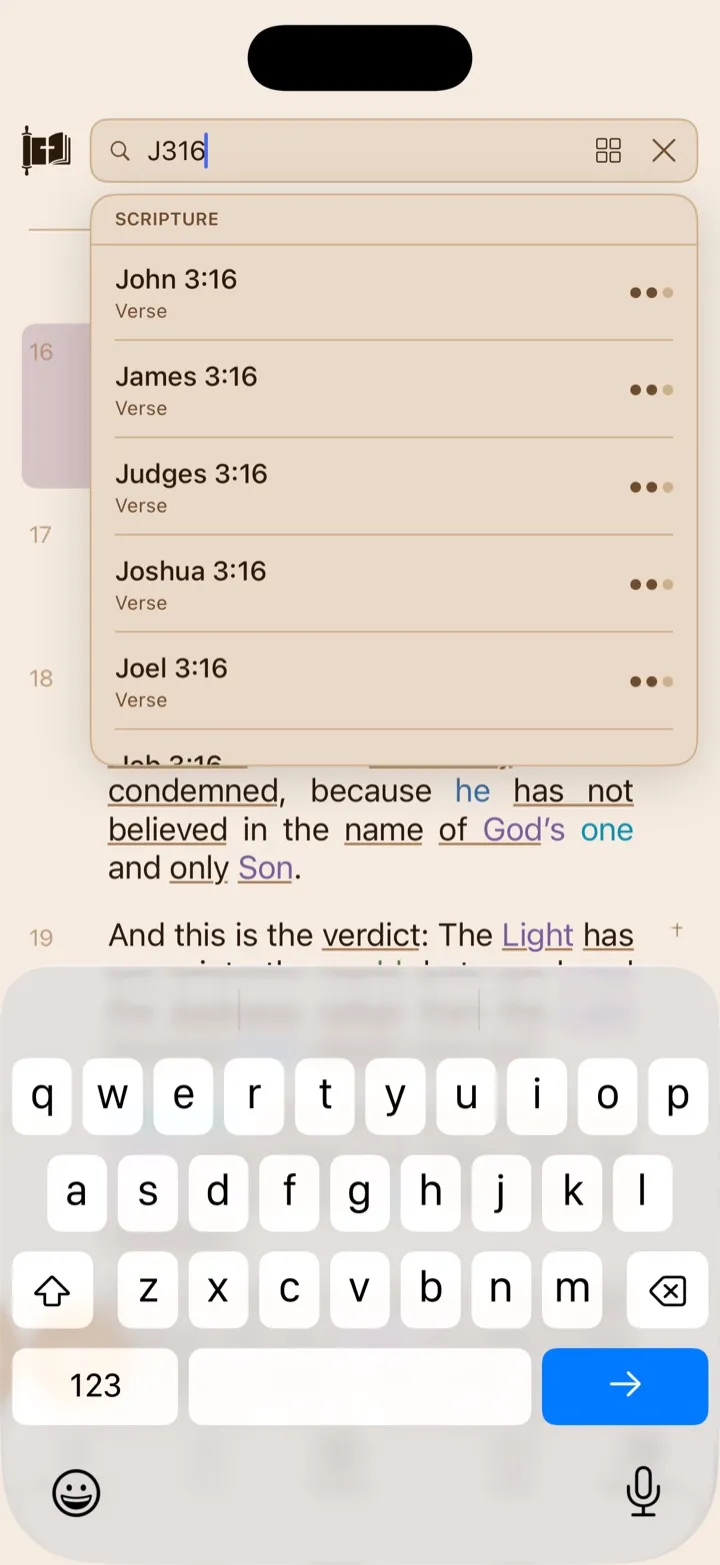
Shorthand such as J316 can take you directly toward John 3:16.
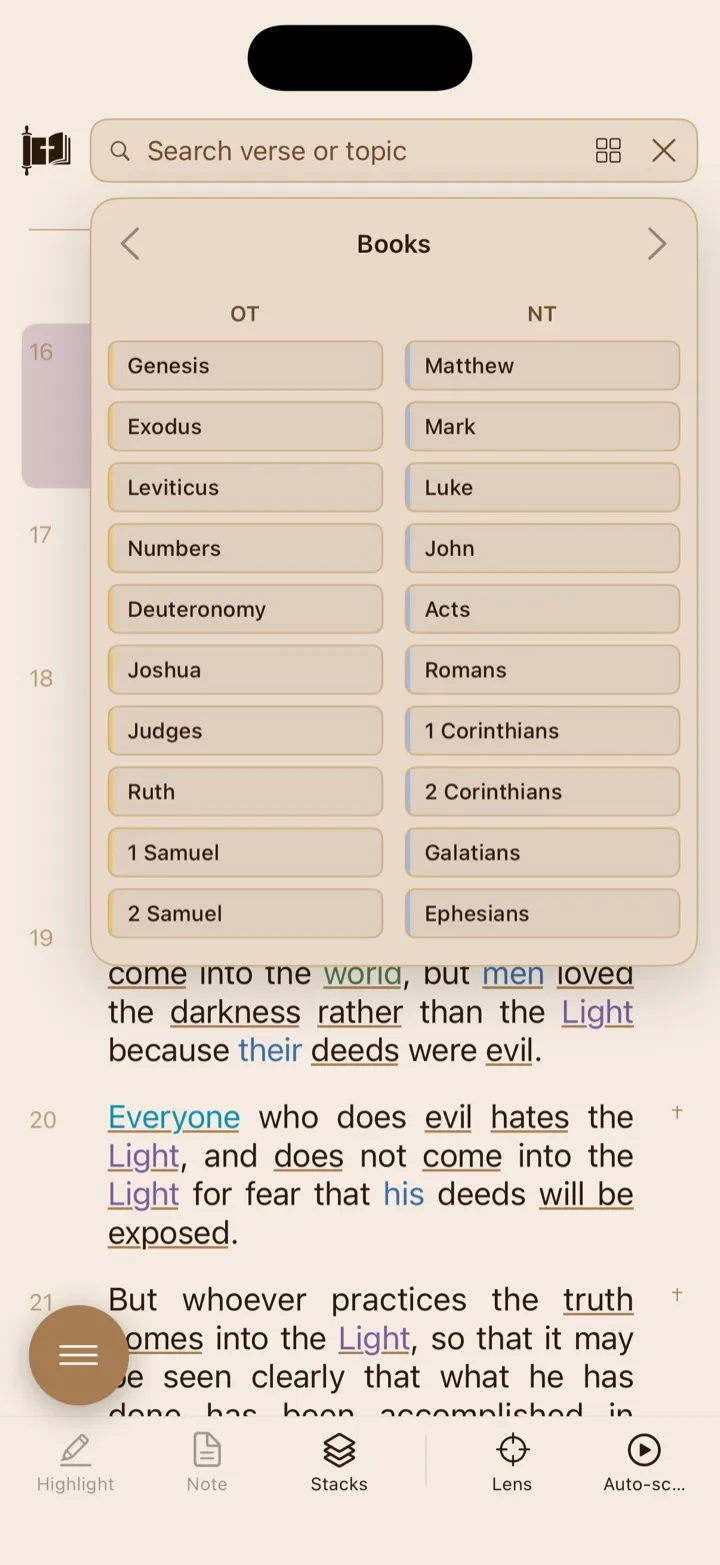
The bento button opens the book, chapter, and verse browser.
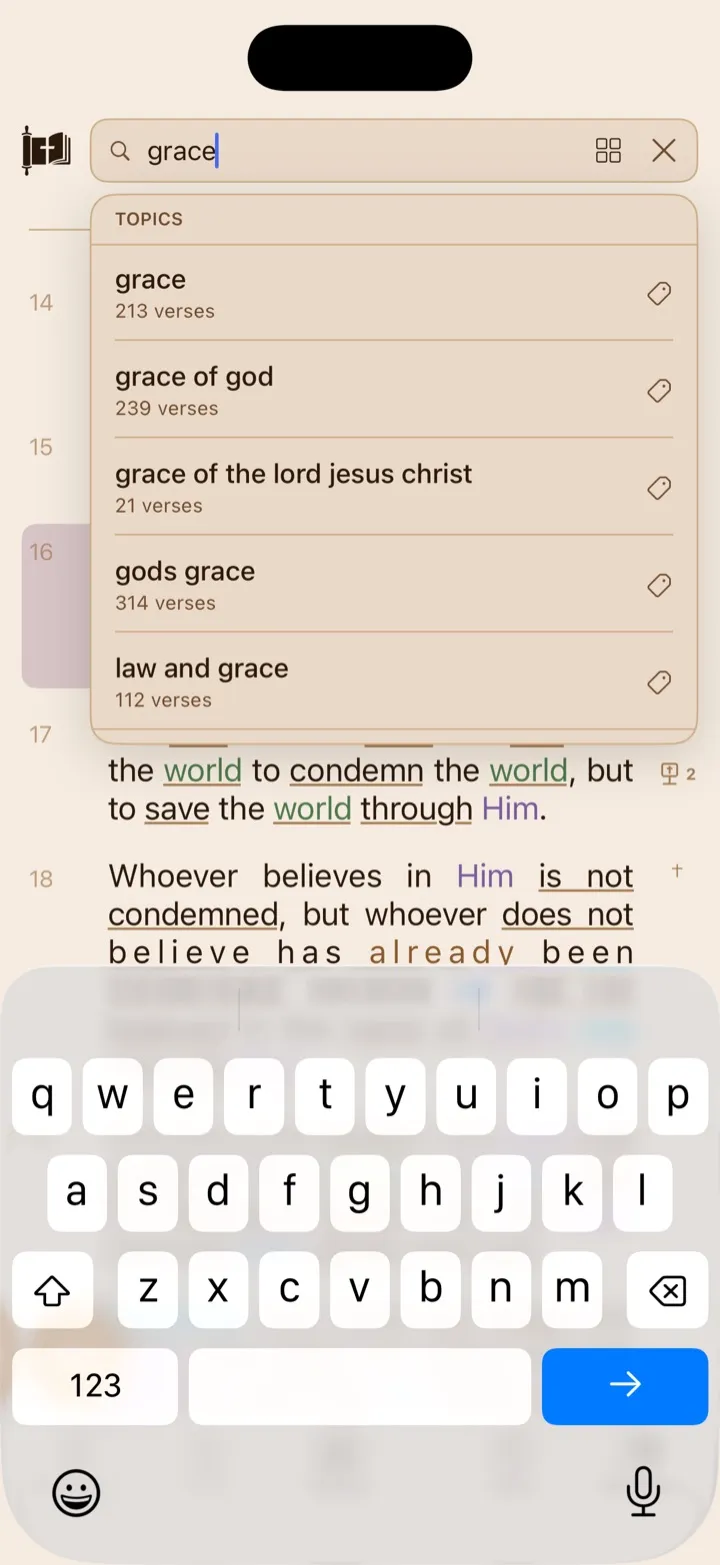
Words that are not Bible references can produce topic suggestions under TOPICS.
How to search
Section titled “How to search”Search by full Scripture reference
Section titled “Search by full Scripture reference”- Tap Search.
- Type the book, chapter, and optional verse. For example, enter John 3:16, Romans 8, or 1 Corinthians 13:4.
- Review the suggestions beneath the search field.
- Tap the passage you want. GospelGrasp opens it in the Reader.
A suggestion is labeled Verse or Chapter so you can see what will open. When more than one reference could match what you typed, GospelGrasp may show several choices. Selecting a suggestion is safer than pressing Go when the shortcut could have more than one meaning.
Search with a shortcut
Section titled “Search with a shortcut”You can leave out spaces and punctuation and use a common book abbreviation. For example:
- J316, Jn316, and John316 can open John 3:16.
- Rom828 can open Romans 8:28.
- Ps23 can open Psalm 23.
- 1Cor1313 can open 1 Corinthians 13:13.
Some compact searches can describe more than one valid passage. For example, the numbers after a short book name might mean a chapter or a chapter and verse. Review the suggestions and tap the intended reference.
Search for a topic
Section titled “Search for a topic”Topic search uses a biblical topic index rather than searching every word in the Bible. It can suggest related topic names and show how many verses are connected to each one.
- Tap Search.
- Type at least two letters of a topic or short phrase.
- Wait briefly for the TOPICS suggestions to appear.
- Tap a topic to open its verses on the Topics screen.
Topic suggestions require an internet connection. They appear when GospelGrasp does not find a strong Scripture-reference match.
Clear or close Search
Section titled “Clear or close Search”- If the field contains text, tap the X once to clear it and keep Search open.
- If the field is empty, tap the X to close Search.
- You can also tap outside Search to close it.
How to browse books, chapters, and verses
Section titled “How to browse books, chapters, and verses”- Tap Search.
- Tap the Bento button, or tap Browse All Books → below the search suggestions.
- Under Books, choose a book from the Old Testament or New Testament.
- Under Chapters, choose a chapter.
- Under Verses, choose a verse. GospelGrasp opens that verse in the Reader.
Use the back arrow at the top of the panel to return from verses to chapters or from chapters to books.
Filter the Browse lists
Section titled “Filter the Browse lists”The Search field becomes a filter while Browse is open.
- In Books, type part of a book name to narrow the list.
- In Chapters or Verses, type a number to narrow the numbered choices.
- Clear the field to show the full list again.
What GospelGrasp saves or syncs
Section titled “What GospelGrasp saves or syncs”GospelGrasp does not create a saved search history from this search field. Opening a result changes your place in the Reader. Your reading position is then saved in the same way as other Reader navigation.
Search text and Browse filters are temporary. Closing the panel clears them.
Requirements and limits
Section titled “Requirements and limits”- Scripture-reference suggestions and Browse use Bible data stored on the device and work offline.
- Topic suggestions require an internet connection.
- Search recognizes common Bible-book names and abbreviations, but not every possible personal abbreviation.
- A topic or phrase search uses the topic index. It is not a word-for-word search of the full Bible text.
- GospelGrasp rejects chapters and verses outside the known range for a book.
- Browse opens a specific verse after you choose a book and chapter.
If something does not work
Section titled “If something does not work”No suggestions appear for a Scripture reference
Section titled “No suggestions appear for a Scripture reference”Try the full reference with a space and colon, such as John 3:16. Confirm that the chapter and verse exist. If you are unsure, tap the Bento button and browse to the passage.
GospelGrasp currently closes the suggestion panel when it cannot understand a reference. It does not show a separate invalid-query message.
A shortcut shows the wrong choices
Section titled “A shortcut shows the wrong choices”Compact shortcuts can be ambiguous. Type the full reference or tap the correct choice from the suggestions instead of pressing Go.
Topic suggestions do not appear
Section titled “Topic suggestions do not appear”Confirm that you are online and that you entered at least two letters. Clear the field, enter the topic again, and wait briefly for suggestions.
If the topic service cannot be reached, inline Search currently closes or remains without topic suggestions rather than showing a server-error message. Try again after checking your connection.
Browse shows no matching books or numbers
Section titled “Browse shows no matching books or numbers”Clear the text in the Search field. The text acts as a filter while Browse is open, so an old filter can hide choices that do not match it.
Common questions
Section titled “Common questions”Do I need to type the full name of a Bible book?
Section titled “Do I need to type the full name of a Bible book?”No. Common abbreviations such as Jn, Rom, Ps, and 1 Cor are supported. If an abbreviation produces several results, choose the intended passage from the list.
Can I search for exact words anywhere in the Bible?
Section titled “Can I search for exact words anywhere in the Bible?”Not through this search field. It recognizes Scripture references and suggests entries from a biblical topic index. A topic result can still lead you to a collection of related verses.
Why do topic suggestions take longer than Scripture suggestions?
Section titled “Why do topic suggestions take longer than Scripture suggestions?”Scripture references are interpreted using data on your device. Topic suggestions are requested online, so they depend on your connection.
Can I browse without an internet connection?
Section titled “Can I browse without an internet connection?”Yes. The book, chapter, and verse lists use Bible data stored on your device.