Reader Basics
The Reader is where you read Scripture and open GospelGrasp’s study tools. It keeps nearby chapters together in one continuous reading view and provides actions for a verse, selected text, or the passage currently on screen.
What the Reader does
Section titled “What the Reader does”From the Reader, you can:
- Open a Bible book, chapter, verse, or verse range.
- Scroll forward and backward through consecutive chapters and books.
- Select a word, phrase, whole verse, or text across several verses in one chapter.
- Highlight Scripture, write a note, or add Scripture to a Study Stack.
- Open the Study Lens for information connected to the visible passage.
- Let GospelGrasp scroll the text automatically.
- Copy or share one verse.
- Follow related Scripture references.
- Open sermons that refer to a verse.
When you might use the Reader
Section titled “When you might use the Reader”Use the Reader when you want to:
- Read without leaving the current screen at every chapter boundary.
- Return to a passage from Home, Search, or a shared GospelGrasp link.
- Mark a word, phrase, verse, or verse range for later study.
- Compare a verse with related passages.
- See whether one of your sermons refers to the verse.
- Read while your hands are occupied by using Auto-scroll.
Where to find the Reader
Section titled “Where to find the Reader”You can open the Reader in several ways:
- Tap Continue Reading or Start Reading on Home.
- Open a Bible book or chapter from Home’s Scripture Map.
- Choose a Scripture result from Search.
- Choose a book and chapter from the book-and-chapter panel.
- Tap a Scripture link elsewhere in GospelGrasp.
- Open a GospelGrasp Scripture link from another app.
- Open the main floating menu and tap Reader.
If you open Reader without choosing a new passage, GospelGrasp uses the latest saved book, chapter, and approximate verse on this device. If the device has no saved reading position, the Reader opens John 3:16.
See it in GospelGrasp
Section titled “See it in GospelGrasp”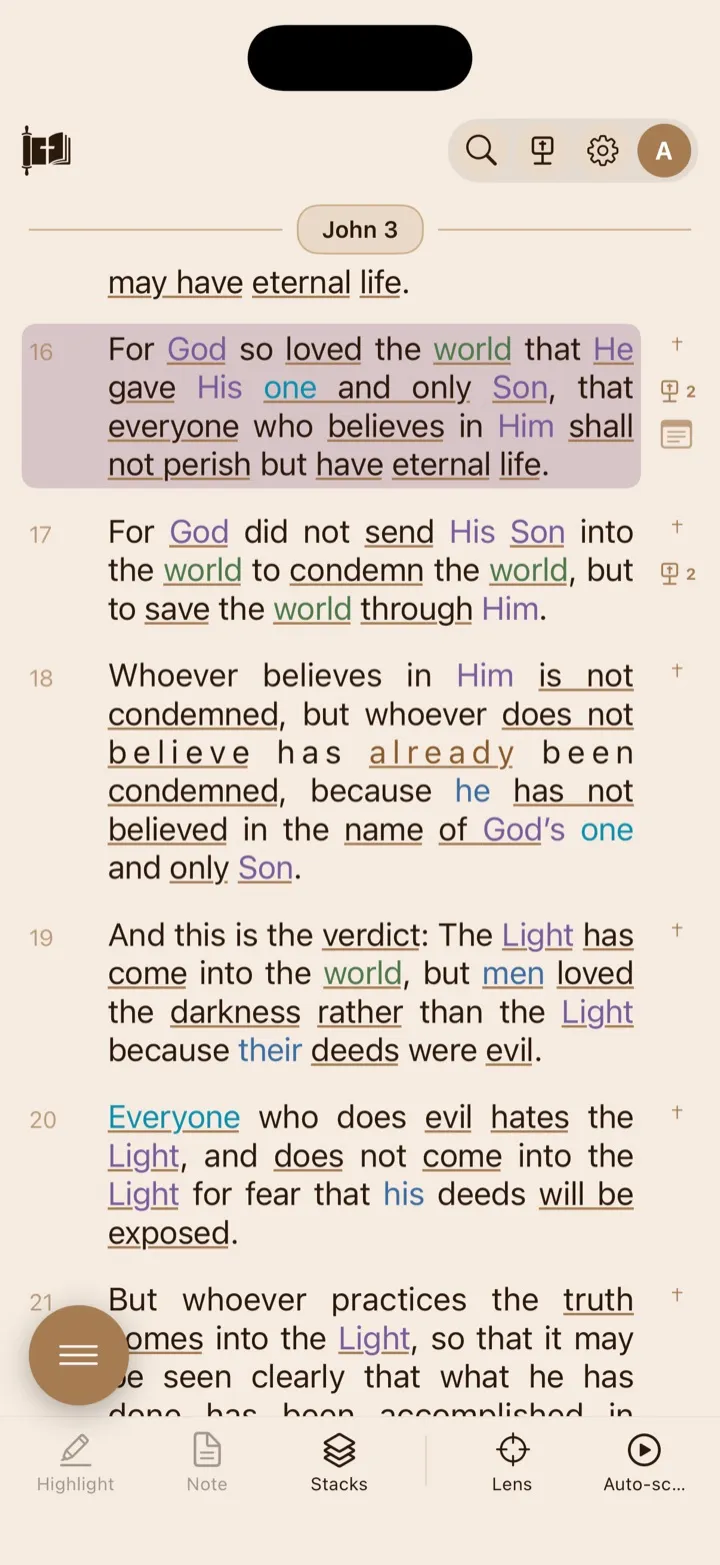
The Reader keeps Scripture central while placing study tools around its edges.
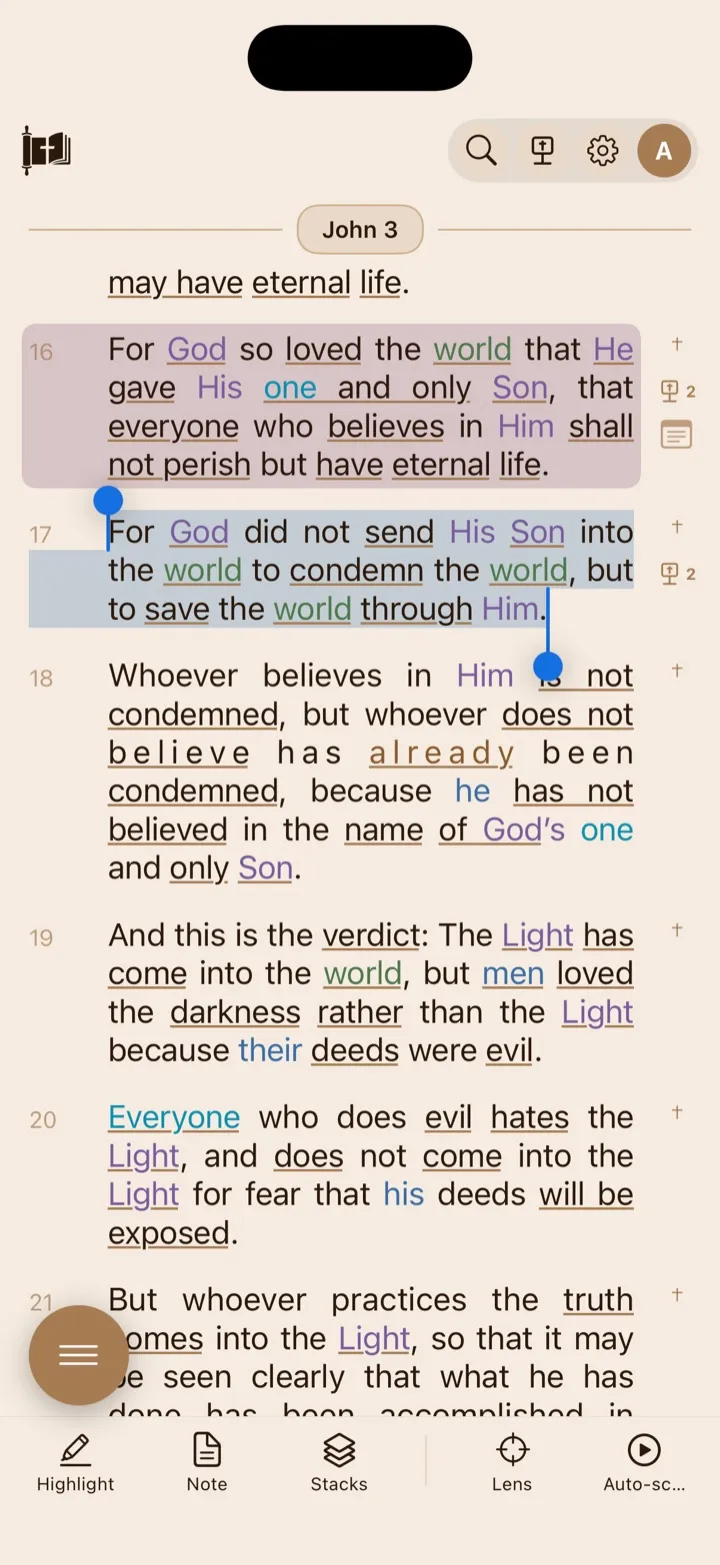
Selecting Scripture makes the available actions apply to that passage.
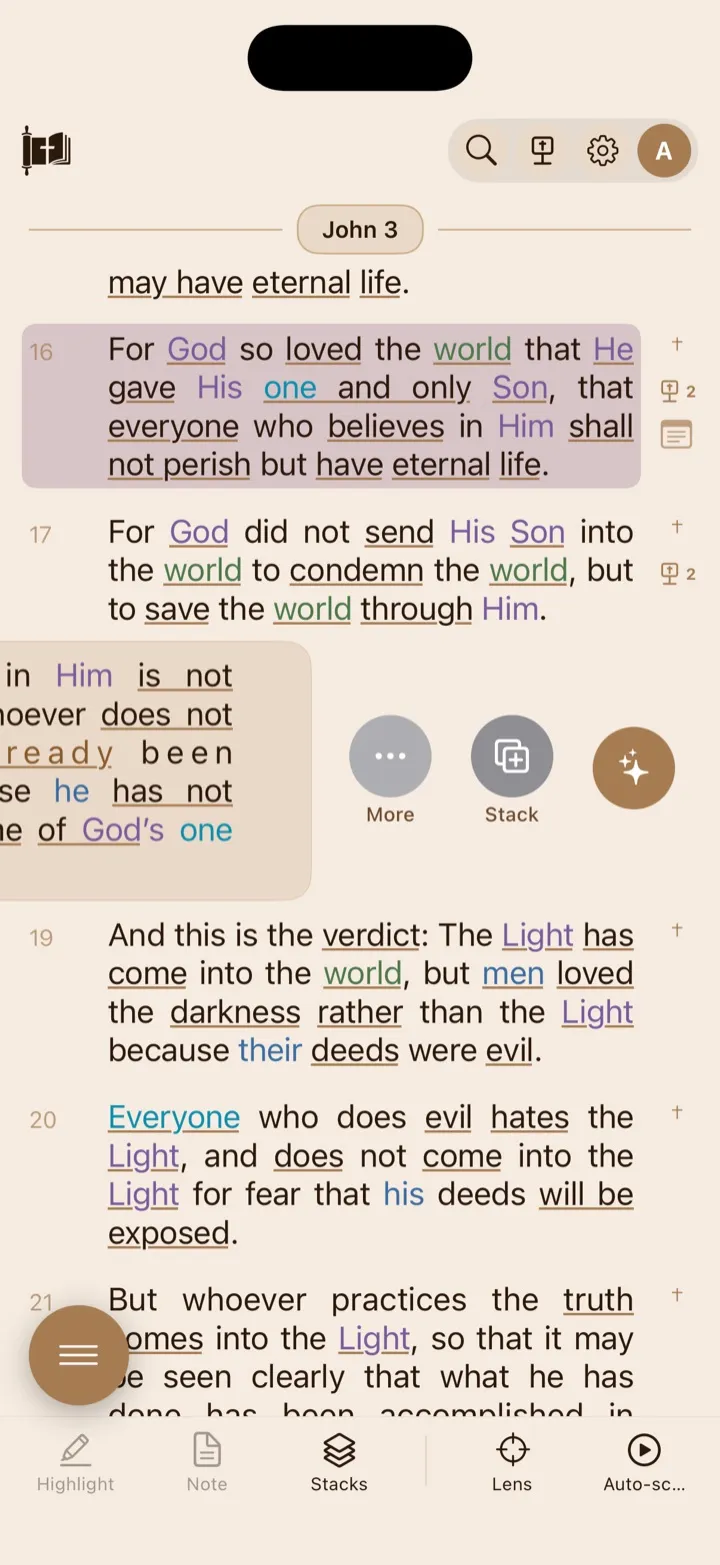
Swipe a verse to reveal its quick actions.
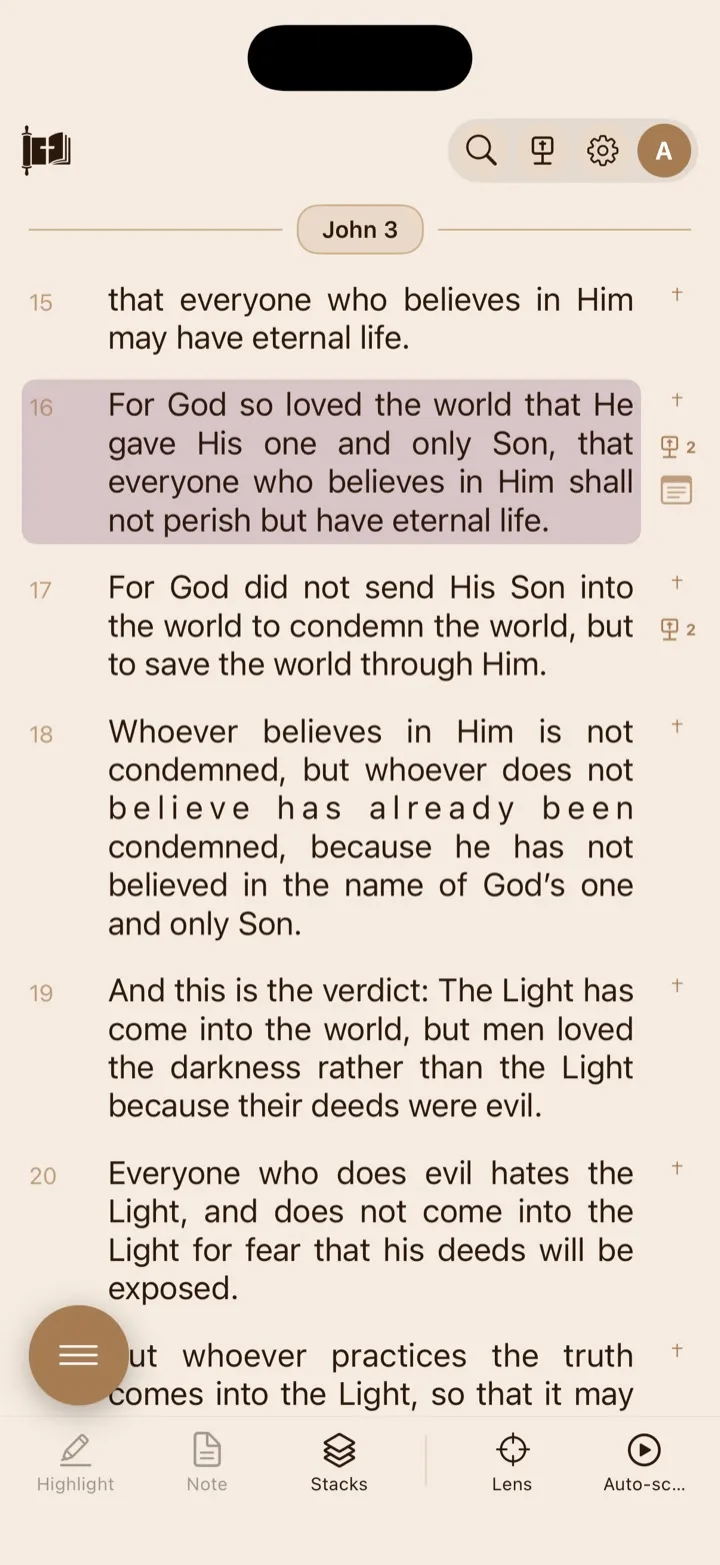
Gutter markers show cross-references, matching sermons with their count, and saved notes beside a verse.
How to use the Reader
Section titled “How to use the Reader”Open a book or chapter
Section titled “Open a book or chapter”Choose a book and chapter from Home, Search, or the book-and-chapter panel. GospelGrasp opens the chapter at its beginning unless the action included a verse or a saved verse position.
Open a verse or verse range
Section titled “Open a verse or verse range”When you open a reference such as John 3:16, GospelGrasp places that verse near the top of the Reader and briefly pulses it so you can find it.
A same-chapter range, such as John 3:16–18, opens at the first verse and pulses the full range. This temporary pulse helps you locate the passage; it is not a personal highlight and is not saved.
Move through the continuous Reader
Section titled “Move through the continuous Reader”Swipe upward to read forward and downward to return to earlier text. As you approach the end or beginning of the loaded passage, GospelGrasp loads nearby chapters from the Bible stored on the device.
The continuous view crosses book boundaries. For example, scrolling beyond the final chapter of Matthew continues into Mark 1. Scrolling above the first chapter of Mark can return to Matthew 28.
The book and chapter heading stays near the top of the screen so you can see which chapter is currently visible. The top navigation and bottom toolbar may move out of the way while you scroll down. This gives you more room to focus on Scripture without navigation and study controls in the way. Scroll upward to bring them back.
Return to your saved position
Section titled “Return to your saved position”As you move through Scripture, GospelGrasp saves the current book, chapter, approximate verse, and vertical position on this device. It also keeps the most recent position for each book.
When you return through Continue Reading, Reader, or a book’s detail card, GospelGrasp returns to the saved book, chapter, and approximate verse. The current app does not restore the exact stored vertical scroll offset, so the passage may not appear at precisely the same place on the screen.
Select a whole verse
Section titled “Select a whole verse”Tap the verse number. GospelGrasp selects the verse text and makes the selection-based toolbar actions available.
Select a word or phrase
Section titled “Select a word or phrase”- Double-tap a word to select it.
- Touch and hold a word to select it.
- Drag the selection handles to include a longer phrase or text from nearby verses in the same chapter.
The toolbar waits briefly while you adjust the handles, then uses the final selection. Tap outside the selection to clear it.
Use the bottom Reader toolbar
Section titled “Use the bottom Reader toolbar”The bottom toolbar contains five actions:
- Highlight opens your highlight categories for the selected word, phrase, or verse. It can also remove categories already applied to that selection.
- Note opens the note editor for the active verse. If you selected part of a verse, the note still belongs to that verse.
- Stacks opens Study Stacks. With an active selection, you can add the selected word, phrase, verse, or verse span to an existing stack. You can also create a new stack and add the selection to it at the same time. Without a selection, you can browse your stacks or create a new one.
- Lens opens a compact Study Lens for the passage currently visible. As you scroll, it updates to follow the passage you are reading, allowing it to serve as a study partner alongside Scripture. Tap Full Lens when you want a larger view with more detail about the passage.
- Auto-scroll opens reading-speed and stopping controls.
Highlight and Note appear dimmed until you activate a verse or text selection. The other Reader controls remain available without a selection.
Each toolbar action opens a card above the toolbar. Use the card’s close button to dismiss it. Scrolling quickly can close a lightweight card, while the Study Lens stays open and follows the visible passage.
Use Auto-scroll
Section titled “Use Auto-scroll”- Tap Auto-scroll.
- Choose Slow, Medium, or Fast.
- Under Stops at, choose Chapter, Book, or Bible.
- Tap Start Auto-Scroll.
Choose Chapter to stop at the end of the current chapter, Book to stop at the end of the current book, or Bible to continue through later books until you pause it or reach the end of the Bible.
Open the card again and tap Pause Auto-Scroll to pause. Manually dragging the Reader also interrupts Auto-scroll. GospelGrasp then offers a control for resuming it from the current position.
Open the actions for one verse
Section titled “Open the actions for one verse”Swipe a verse to the left. The verse slides aside to show three actions:
- Study opens AI Study for that verse.
- Stack adds that verse to a Study Stack.
- More opens the verse’s Copy and Share choices.
Swipe the open verse row horizontally again to close it, or tap the verse.
Copy one verse
Section titled “Copy one verse”- Swipe the verse to the left.
- Tap More.
- Tap Copy.
GospelGrasp copies the verse text and reference. The copied text uses this format:
“Verse text” — Book chapter:verse
A Copied message appears above the toolbar. Copying does not require an internet connection.
Share one verse
Section titled “Share one verse”- Swipe the verse to the left.
- Tap More.
- Tap Share.
- Choose an available destination from the iPhone or iPad share sheet.
GospelGrasp shares the same verse text and reference used by Copy. Opening the share sheet does not require an internet connection, but the app or service you choose may require one.
Follow a cross-reference
Section titled “Follow a cross-reference”A cross-reference is a link to another Bible passage that is related by wording, subject, event, or quotation.
When a verse has related passages and Cross References is enabled in Settings, a † marker appears beside it.
- Tap the † marker.
- Review the references and short Scripture previews in Cross References.
- Tap a reference to open that passage in the Reader.
After following one, the cross-reference card shows Back to [original reference]. Tap it to return to the verse where you began. GospelGrasp shows up to ten related passages for a verse. Cross-reference data and Scripture previews come from the Bible data stored on the device, so this works offline.
Open sermons connected to a verse
Section titled “Open sermons connected to a verse”When Sermon References is enabled in Settings, a sermon badge appears beside a verse that GospelGrasp knows is referenced in one of your sermons. The number beside it tells you how many sermons match that verse.
Tap the badge:
- If one sermon matches, GospelGrasp opens that sermon directly.
- If several sermons match, GospelGrasp opens Sermons — [reference] so you can choose one.
GospelGrasp may use account data to find the latest count and matches, then falls back to sermon information already stored on the device if a request cannot be completed.
What GospelGrasp saves or syncs
Section titled “What GospelGrasp saves or syncs”- Your latest book, chapter, approximate verse, and vertical position are saved on the current device. A separate last position is saved for each book.
- The exact vertical offset is stored but is not currently used when the Reader is reopened.
- Active foreground reading is recorded locally and assigned to the chapter visible in the Reader. Manual reading stops adding time after two minutes without activity; Auto-scroll remains active while it is playing. Time is not added while GospelGrasp is in the background.
- When GospelGrasp moves to the background, it finishes the recorded portion of the current Reader session on the device. If the Reader is still open when you return, a new portion starts from the passage on screen.
- Reading activity and chapter coverage wait safely on the device while offline or signed out. GospelGrasp retries after you sign in, reopen the app, or regain a connection. It can also recover a Reader session after an unexpected app close. Synced activity contributes to Home’s book and chapter time, chapter completion, and streak.
- Personal highlights, notes, and Study Stacks are saved locally first. If your account includes cloud sync, GospelGrasp can sync them across devices when connected.
- Copy does not save a new GospelGrasp record. It places formatted Scripture on the device clipboard.
- Share sends formatted Scripture to the destination you choose through the iPhone or iPad share sheet.
- Opening a cross-reference does not create a personal highlight or note.
Requirements and limits
Section titled “Requirements and limits”- You must be signed in to use GospelGrasp.
- Bible text for the included translations is stored in the app and can be read offline.
- Continuous scrolling and cross-references use local Bible data and work offline.
- Highlights, notes, Study Stacks, Copy, Share-sheet opening, and Auto-scroll can be used without a GospelGrasp connection. Sync waits until a connection is available and requires an account that includes cloud sync.
- Reading-activity upload requires the same signed-in account that recorded it. Removing GospelGrasp or erasing its local data before pending activity uploads can prevent that activity from being recovered.
- The Study Lens uses online data for passage connections, people, and places. Its basic book information may remain visible without a connection, but its full passage information may not load.
- AI Study requires a connection and is covered in the AI Study guide.
- A sermon badge can use cached information, but retrieving the newest sermon matches may require a connection.
- Text selection can span nearby verses within one chapter. It does not drag through the boundary between two separate chapter text areas.
- Copy and Share from More currently work with one complete verse at a time, not the active word or multi-verse selection.
- A same-chapter verse range can be opened and pulsed. Cross-chapter range opening is not part of the current Reader path.
If something does not work
Section titled “If something does not work”The Reader opens near, but not exactly at, my old screen position
Section titled “The Reader opens near, but not exactly at, my old screen position”The app currently returns to the saved book, chapter, and approximate verse. Although GospelGrasp stores the vertical offset, the reopening path does not apply it. Scroll to the exact line where you stopped.
The Reader does not continue into another chapter
Section titled “The Reader does not continue into another chapter”Keep scrolling near the end of the loaded content so GospelGrasp can prepare the next chapters. If Auto-scroll is running, check Stops at. Choosing Chapter or Book intentionally stops at that boundary.
Highlight or Note is dimmed
Section titled “Highlight or Note is dimmed”Tap a verse number, double-tap a word, or touch and hold a word to create an active selection. You can then tap Highlight or Note.
A cross-reference marker is missing
Section titled “A cross-reference marker is missing”Open Settings and confirm that Cross References is on. The † marker appears only for verses that have related passages in GospelGrasp’s current cross-reference data.
A sermon badge is missing
Section titled “A sermon badge is missing”Open Settings and confirm that Sermon References is on. A connection may be needed for GospelGrasp to refresh which verses are referenced by your sermons. The badge appears only after matching reference information is available.
Lens information does not load
Section titled “Lens information does not load”The Study Lens retrieves passage connections, people, and places from GospelGrasp. Confirm that the device has an internet connection, then close and reopen Lens.
Copy or Share does not use my selected phrase
Section titled “Copy or Share does not use my selected phrase”The current More actions belong to the verse you swiped. They copy or share that complete verse, even if another word or phrase was selected.
Common questions
Section titled “Common questions”Does the temporary pulse create a highlight?
Section titled “Does the temporary pulse create a highlight?”No. It only points out the verse or range you opened. Personal highlights are created with Highlight and a highlight category.
Can I read the Bible without an internet connection?
Section titled “Can I read the Bible without an internet connection?”Yes. Included Bible text and continuous chapter reading are stored on the device. Online study data, AI Study, syncing, and the latest sermon matches may be unavailable until you reconnect.
Can I copy or share several verses at once?
Section titled “Can I copy or share several verses at once?”Not from the current More card. It copies or shares the one verse you swiped. A verse range can be opened and temporarily pulsed, but the More action remains verse-specific.
Why does the toolbar disappear while I read?
Section titled “Why does the toolbar disappear while I read?”The navigation and toolbar move out of the way as you scroll down so you have more room to focus on Scripture without tools and other controls competing for your attention. Scroll upward to bring them back. An open card that needs the toolbar can keep it visible.
Does the sermon badge show how many sermons match?
Section titled “Does the sermon badge show how many sermons match?”Yes. The number beside the badge is the number of matching sermons. Tap it to open the sermon directly when there is one match or choose from a list when there are several.