Semantic Scripture and Original-Language Tools
GospelGrasp can add study cues to the Bible text and connect supported English words with the Greek or Hebrew behind them. These tools help you notice details without changing the wording of Scripture or replacing your personal highlights.
What these tools do
Section titled “What these tools do”This guide covers two separate study aids:
- Semantic Scripture Colors uses color to identify supported people, places, names of God, time references, numbers, and words spoken by Christ.
- Lexicon underlines supported words that you can tap for original-language dictionary information.
“Semantic” means based on meaning. A lexicon is a dictionary, in this case for the Greek and Hebrew words behind the English Bible text.
You can use either study aid by itself. Turning off Semantic Scripture Colors does not turn off the Lexicon, and turning off the Lexicon does not remove the study colors.
When you might use them
Section titled “When you might use them”- Follow the people and places involved in a passage.
- Notice repeated references to time, numbers, or quantities.
- Distinguish names and titles used for God.
- See where GospelGrasp identifies words spoken by Christ.
- Look behind an English word to study its Greek or Hebrew meaning.
- Compare other Bible passages that use the same original-language word.
- Hear a Greek or Hebrew word pronounced.
Where to turn them on
Section titled “Where to turn them on”- Tap the gear-shaped Settings button in the quick-actions pill.
- Open Study Aids.
- Turn on Semantic Scripture Colors, Lexicon, or both.
- Close Reader Settings and return to Scripture.
The live preview in Reader Settings shows how supported colors and lexicon underlines will look. For more help with these controls, see Reader Appearance and Study-Aid Settings.
See it in GospelGrasp
Section titled “See it in GospelGrasp”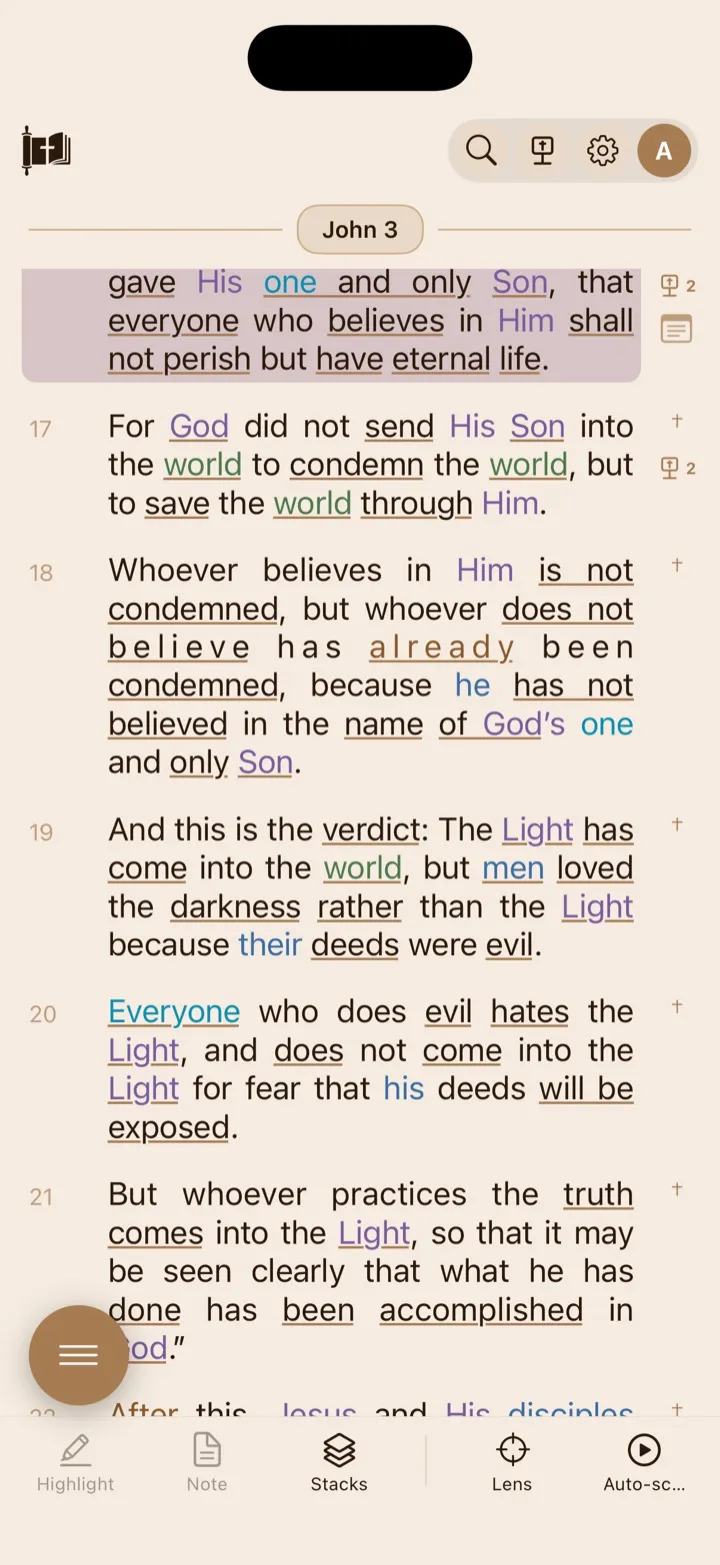
Semantic Scripture Colors help recurring kinds of words stand out.
When Lexicon is on, supported words appear underlined and can be tapped.
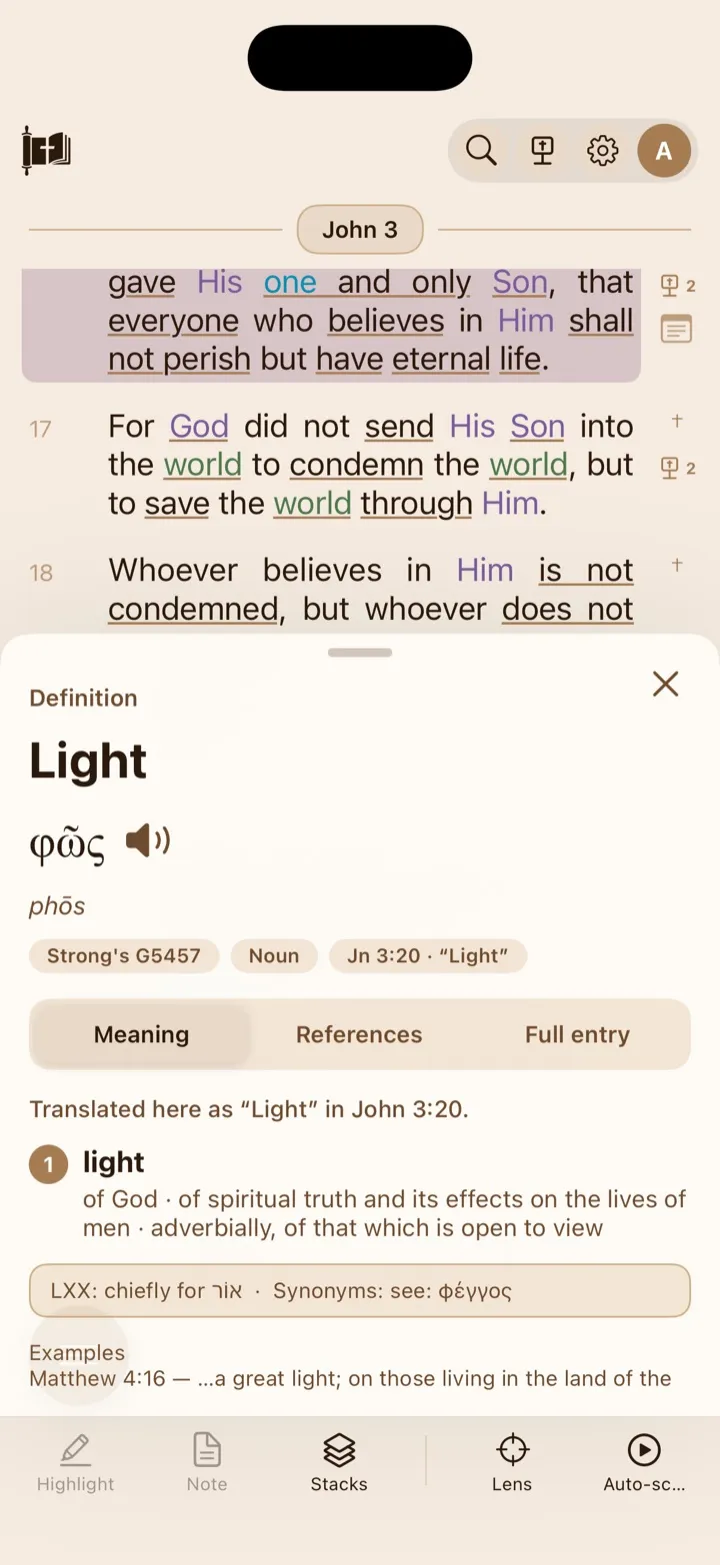
The definition card brings the word’s original-language information into the Reader.
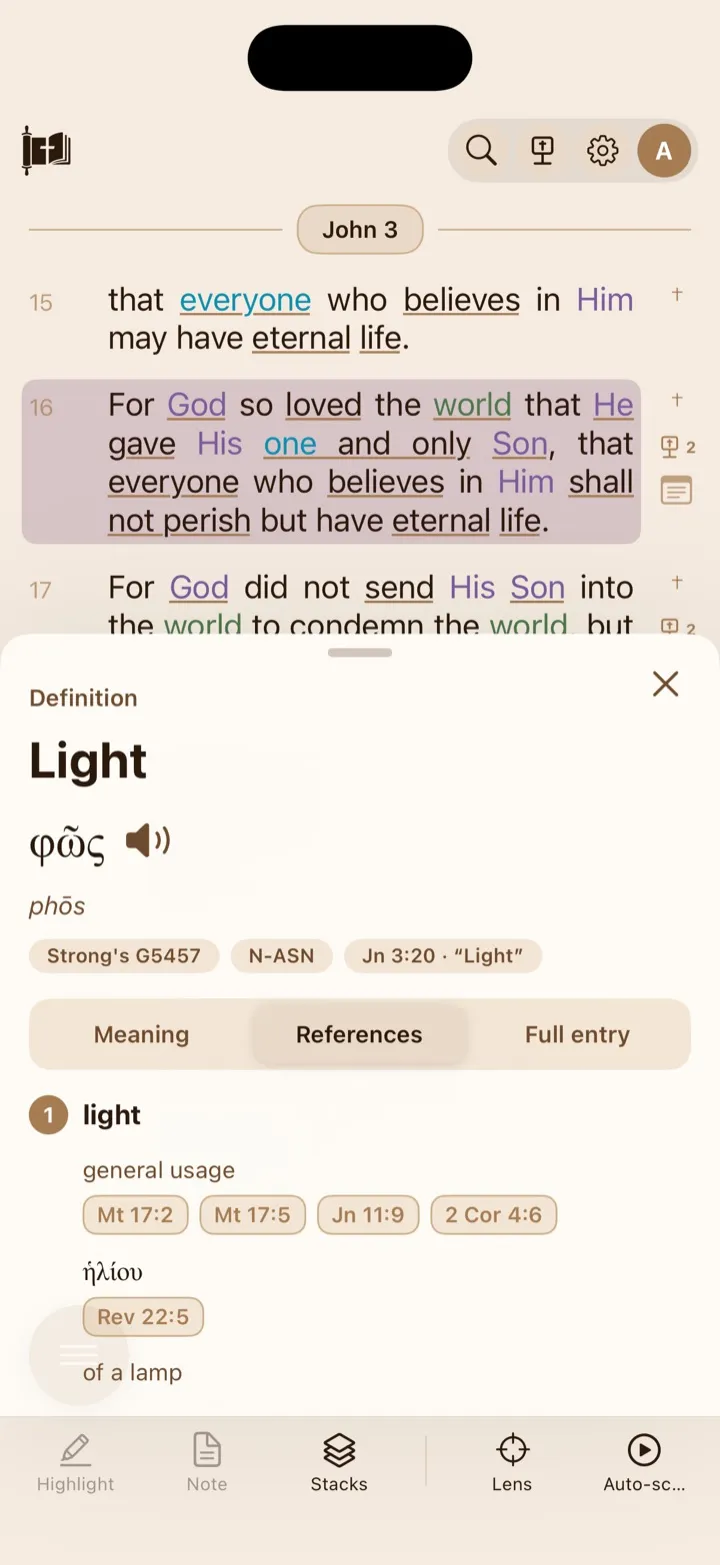
The References tab gathers example passages that use the same original word.
Understand Semantic Scripture Colors
Section titled “Understand Semantic Scripture Colors”When Semantic Scripture Colors is on, GospelGrasp changes the text color of supported words and phrases. The colors are study cues supplied by GospelGrasp. They are not highlights you created.
The available categories are:
- People & Angels marks people, groups of people, and angels.
- Places & Locations marks cities, regions, lands, and other places.
- Names of God marks divine names and titles.
- Words of Christ marks supported words spoken by Christ when that additional setting is on.
- Time marks specific times and broader references to time.
- Numbers marks number words, measurements, and general quantities.
The exact colors adapt to the Light, Dark, Sepia, or Bedtime theme. Open Semantic Color Key in Reader Settings whenever you want to see what each color means in your current theme.
Show Words of Christ
Section titled “Show Words of Christ”- Turn Semantic Scripture Colors on.
- Turn Words of Christ on beneath it.
- Return to the Reader. Supported words spoken by Christ appear in the Words of Christ study color.
Words of Christ is one part of the semantic study layer, not a personal red-letter highlight. When it is on, Christ’s speech keeps one uninterrupted color instead of being broken up by other semantic categories. Those other categories remain available and appear normally when Words of Christ is off.
Turning Words of Christ off hides that cue while leaving the other semantic categories visible. Turning Semantic Scripture Colors off hides every semantic color and also turns Words of Christ off.
Keep semantic colors separate from your highlights
Section titled “Keep semantic colors separate from your highlights”Your highlights and GospelGrasp’s semantic colors serve different purposes:
- A personal highlight records a category and color you chose.
- A semantic color is a temporary study layer supplied by GospelGrasp.
Turning semantic colors on or off does not create, recolor, or delete your highlights. If both appear in the same passage, your highlight remains saved even when you hide the semantic layer.
Use the Lexicon
Section titled “Use the Lexicon”The Lexicon is currently available with the BSB. In supported passages, words with dictionary information appear underlined. GospelGrasp avoids underlining many short connecting words so the page does not become crowded.
- Select BSB as the Bible version.
- Open Study Aids and turn Lexicon on.
- Return to the Reader and look for an underlined word.
- Tap the word once to open its Definition card.
Lexicon underlines do not change a word’s color. If a word also has a semantic color, it keeps that color and receives the lexicon underline.
Read the top of the Definition card
Section titled “Read the top of the Definition card”The card can show:
- The English word you tapped.
- The lemma, which is the dictionary form of the Greek or Hebrew word.
- A transliteration, which writes the Greek or Hebrew word with English letters to help you read it.
- A speaker button for pronunciation.
- A Strong’s number, a standard reference number used to identify a particular Greek or Hebrew dictionary entry.
- The type of word, such as a noun or verb, when that information is available.
- The verse and English wording connected to the entry you opened.
Not every entry contains every detail. GospelGrasp shows the information available for that word and passage.
Use the Meaning tab
Section titled “Use the Meaning tab”Meaning opens first. It explains how the word is used in the verse and shows the available dictionary meanings. Some entries divide a word into several senses because the same original-language word can be used in more than one way.
When GospelGrasp has reviewed or independently corroborated one exact meaning for that word and verse, In this verse appears above the shaded matching meaning. Other uses of this word keeps every remaining dictionary meaning visible.
When the word’s grammar identifies only a verb stem, the card says This verse uses the [stem] stem without shading or claiming one exact meaning. If neither an exact meaning nor a stem narrows the entry, every option appears under Possible meanings.
Current high-confidence coverage includes 1,043 occurrences in 1 Samuel and 4,601 occurrences across all 28 chapters of Matthew.
Where available, this tab can also show example passages. A supported person’s name may include a short Who is this? explanation.
Use the References tab
Section titled “Use the References tab”Tap References to see available passages connected with the same dictionary entry or one of its meanings.
- Tap a Scripture reference to open a verse preview over the Definition card.
- Read the verse without leaving your current passage.
- Tap Go to verse → if you want to open that passage in the Reader.
- Tap the X on the preview to return to the Definition card.
The number and arrangement of references depend on the information available for that Greek or Hebrew entry. Some entries may have few references or no reference index.
Use the Full entry tab
Section titled “Use the Full entry tab”Tap Full entry to read the complete dictionary entry available to GospelGrasp. This source material can be denser than the Meaning tab and may include older wording, abbreviations, or several numbered definitions.
Use Meaning for the clearest overview. Use Full entry when you want the source’s fuller detail.
Hear a pronunciation
Section titled “Hear a pronunciation”Tap the speaker button beside the Greek or Hebrew word. GospelGrasp pronounces the lemma—the dictionary form—not necessarily the exact form used in the verse.
When Enhanced Pronunciations is on, GospelGrasp uses a recorded pronunciation where one is available. Otherwise, or if that recording cannot be retrieved, it uses the device’s built-in voice. The speaker button is hidden when the word cannot be pronounced on that device.
See Reader Appearance and Study-Aid Settings for enhanced pronunciation and offline download options.
Close the Definition card
Section titled “Close the Definition card”Tap the X or swipe the card downward to close it and continue reading.
What GospelGrasp saves or syncs
Section titled “What GospelGrasp saves or syncs”Your Semantic Scripture Colors and Lexicon choices are saved on the device and included with supported Reader preference syncing.
Semantic annotations and original-language information are supplied by GospelGrasp. They are not added to your account as notes or highlights. The app may keep previously loaded information on the device so it can be reused, but you should not assume every passage or definition will be available offline.
Downloaded pronunciation recordings remain on the device. They do not sync to another iPhone or iPad.
Requirements and limits
Section titled “Requirements and limits”- The Lexicon currently works only with the BSB. Its control is unavailable with WEB or KJV.
- A connection may be needed the first time GospelGrasp loads semantic or original-language information for a chapter.
- Study-color and lexicon coverage can vary by passage. Not every word or phrase receives a cue.
- GospelGrasp underlines useful lexicon study targets but may leave common connecting words without an underline.
- Dictionary definitions describe a word’s possible meanings. The surrounding sentence and passage determine which meaning fits a particular verse.
- In this verse and a shaded meaning appear only where GospelGrasp has reviewed or independently corroborated one exact word-and-verse match.
- A verb-stem heading narrows the dictionary entry but does not claim one exact meaning. Possible meanings means the app has not narrowed the entry.
- Every dictionary meaning remains available under the leading or other-uses group.
- Recorded pronunciations require a connection unless the needed recording or the full collection is already on the device.
- The Definition card does not currently open the separate Word Study screen. You can open Word Study from GospelGrasp’s main menu when you want a broader search.
If something does not work
Section titled “If something does not work”No semantic colors appear
Section titled “No semantic colors appear”- Open Study Aids and confirm that Semantic Scripture Colors is on.
- Check the Semantic Color Key so you know which colors to look for.
- Connect to the internet and reopen the chapter if its study information has not loaded before.
- Remember that some passages have fewer supported cues than others.
Words of Christ does not appear
Section titled “Words of Christ does not appear”Confirm that both Semantic Scripture Colors and Words of Christ are on. Words of Christ is hidden whenever the main semantic-color setting is off.
The Lexicon switch is unavailable
Section titled “The Lexicon switch is unavailable”Choose BSB under Bible Version. The Lexicon does not currently support WEB or KJV in GospelGrasp.
No words are underlined
Section titled “No words are underlined”- Confirm that Lexicon is on and BSB is selected.
- Connect to the internet and reopen the chapter.
- Try another content word in the passage. GospelGrasp intentionally avoids underlining many common connecting words.
- The current passage may not have matching lexicon information.
A Definition card has limited information
Section titled “A Definition card has limited information”Lexicon entries do not all contain the same details. Check Meaning, References, and Full entry for the information available. A missing section does not remove the Scripture text or affect your saved work.
Pronunciation does not play
Section titled “Pronunciation does not play”Check the device volume. If Enhanced Pronunciations is on and the recording is not already downloaded, connect to the internet and try again. GospelGrasp uses the built-in voice when it can, but some devices may not have a suitable voice for every word.
Common questions
Section titled “Common questions”Are Semantic Scripture Colors the same as highlights?
Section titled “Are Semantic Scripture Colors the same as highlights?”No. Semantic colors are study cues supplied by GospelGrasp. Highlights are personal markings that you create and save.
Why are some words colored but not underlined?
Section titled “Why are some words colored but not underlined?”Color and underlining come from separate tools. A color identifies a semantic category. An underline identifies a word with available lexicon information.
Why are some words underlined but not colored?
Section titled “Why are some words underlined but not colored?”The Lexicon can be used without Semantic Scripture Colors. An underlined word can have dictionary information even when it does not belong to one of the color categories.
Does an English word always have one Greek or Hebrew meaning?
Section titled “Does an English word always have one Greek or Hebrew meaning?”No. One English word can represent different original-language words, and one Greek or Hebrew word can have several possible meanings. Read the Definition card together with the surrounding passage.
Does turning these tools off delete anything?
Section titled “Does turning these tools off delete anything?”No. It hides the study cues. It does not delete Scripture, notes, highlights, Study Stacks, sermons, or reading progress.