Sermons
GospelGrasp can record a sermon, remember important moments while you listen, and connect the finished sermon to the Scripture passages it mentions. You can return later to read the transcript, review a summary, or open a referenced passage in the Bible Reader.
Despite the feature’s name, it isn’t limited to Sunday sermons. Seminary students can also use it to record lectures, mark important explanations, and review the transcript and notes later.
What this feature does
Section titled “What this feature does”During a sermon, you can:
- Record the audio.
- Pause and resume the recording.
- Mark a moment you want to revisit.
- Take a photo and save it with the time it was taken.
- Collapse the recording screen while the recording continues.
Afterward, GospelGrasp can transcribe the recording, prepare a summary, and identify Scripture references. The result is saved in your Sermon Library.
When you might use it
Section titled “When you might use it”Use Sermons when you want to keep more than handwritten notes from a message. For example, you can mark an important explanation without typing while the pastor is speaking, then return to that part of the transcript later.
The same tools work for a seminary lecture. You can mark a professor’s key point, photograph a slide or whiteboard, and return to that part of the lecture when you study.
You can also import a sermon from YouTube when a church or speaker has already posted the recording online.
Where to find Sermons
Section titled “Where to find Sermons”- Tap the sermon recording icon in the top navigation to open the recording screen.
- Open the main menu and tap Sermons to view the Sermon Library.
- In the Bible Reader, a sermon icon beside a verse means one or more of your sermons refer to that verse. The number beside the icon tells you how many. Tap it to open the matching sermon or choose from the matching sermons.
Sermon recording and the Sermon Library are available with 4F and Pro access. If your current plan doesn’t include Sermons, GospelGrasp keeps your existing recordings safe. They become available again when your account has access.
See it in GospelGrasp
Section titled “See it in GospelGrasp”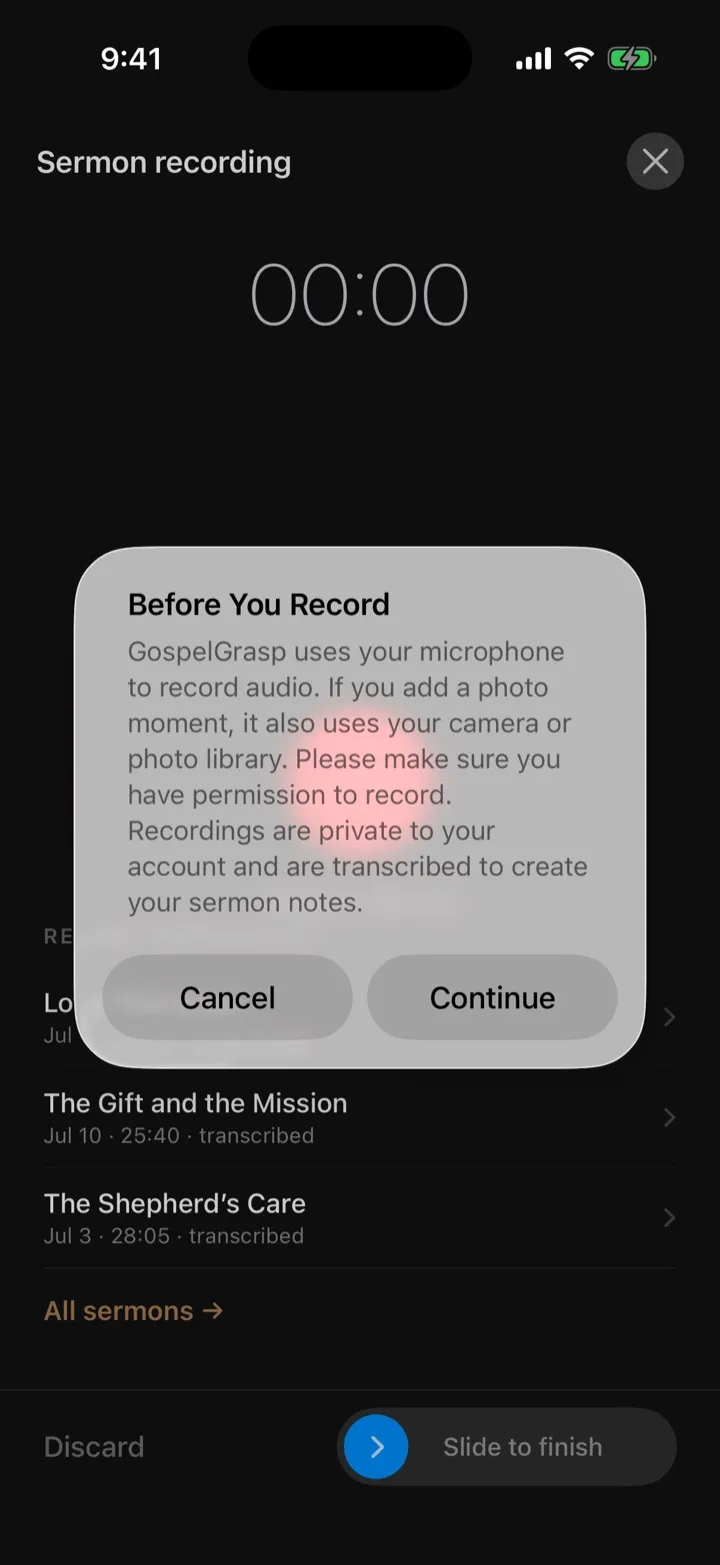
The first-recording notice explains permissions before any recording begins.
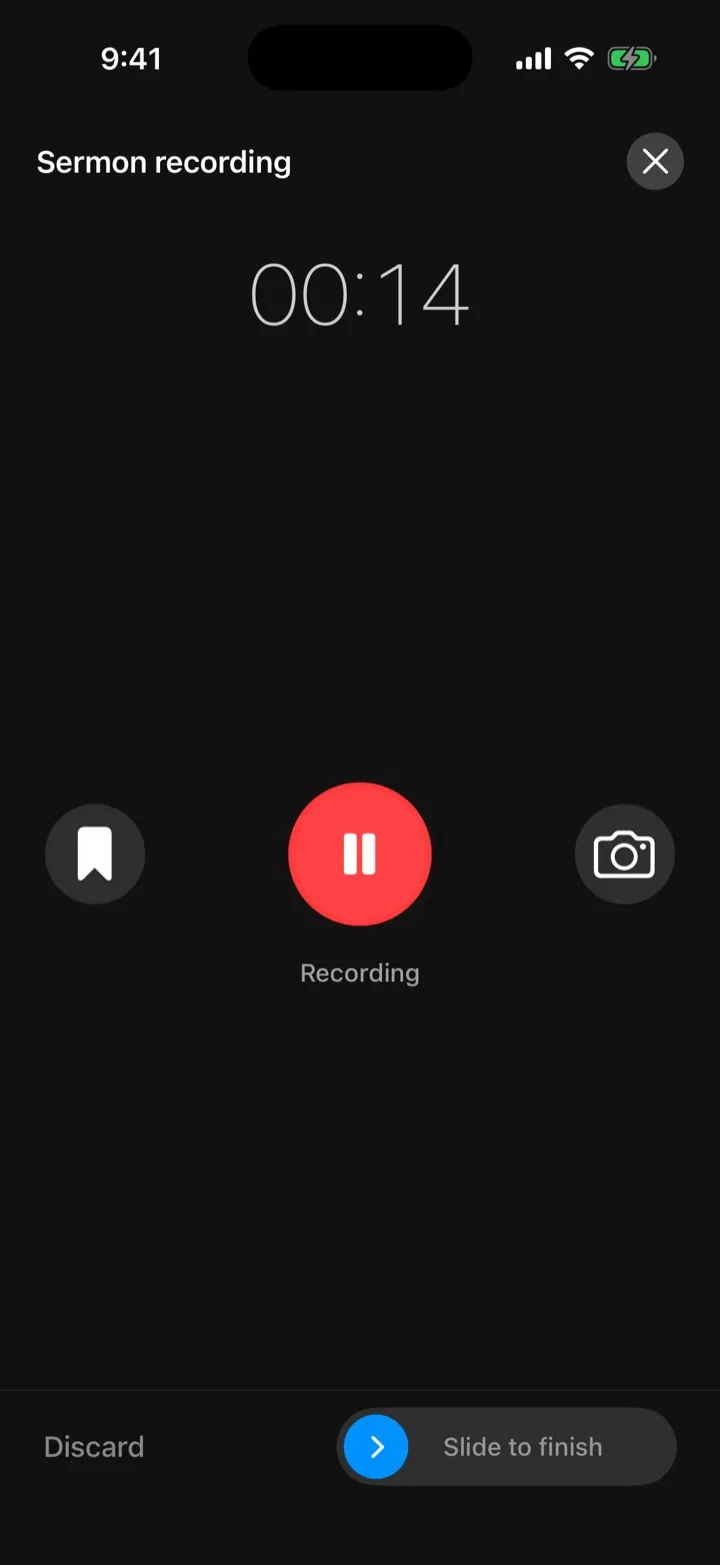
The recording screen keeps the main actions large and uses a deliberate slide to finish.
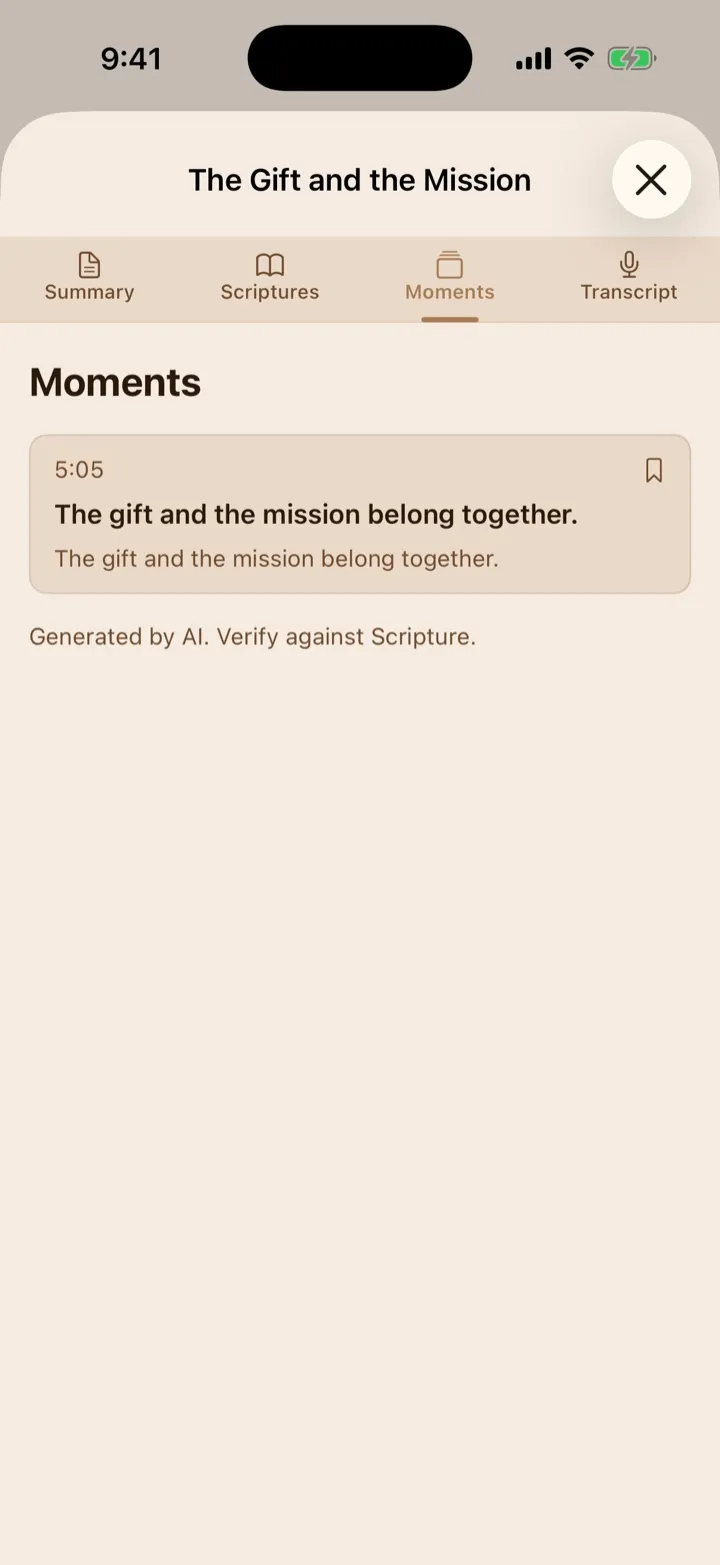
After processing, open Moments to review and edit the excerpt GospelGrasp selected.
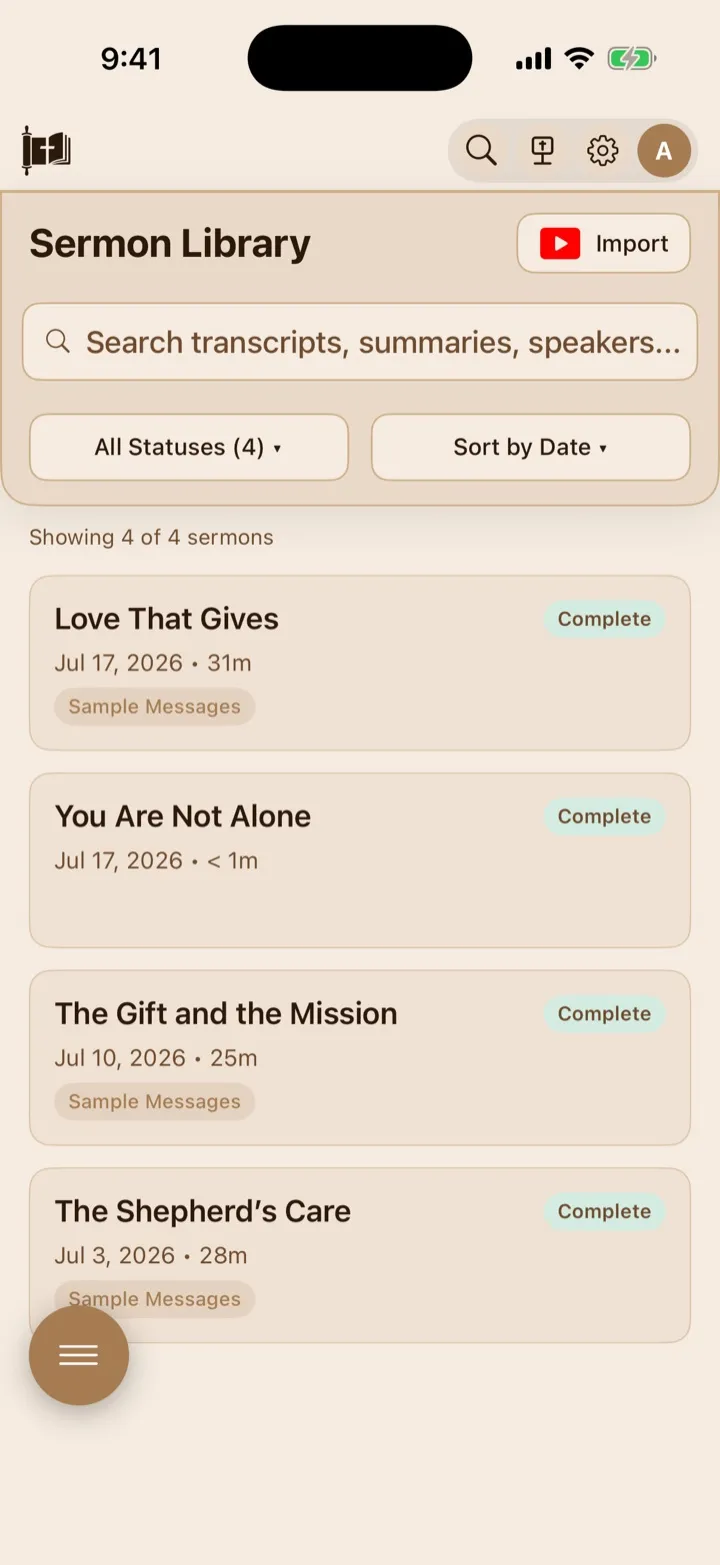
The Sermon Library keeps completed and in-progress recordings together.
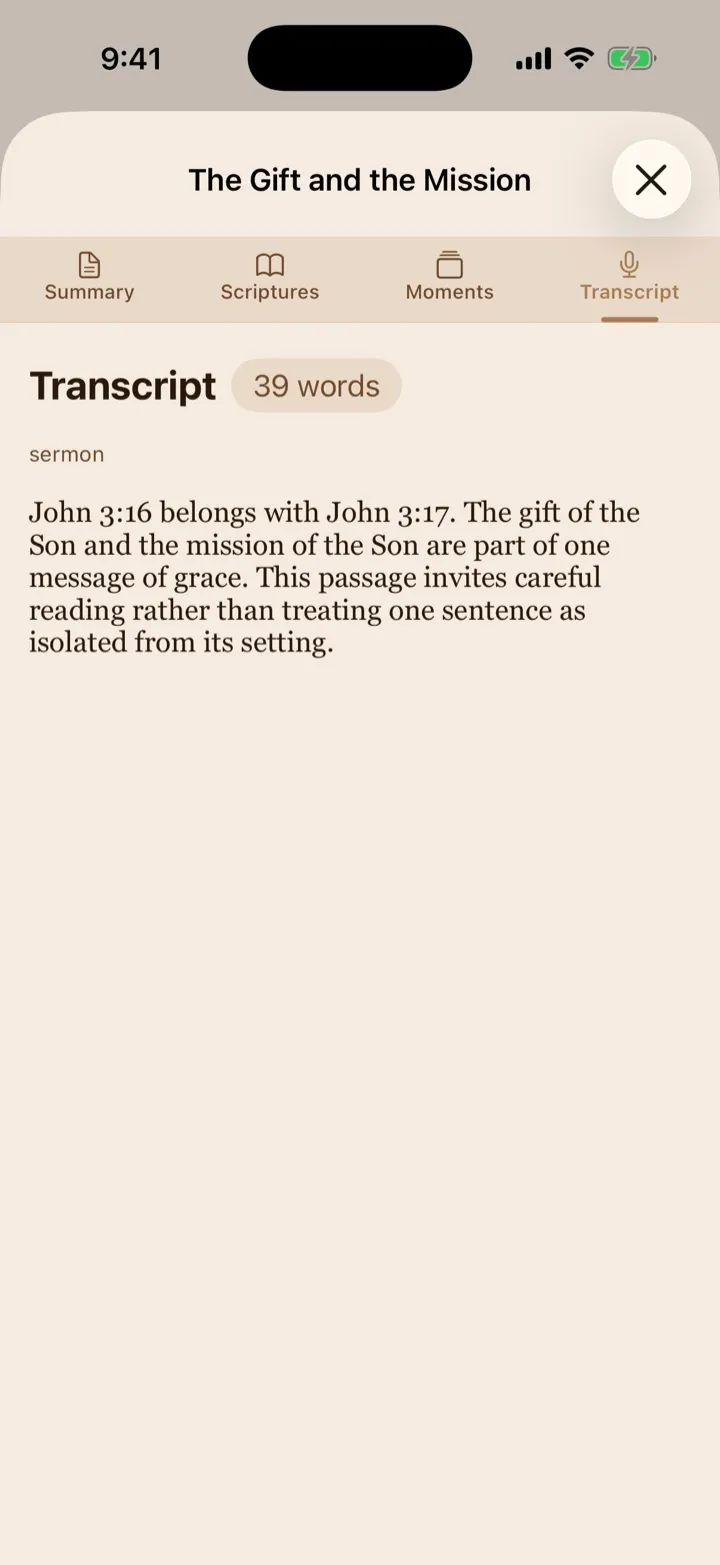
A processed sermon organizes its transcript, Scripture references, and moments into tabs.
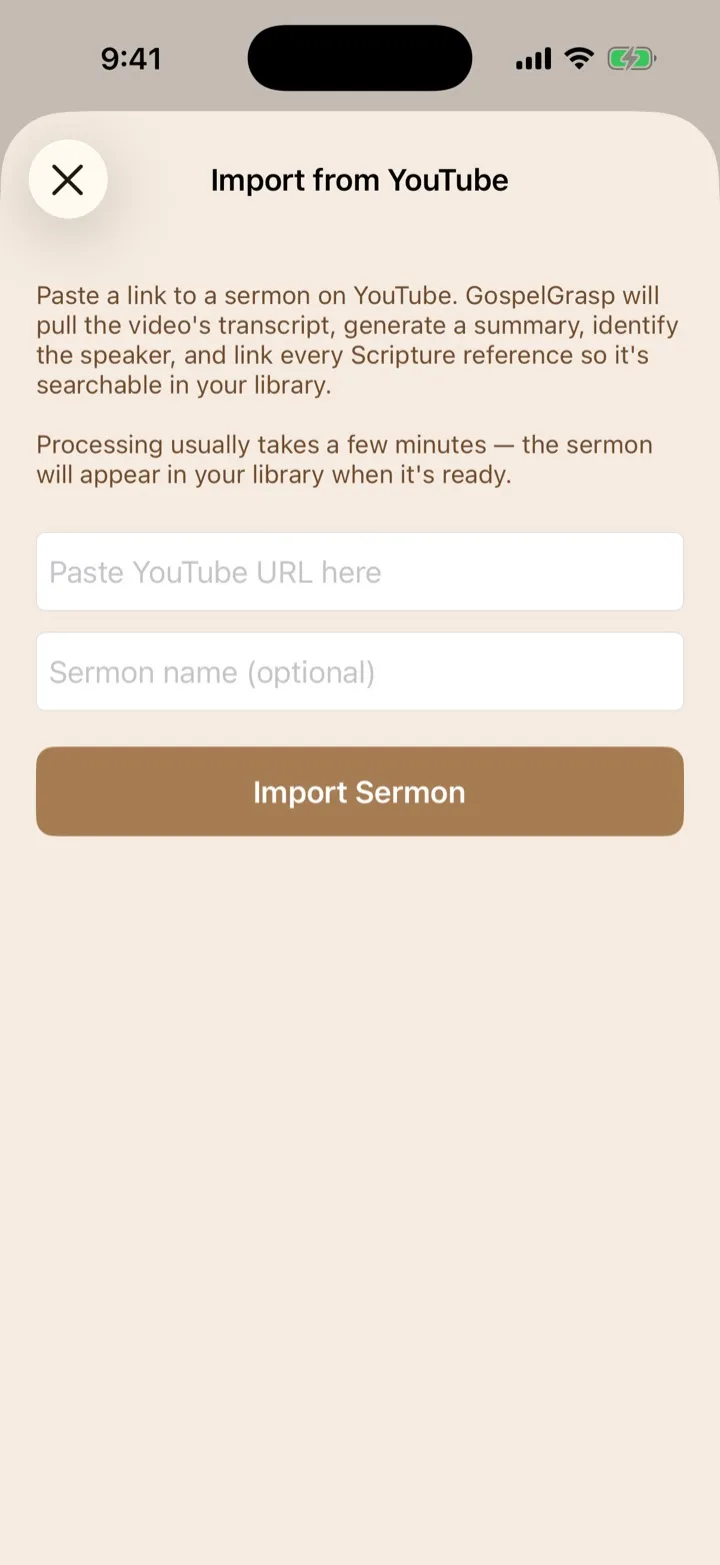
Paste a YouTube link to import a posted sermon into your library.
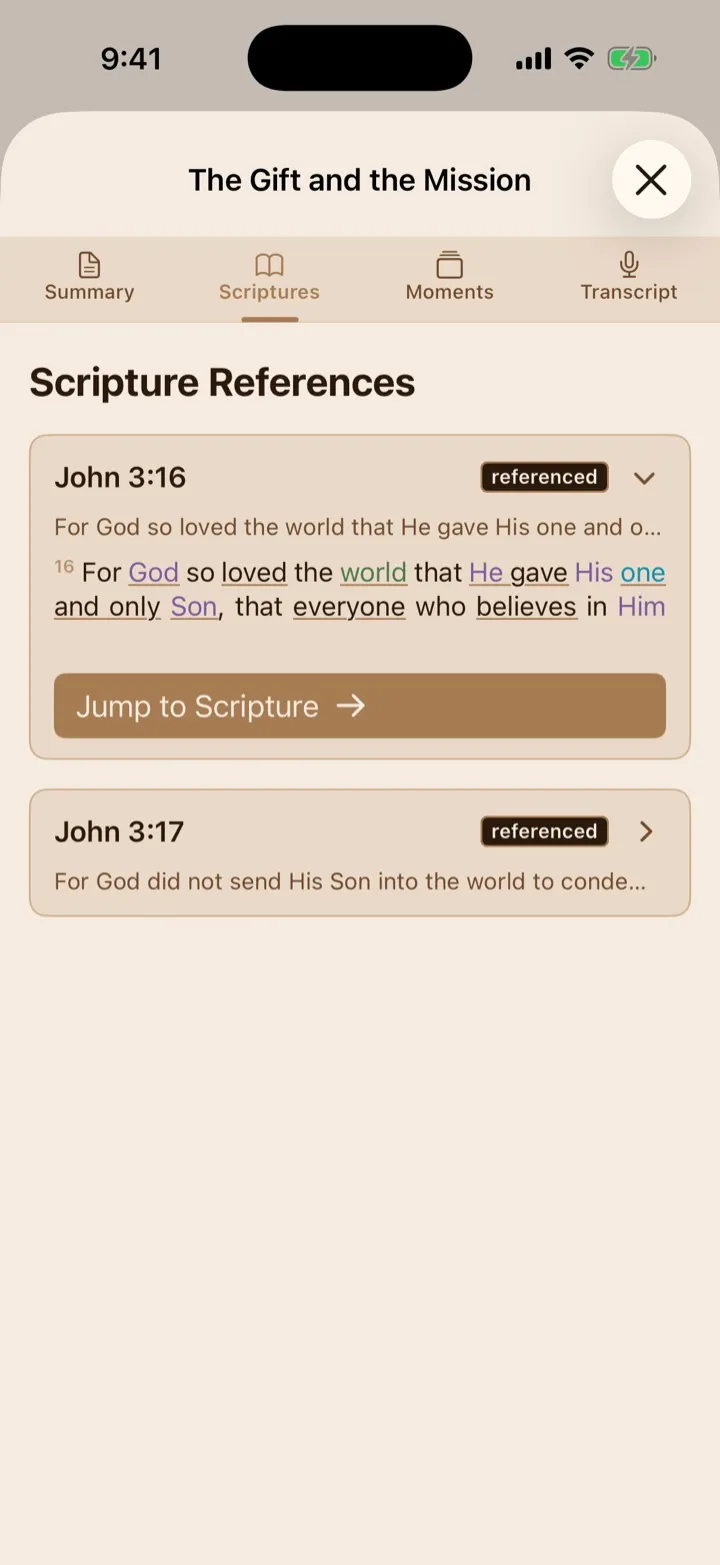
Detected references can show the verse and take you back to it in the Reader.
Record a sermon
Section titled “Record a sermon”Start recording
Section titled “Start recording”- Tap the sermon recording icon in the top navigation.
- Tap the round Record button.
- Before your first recording, read Before You Record. Tap Continue after confirming that you have permission to record, or tap Cancel to stop without recording.
- If asked, allow GospelGrasp to use your microphone.
The timer and sound indicator show that recording has started. If microphone access is denied, GospelGrasp cannot record the sermon. You can allow access later in the iPhone Settings app.
Pause or resume
Section titled “Pause or resume”Tap the large recording button while recording to pause. The screen displays Paused. Tap it again to resume from the same recording.
Collapse and reopen the recording
Section titled “Collapse and reopen the recording”You can close the full recording screen without stopping the recording. The active recording remains available from the sermon recording icon in the top navigation. Tap that icon to reopen the controls.
Always finish or discard the recording before you are done. Collapsing the screen does not finish it.
Finish recording
Section titled “Finish recording”When the sermon is over, drag the blue arrow across Slide to finish at the bottom of the recording screen. A tap won’t stop the recording. Requiring a slide helps prevent you from ending it accidentally.
After you finish the slide, GospelGrasp saves the recording and begins preparing it. You can close the processing screen and return to the app while that work continues.
Mark important moments
Section titled “Mark important moments”Add a marker
Section titled “Add a marker”Tap the marker button while recording when you hear something you want to remember. GospelGrasp marks the current time and sets aside a 25-second section of the transcript: the 20 seconds before you tapped and the 5 seconds after. This window helps preserve the beginning and end of the speaker’s thought even when you tap in the middle of it. A marker near the beginning or end of the recording may have less than 25 seconds available.
After the sermon is transcribed, GospelGrasp reviews that section and selects the strongest complete thought as the Key Quote. Generated selections can be wrong. Open the marker from the sermon’s Moments tab to correct the quote or add a note, then tap Save.
After you add a marker, GospelGrasp shows Moment marked with its time. Tap Undo in that message if you marked it by mistake. You can also edit or delete a marker later from the sermon’s Moments tab.
Add a photo
Section titled “Add a photo”- While recording or paused, tap the camera button.
- If asked, allow GospelGrasp to use your camera.
- Take the photo and confirm it.
The photo is saved with the recording time, so you can connect it to what was being discussed. A thumbnail appears on the recording screen. Tap its red X to remove it before you finish the recording.
Microphone permission is required to record audio. Camera permission is only required when you take a photo.
Discard a recording
Section titled “Discard a recording”- Tap Discard on the recording screen.
- Read the confirmation message.
- Tap Discard again to permanently delete the unfinished recording, or tap Cancel to keep it.
Discarding cannot be undone.
What happens after you finish
Section titled “What happens after you finish”GospelGrasp moves through a few stages:
- Local means the recording is saved on this iPhone but has not finished uploading.
- Processing means GospelGrasp is uploading, transcribing, or examining the sermon for its summary and Scripture references.
- Pending means the recording is saved and is waiting for processing to finish.
- Complete means the prepared sermon is ready to open.
- Error means part of the process failed and may need another attempt.
The processing screen tells you what is happening. When it displays Your sermon is ready, tap View Sermon. If an upload fails, tap Retry Upload.
If your connection is interrupted, the local recording remains on the iPhone. GospelGrasp can retry the upload when a connection is available. Do not delete the local recording while it is waiting to upload.
On-device transcription
Section titled “On-device transcription”On-device transcription is turned on by default when your iPhone supports it. It can be faster and more private because the first transcription work happens on your phone. It can also continue while the recording is waiting for an internet connection.
The current on-device option requires:
- An iPhone running iOS 26 or later.
- An English language setting supported by Apple’s speech transcription on that device.
- On this device selected for Sermon Transcription in Settings.
You do not need to manage a speech download from the recording screen. If on-device transcription is unavailable or does not finish successfully, GospelGrasp automatically uses online transcription instead. An internet connection is still needed to upload the sermon and prepare its summary and Scripture links.
When the on-device transcript succeeds and the service accepts it, the audio recording is never uploaded — only the transcript and any photos are sent so GospelGrasp can prepare the sermon. If the transcript cannot be used, GospelGrasp uploads the audio and uses online transcription so your sermon can still finish processing. Either way, GospelGrasp does not keep sermon audio: any uploaded audio is deleted from GospelGrasp’s servers after transcription, and once processing finishes, the recording is removed from your iPhone to free storage. Your transcript, summary, moments, and photos remain in the Sermon Library.
Import a sermon from YouTube
Section titled “Import a sermon from YouTube”- Open Sermon Library.
- Tap Import beside the YouTube icon.
- Paste the sermon’s YouTube link into Paste YouTube URL here.
- If you want, enter a name in Sermon name (optional).
- Tap Import Sermon.
GospelGrasp starts the import and adds it to your library while it is being prepared. It uses the video transcript to create a summary, identify the speaker, and find Scripture references. Announcement material is filtered automatically so the finished sermon can focus on the message.
The import requires an internet connection and a YouTube video whose transcript GospelGrasp can access. Processing may take several minutes. If an import fails, check the link and your connection, then try again.
Use the Sermon Library
Section titled “Use the Sermon Library”Open Sermon Library from the main menu. Each card shows the sermon’s title, date, length, speaker when known, saved moments, and current status.
Search
Section titled “Search”Use Search transcripts, summaries, speakers… to find words in a sermon’s title, speaker, summary, or transcript. Search can use the online library when you are connected and falls back to sermons already available in the app if the online search cannot be reached.
Filter by status
Section titled “Filter by status”Open the status menu and choose:
- All Statuses
- Complete
- Processing
- Pending
- Error
The number beside each choice tells you how many sermons have that status.
Sort the library
Section titled “Sort the library”Choose Sort by Date to place the newest sermons first, or Sort by Title to arrange them by name.
Retry an upload or Scripture check
Section titled “Retry an upload or Scripture check”If the processing screen reports an upload issue, tap Retry Upload before closing that screen. For a completed sermon that has a transcript but no detected Scripture references, open Scriptures and tap Re-analyze for Scripture References.
Open and edit a sermon
Section titled “Open and edit a sermon”Tap a sermon card to open it. The top of the sermon shows its identifying information. You can edit:
- The sermon title.
- One or more speakers.
- The series name.
Tap the pencil beside the title or series to make a change. Use the speaker controls to add or remove speakers. Changes are saved to the sermon so the updated details appear in the library and search.
Review the sermon tabs
Section titled “Review the sermon tabs”Summary
Section titled “Summary”Summary gives you a shorter overview of the sermon. If a completed sermon has a transcript but no summary, tap Generate Summary. When a summary is available, tap its edit control to revise it, then tap Save. Tap Cancel to leave editing without applying the new changes.
The summary is generated from the transcript and can contain mistakes. Compare important claims with the sermon recording, Scripture, and trusted study resources. GospelGrasp marks generated summaries with Generated by AI. Verify against Scripture.
Scriptures
Section titled “Scriptures”Scriptures lists passages GospelGrasp detected in the sermon. A quotation uses words from the passage, while an allusion is an indirect reference that does not quote it word for word.
Tap a Scripture card to expand it and read the passage. Tap Jump to Scripture to open it in the Bible Reader. The connection also works in the other direction: a sermon icon beside a Reader verse opens sermons that refer to that verse. The number beside the icon tells you how many sermons match.
Automatic detection can miss a reference or identify one incorrectly. If a completed sermon has a transcript but no references, tap Re-analyze for Scripture References.
Moments
Section titled “Moments”Moments places your markers and photos in time order.
- Tap a marker to read what was said around it. You can correct the selected quote, add or edit your note, and tap Save.
- Swipe a marker to reveal Delete, or open it and tap Delete. Confirming permanently removes that moment.
- Tap a photo to view it full screen.
- In the full-screen photo view, tap Edit to adjust the image. If a photographed slide, screen, or page looks wider on one side, tap Skew. Pull a corner handle in the direction you want that photo corner to move. The image bends with the handle so you can make its lines look straight before you tap Apply. The photo appears slightly smaller only while you adjust it, keeping every handle on a visible edge; applying the change keeps the photo’s original pixel dimensions. Tap Reset to return the handles and live preview to the photo edges, or Cancel to return without applying the skew correction.
- After applying skew correction, move or pinch the photo to frame it. Twist with two fingers to straighten it. The smaller frame labeled Moments list preview shows which part will appear on the photo’s card in Moments. Tap Save to upload the finished edit. Tap Reset to reset the framing, or Cancel to discard all unsaved changes, including applied skew correction. Saving an edited photo requires an internet connection.
- Tap Delete in the photo view to permanently remove that photo moment.
If a moment is still stored only on the iPhone, the tab explains that it has not synced yet and offers a way to upload local moments when a connection is available.
Transcript
Section titled “Transcript”Transcript contains the sermon’s full written text. It may not appear until processing is complete.
The first version may appear as a raw block of text. GospelGrasp then formats it for easier reading by adding natural paragraph breaks, identifying speaker changes when it can, and setting apart recognized Scripture quotations. This formatting organizes the transcript without intentionally summarizing or leaving out what was said.
If formatting is temporarily unavailable, GospelGrasp keeps the raw transcript visible and shows Retry Formatting. Transcription and speaker detection can misunderstand names, uncommon words, speaker changes, or speech that is quiet or unclear, so compare important wording with the recording.
Delete a sermon
Section titled “Delete a sermon”In Sermon Library, swipe left on a locally stored sermon card and tap Delete. Deleting removes the sermon from this device and requests removal from your account. If the request cannot reach the service immediately, GospelGrasp keeps the sermon hidden and tries the removal again later.
Deleting a sermon also removes access to its transcript, summary, Scripture links, moments, photos, and local audio. This action does not include an undo button.
What GospelGrasp saves or syncs
Section titled “What GospelGrasp saves or syncs”The recording, its unfinished upload information, and newly captured moments are first saved on the iPhone. This protects an in-progress sermon if the connection is unavailable. After upload and processing, the sermon’s prepared details are connected to your account and can return from the service on a signed-in device.
After the service confirms that the transcript and summary are safely stored, GospelGrasp removes the local audio file to free space on your iPhone. Pending and failed sermons keep their local audio so they can retry. The transcript, summary, moments, and other prepared sermon details remain available.
Do not sign out while a sermon or moment is still waiting to upload. Signing out itself does not delete the recording, but the pending work needs the signed- in account and a connection to finish syncing.
Requirements and limits
Section titled “Requirements and limits”- Recording requires microphone permission.
- Taking sermon photos requires camera permission.
- Uploading, YouTube import, online transcription, transcript formatting, generated summaries, and Scripture analysis require an internet connection.
- On-device transcription has the device, iOS, language, and setting requirements described above.
- Sermons require 4F or Pro access. Existing sermons are kept safe if the account moves to a plan without Sermon access.
- Your plan may limit how many sermon recordings can be processed in a month. If the app says you have used the month’s recordings, the local recording is kept, but it cannot be processed until the limit allows it.
- A recording with very little or no saved audio cannot be uploaded.
If something does not work
Section titled “If something does not work”Recording does not start
Section titled “Recording does not start”Check that GospelGrasp has microphone access in iPhone Settings. Then return to the recording screen and try again.
The camera does not open
Section titled “The camera does not open”Check that camera access is allowed for GospelGrasp and that a camera is available on the device.
A sermon remains Local, Processing, or Pending
Section titled “A sermon remains Local, Processing, or Pending”Keep the recording on the device and reconnect to the internet. Processing can take several minutes. You can leave the processing screen and check its status later in Sermon Library.
An upload shows Error
Section titled “An upload shows Error”If you are still on the processing screen, tap Retry Upload. If you already closed it, keep the local recording so it is not lost. If the message says your monthly recording allowance is used, keep the recording and try again after the allowance renews.
The summary or Scripture list looks wrong
Section titled “The summary or Scripture list looks wrong”Generated summaries and automatic Scripture detection can make mistakes. Check the transcript and recording. Edit the summary when needed, or use Re-analyze for Scripture References when no references were found.
A sermon is locked
Section titled “A sermon is locked”Sermons are available with 4F and Pro access. GospelGrasp keeps existing sermon data safe while it is locked on the current plan.
Common questions
Section titled “Common questions”Does marking a moment save only the instant when I tap?
Section titled “Does marking a moment save only the instant when I tap?”No. GospelGrasp reviews the 20 seconds before you tap and the 5 seconds after, for a 25-second transcript window when the full window is available. It then selects a complete thought from that section. You can edit the selected quote later from the sermon’s Moments tab.
Can I keep recording while I read Scripture?
Section titled “Can I keep recording while I read Scripture?”Yes. Collapse the recording screen, use the app, and tap the sermon recording icon to reopen the active recording.
Does on-device transcription mean the whole sermon stays only on my phone?
Section titled “Does on-device transcription mean the whole sermon stays only on my phone?”No. When the local transcript succeeds and is accepted, the audio is never uploaded, but GospelGrasp still sends the transcript, photos, and other needed details to prepare the account-based summary, Scripture links, and library entry. If local transcription cannot be used, the audio is uploaded for online transcription and deleted from GospelGrasp’s servers after processing. In both cases the recording is also removed from your iPhone once the sermon finishes processing — the transcript and summary are what the library keeps.
Can I change a generated summary?
Section titled “Can I change a generated summary?”Yes. Open Summary, tap the edit control, make your changes, and tap Save.
Can I open a sermon from the Bible Reader?
Section titled “Can I open a sermon from the Bible Reader?”Yes. The number beside the sermon icon tells you how many sermons refer to that verse. Tap the icon to open the sermon directly when there is one match or choose from a list when there are several.
Related features
Section titled “Related features”- Reader Basics explains the Scripture Reader and its verse-side icons.
- Reader Appearance and Study-Aid Settings explains the Sermon Transcription setting.
- Account Access and Onboarding explains signing in and synced account access.