Word Study by Author
Word Study by Author lets you explore a biblical writer through that person’s life, books, historical setting, vocabulary, and journeys. You can also enter an Author Study Mode that connects the profile to your reading in the Reader.
What Word Study by Author does
Section titled “What Word Study by Author does”An author profile brings several kinds of study information together:
- the books attributed to the author;
- the author’s era, role, life, and background where available;
- historical events and writing circumstances;
- frequently used and distinctive words;
- missionary or other journeys where available; and
- reading progress across the author’s books.
The amount of information varies by author. Some profiles have a detailed biography, writing timeline, and journey map. Others contain only their books and available vocabulary information.
Authorship, dates, and biographical details can be understood differently by different biblical scholars and church traditions. GospelGrasp presents its current study information as a guide, not as a claim that every debated detail has been settled.
When you might use it
Section titled “When you might use it”- Learn about the life and setting of a biblical writer.
- See which books are connected to that author.
- Compare the words an author uses most often.
- Find words an author uses more than other biblical writers.
- Follow an author’s journeys on a map.
- Read an author’s books in Bible order or their estimated writing order.
- Keep the author’s background and life events nearby while reading.
Where to find Word Study by Author
Section titled “Where to find Word Study by Author”- Open the main GospelGrasp menu.
- Tap Word Study by Author.
The opening screen lists the available authors. Each row shows the author’s name, role, and number of attributed Bible books.
An author’s picture can have a progress ring around it. The ring reflects how many chapters you have read across that author’s books on this device.
See it in GospelGrasp
Section titled “See it in GospelGrasp”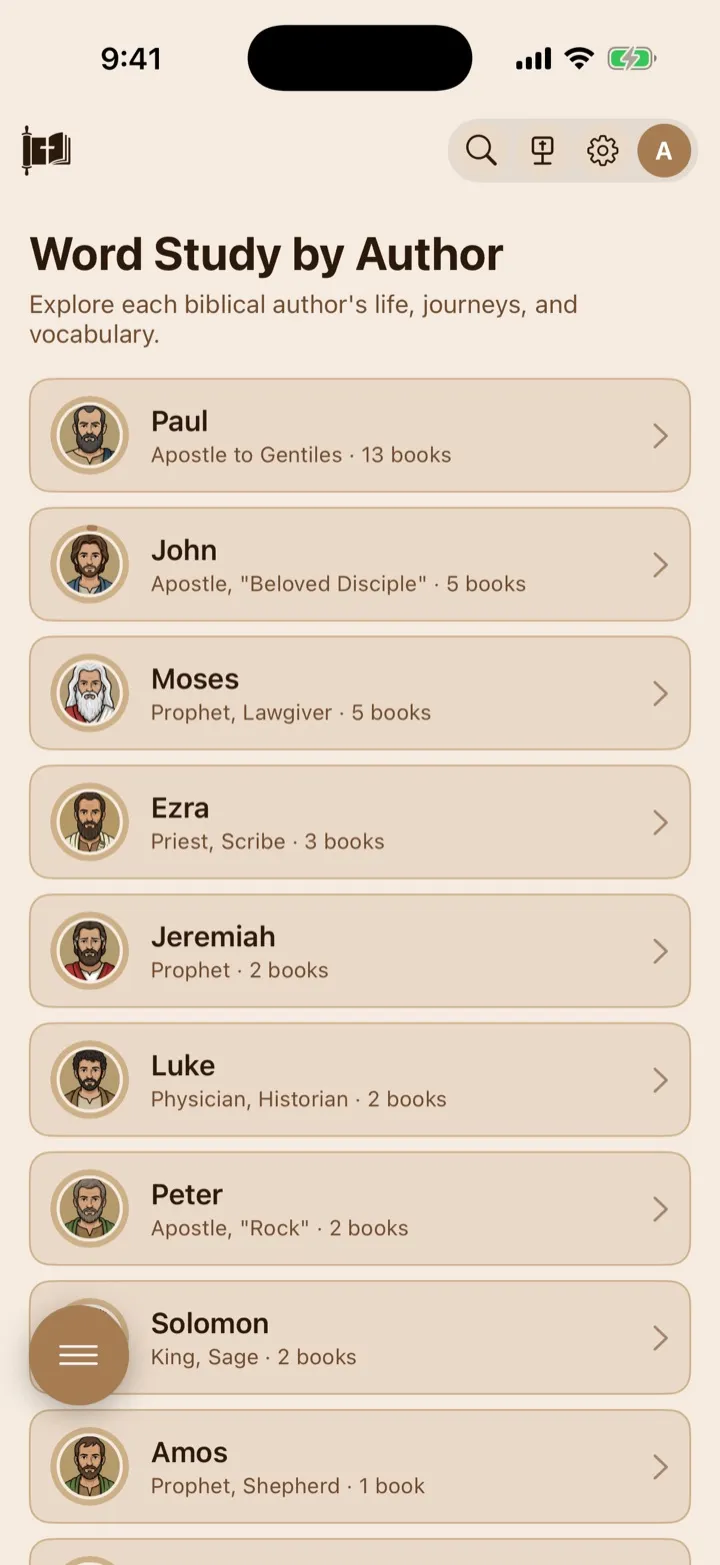
Choose a biblical author to open that author’s profile.
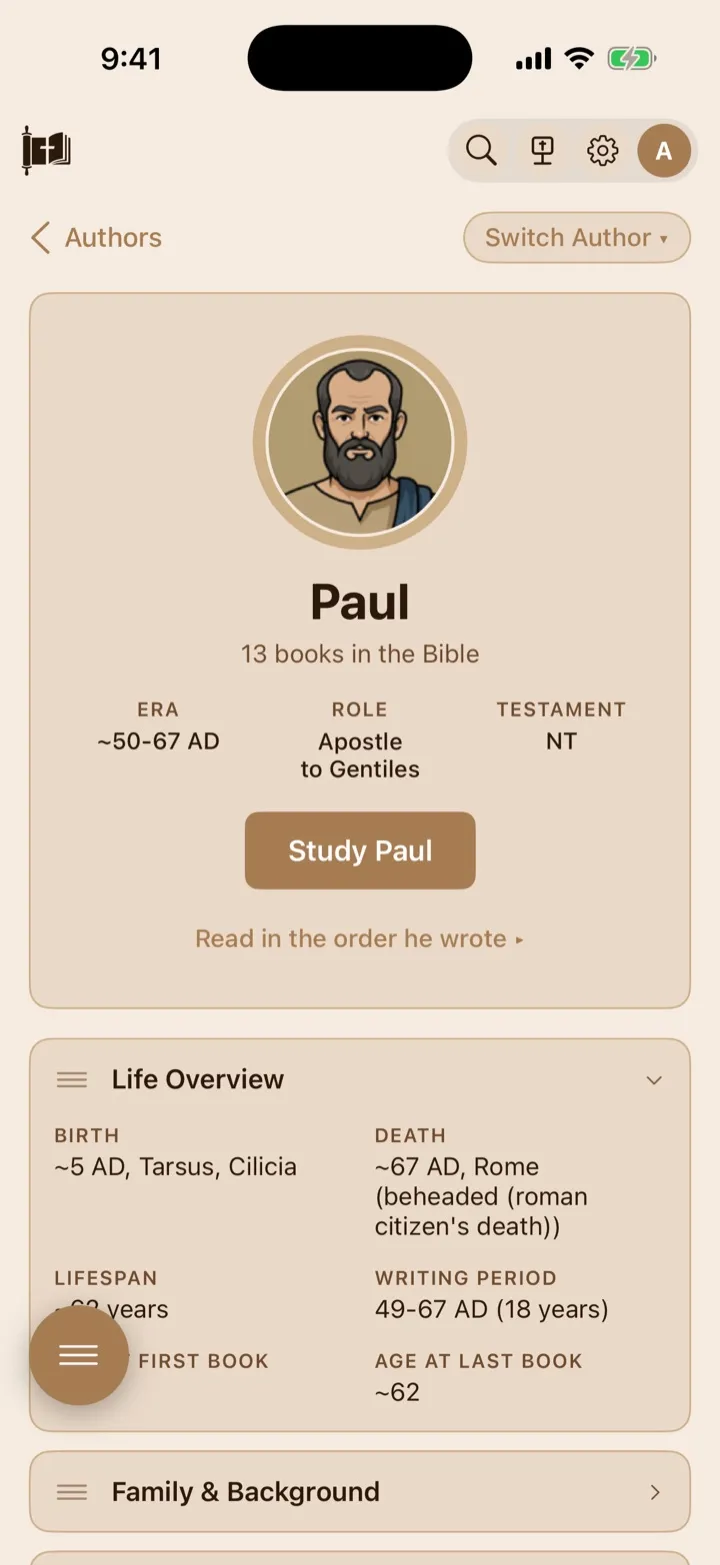
An author profile brings together background, books, vocabulary, and journeys.
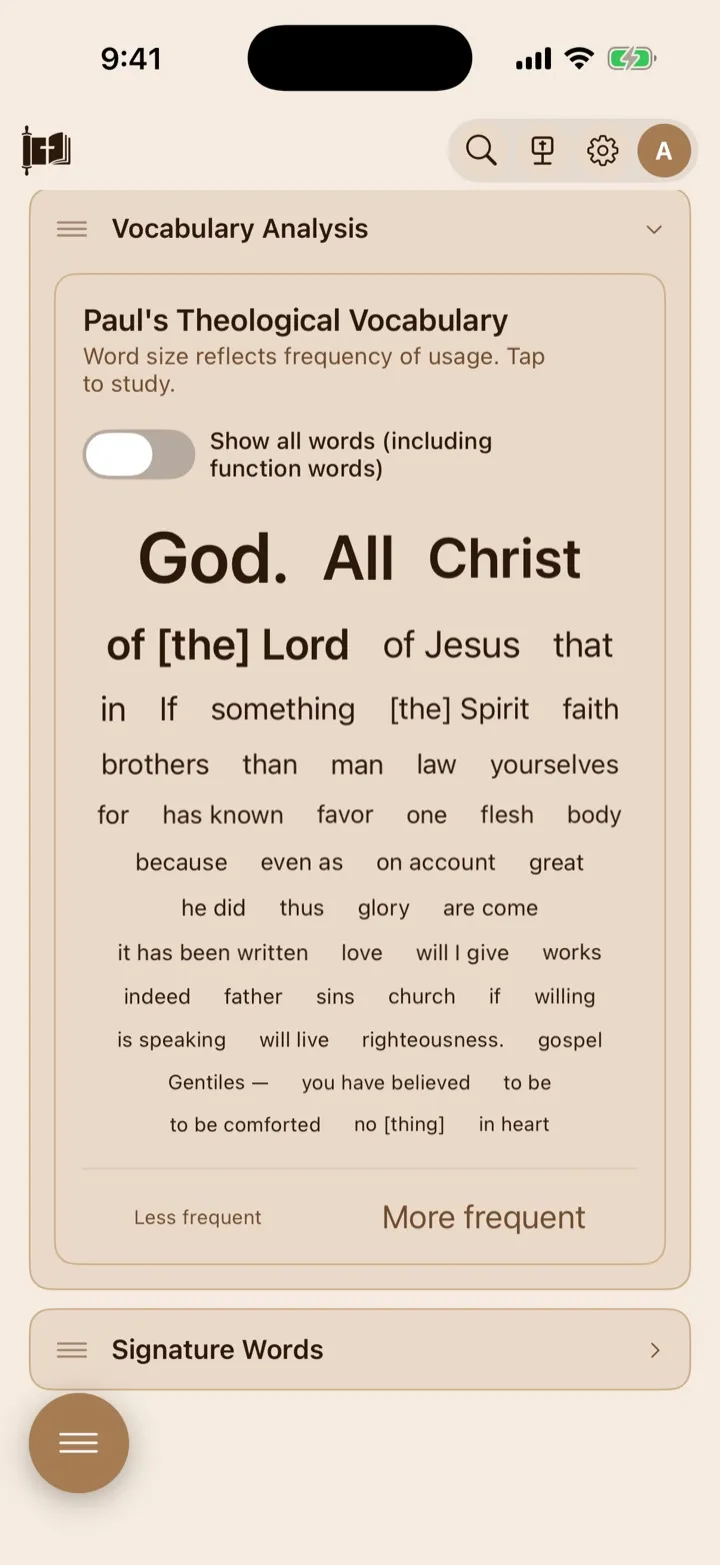
The word cloud sizes terms by frequency; tap a word to open a full Word Study.
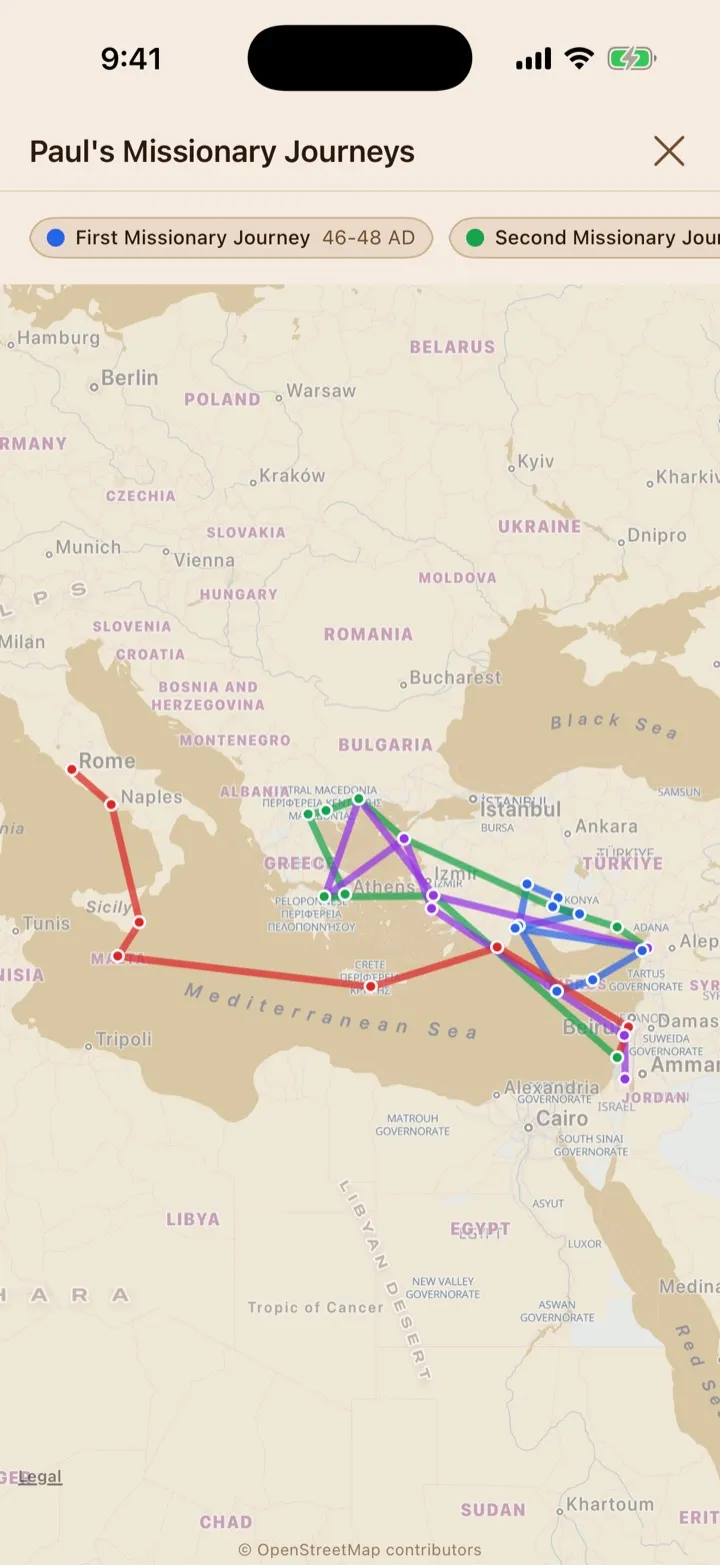
View on Map draws each journey’s route in its own color.
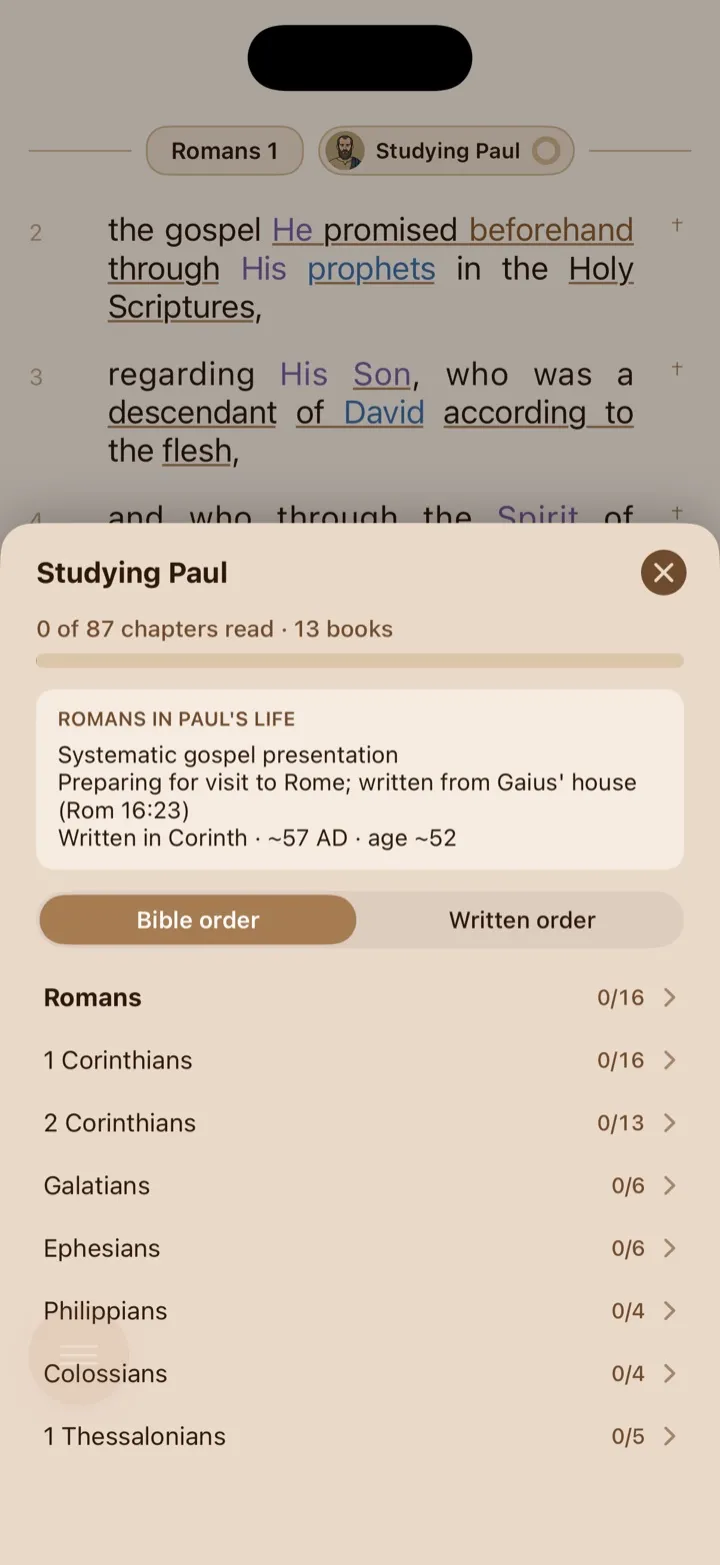
Author Study Mode follows the author’s books and keeps the active reading plan nearby.
Choose an author
Section titled “Choose an author”- Scroll through the author list.
- Tap an author’s row.
- Wait for the author profile to open.
The profile begins with the author’s name, picture, book count, era, role, and testament. OT means Old Testament, and NT means New Testament.
Tap Authors at the top of the profile to return to the full list. You can also tap Switch Author and choose another author without returning to the list first. The number beside each name in that menu is the author’s book count.
Understand the profile sections
Section titled “Understand the profile sections”The profile is arranged as expandable cards. Tap a card heading to open or close it. A section does not appear when GospelGrasp has no information to show for that author.
The available sections can include:
- Life Overview: birth, death, lifespan, writing period, and estimated ages where available;
- Family & Background: origin, citizenship, education, occupation, marital status, and languages;
- Historical Context: the author’s era, political setting, and important events;
- Writing Motivations: reasons or circumstances connected to particular books;
- Missionary Journeys: journey summaries, dates, routes, companions, and a map where available;
- Challenges Faced: physical, theological, and personal difficulties;
- Death & Legacy: available traditions about the author’s death, an associated quotation, and a legacy summary;
- Writing Timeline: books arranged by their estimated writing dates;
- Books: the Bible books attributed to the author;
- Vocabulary Analysis: the author’s frequently used words; and
- Signature Words: words the author uses more than expected when compared with other writers.
Some profile paragraphs contain Scripture references in the accent color. Tap a reference to preview the passage without leaving the profile. Tap Open in Reader on the preview card when you want to continue in the Reader.
Rearrange the profile sections
Section titled “Rearrange the profile sections”Each expandable section has a three-line handle on its left side.
- Press and hold the handle.
- Drag the section upward or downward.
- Release it in the position you want.
The section closes while you move it. GospelGrasp remembers the section order and which sections are open on this device. The same arrangement is used when you view another author’s profile.
Browse an author’s books
Section titled “Browse an author’s books”- Open Books.
- Tap a book name.
The Reader opens at chapter 1 of that book. Use the Reader normally to move through its chapters.
The books shown reflect the authorship information currently used by GospelGrasp. Some biblical books have traditional or disputed authorship, so a book’s placement under an author should be understood in that light.
Explore vocabulary
Section titled “Explore vocabulary”Open Vocabulary Analysis to see the author’s word cloud. A word cloud is a group of words displayed at different sizes. Larger words occur more often in the author’s writings, while smaller words occur less often.
The cloud shows a short English meaning for each original-language word where available. GospelGrasp currently loads up to 50 leading words.
By default, the cloud focuses on Theological Vocabulary and removes many function words. A function word is a common word mainly used to connect or structure a sentence, such as and, the, or of.
Turn on Show all words (including function words) to switch to the author’s Complete Vocabulary. Turn it off to return to the more focused list.
Open a vocabulary term in Word Study
Section titled “Open a vocabulary term in Word Study”Tap a word in the cloud to open a regular Word Study based on its short English definition. Word Study then shows the Greek or Hebrew entries connected to that English search.
Press and hold a supported word in the cloud to hear its original-language pronunciation. VoiceOver users can choose the pronunciation action from the word’s accessibility actions.
Opening a cloud word does not permanently save it to the author’s profile. Use the author filter in Word Study if you want to narrow the new study to one writer.
Understand Signature Words
Section titled “Understand Signature Words”Open Signature Words to see original words the author uses significantly more often than expected.
The table can show up to 15 entries. Each row includes:
- the original word and a short English meaning;
- a pronunciation button where available;
- Usage, shown as the author’s uses divided by all recorded uses;
- the percentage of all uses connected to this author; and
- an Emphasis comparison.
For example, 63 / 65 means the author accounts for 63 of the word’s 65 recorded uses. An emphasis value such as 4.2× means the author’s share is about 4.2 times higher than would be expected from the author’s share of words in that testament.
These are frequency comparisons. They can point to patterns worth studying, but they do not prove why the author chose a word or settle the meaning of a passage.
Explore missionary journeys
Section titled “Explore missionary journeys”When journey information is available, open Missionary Journeys. The section can show:
- the number of journeys;
- an approximate total distance;
- each journey’s name and dates;
- a route summary;
- traveling companions; and
- notes with tappable Scripture references.
If GospelGrasp has a map for the author, tap View on Map.
Use the journey map
Section titled “Use the journey map”The full-screen map shows colored routes and waypoints. You can drag the map to move it and pinch to zoom.
The colored controls above the map represent separate journeys. Tap a journey control to show or hide its route. A dimmed control means that journey is hidden.
Tap near a route line to select one part of the journey. GospelGrasp highlights the direction of travel and opens the journey details at the bottom of the screen. Each numbered leg shows its starting place and destination.
Tap a leg to open or close its details. An expanded leg can show:
- an estimated distance;
- companions, or Traveling alone;
- a description of what happened; and
- tappable Scripture references.
Tap the distance to switch between miles, km, feet, and meters. The selected distance unit is remembered on this device and is used for every author’s journey map.
Some companion names are links. Tap a linked companion to close the map and open that person’s author profile. Tap a Scripture reference to preview it, then use Open in Reader if you want to leave the map and read the passage.
The journey lines connect the available waypoints directly. They help show the general direction and scale of travel, but they are not a reconstruction of every ancient road, sea route, stop, or boundary. Distances are estimates between mapped points.
Start Author Study Mode
Section titled “Start Author Study Mode”Tap Study [Author] near the top of an author profile. For example, Paul’s profile has a Study Paul button.
GospelGrasp then:
- turns on Author Study Mode for that writer;
- opens the first attributed book in the Reader; and
- adds the author’s name and reading progress to the Reader’s chapter header.
Tap the author’s name in the chapter header to open the Studying [Author] panel.
While Author Study Mode is active, a new Word Study search automatically uses that author as its author filter. Choosing All Authors in Word Study removes the filter and exits Author Study Mode.
Use the Studying Author panel
Section titled “Use the Studying Author panel”The panel shows your chapter progress across the author’s books. It can also show why the current book was written, where it was written, its estimated date, and the author’s approximate age where that information is available.
Use the book list to move through the author’s writings. Each row shows how many chapters you have read. Tapping a book opens its first unread chapter. If the book is untouched or already complete, it opens at chapter 1.
When writing dates are available, choose:
- Bible order to list the books in their normal Bible order; or
- Written order to list them by their estimated writing dates.
Tap Exit Study Mode to leave Author Study Mode.
Understand chapter progress
Section titled “Understand chapter progress”GospelGrasp counts a chapter as read after you have moved through most of it and spent a reasonable amount of reading time there. Quickly jumping to the bottom does not mark the chapter complete.
This progress appears in the author-list picture rings, the author profile, the Reader’s author label, the Studying [Author] panel, and an author’s chronological reading plan.
Read the book introductions
Section titled “Read the book introductions”The first time you open a supported book in Author Study Mode, a card can appear with a title such as Why Paul wrote Romans. Depending on the available information, it can explain:
- the occasion for the book;
- what was happening at the time;
- nearby historical events;
- where and when it was written; and
- the author’s approximate age.
Tap Start Reading to close the card. GospelGrasp shows each supported author-and-book introduction once on this device.
You can see the current book’s available background again by tapping the author’s name in the Reader chapter header. A chronological reading plan also provides an information button beside supported books.
Open author event cards in the Reader
Section titled “Open author event cards in the Reader”While Author Study Mode is active, supported verses can show an event icon in the left margin. The icon can represent a conflict, voyage, imprisonment, journey, martyrdom, letter, or another life event.
Tap the icon to open a card with the event description and Scripture reference. These icons appear only where the author profile connects an event to a specific cited verse.
Leave or resume Author Study Mode
Section titled “Leave or resume Author Study Mode”Author Study Mode remains active while you intentionally move among the selected author’s books.
If you deliberately open a passage outside that author’s books—for example, through search or a verse link—GospelGrasp exits Author Study Mode. A temporary message says Exited Studying [Author]. Tap Resume to return to the book and chapter where you were studying.
Simply scrolling beyond one of the author’s books does not permanently exit the mode. The author label hides while the visible book is outside the author’s books and returns when you scroll back.
You can also exit at any time by tapping the author label and choosing Exit Study Mode.
Read an author’s books in written order
Section titled “Read an author’s books in written order”Authors with at least two attributed books have a Read in the order he wrote link on the profile.
- Tap Read in the order he wrote.
- Review the estimated order, dates, and chapter progress.
- Tap Start Plan.
- After beginning, use Continue to open the next unread chapter.
You can also tap a book row to open that book’s first unread chapter. Tap the information button beside a supported book to review why it was written.
Starting or opening a book from this plan also turns on Author Study Mode. The plan is marked complete after all included chapters count as read.
The plan uses estimated writing dates where available. Books without a usable date follow the order currently supplied in the author’s book list, so the plan should be treated as a study chronology rather than an undisputed timeline.
What GospelGrasp saves or syncs
Section titled “What GospelGrasp saves or syncs”The following are currently saved on this device:
- the active Author Study Mode, so it can continue after the app reopens;
- author-profile section order and open or closed sections;
- the journey distance unit;
- which author-and-book introduction cards you have already seen;
- chapter-reading progress used by the author progress displays; and
- chronological reading-plan enrollment and completion.
These Author Study choices and progress records are not currently synced to another device. Signing out does not intentionally clear them from this device.
The author list, profiles, vocabulary, and other study information are loaded when needed rather than saved as personal account content.
Requirements and limits
Section titled “Requirements and limits”- An internet connection is required to load the author list, author profiles, book lists, vocabulary, signature words, and most reading-mode background information.
- Bible text already stored in the Reader remains available offline. If Author Study information cannot load, the author label, event icons, introductions, and progress panel may not be available until you reconnect.
- Profile sections appear only when information exists for that author.
- Journey summaries and maps appear only for supported authors.
- Detailed map tiles may require an internet connection. The route and journey information itself is included with GospelGrasp where supported.
- Authorship, biography, dates, political history, writing order, routes, and distances can include estimates or traditional conclusions.
- Vocabulary Analysis shows up to 50 leading words, and Signature Words shows up to 15 distinctive entries.
- Chapter progress, reading-plan progress, profile arrangement, and Author Study Mode are currently device-specific rather than account-synced.
If something does not work
Section titled “If something does not work”The author list does not load
Section titled “The author list does not load”Check your internet connection and tap Retry. If GospelGrasp says you need to sign in, sign in again and return to Word Study by Author.
An author profile has only a few sections
Section titled “An author profile has only a few sections”The available information varies by author. Sections with no content are omitted instead of showing empty cards.
Vocabulary Analysis says it failed to load
Section titled “Vocabulary Analysis says it failed to load”Confirm that the device is online. Return to Authors, then reopen the author’s profile and Vocabulary Analysis. If the same author repeatedly fails, report the author’s name through Support.
Signature Words says no distinctive patterns were found
Section titled “Signature Words says no distinctive patterns were found”GospelGrasp did not find a word that met the current comparison requirements for that author. You can still use Vocabulary Analysis to review frequently used words.
The journey map does not appear
Section titled “The journey map does not appear”The View on Map button appears only when GospelGrasp includes mapped journeys for that author. A profile can have written journey summaries without a map.
A journey map has little background detail
Section titled “A journey map has little background detail”Check your internet connection. Route lines and waypoints can still appear while detailed map tiles are unavailable.
The author label does not appear in the Reader
Section titled “The author label does not appear in the Reader”The label appears only while Author Study Mode is active and the visible book belongs to the selected author. Return to one of that author’s books. If the profile information has not loaded, reconnect and open the book again.
A book introduction does not appear again
Section titled “A book introduction does not appear again”Each supported introduction appears automatically once per author and book on this device. Tap the author label in the Reader to review the current book’s available background, or use the information button in the chronological reading plan.
My chapter progress did not increase
Section titled “My chapter progress did not increase”Reading progress requires both movement through most of the chapter and enough reading time. Continue reading through the chapter rather than jumping to the end.
The written-order plan is unavailable
Section titled “The written-order plan is unavailable”The profile needs at least two attributed books. The plan also needs the author and book information to load while the device is online.
The profile says the author was not found
Section titled “The profile says the author was not found”Tap Authors to return to the available list and choose the author again. If the author still fails to open, reconnect and retry from the list.
Common questions
Section titled “Common questions”Is every author and date certain?
Section titled “Is every author and date certain?”No. Some authorship traditions, dates, and biographical details are debated. Use the profile as a study guide and compare important claims with Scripture and trusted scholarly resources.
What is the difference between Vocabulary Analysis and Signature Words?
Section titled “What is the difference between Vocabulary Analysis and Signature Words?”Vocabulary Analysis shows words the author uses often. Signature Words looks for words the author uses more than expected when compared with other writers.
Does a large word in the cloud mean it is more important?
Section titled “Does a large word in the cloud mean it is more important?”No. Its size shows frequency in the author’s writings. Frequency does not measure spiritual or theological importance.
Does Study Author hide the rest of the Bible?
Section titled “Does Study Author hide the rest of the Bible?”No. The full Bible remains available. Author Study Mode adds author-specific progress and background while you read that writer’s books. Deliberately opening another author’s book exits the mode and offers a Resume option.
Does the written-order plan change the Bible’s book order?
Section titled “Does the written-order plan change the Bible’s book order?”No. It creates a separate reading path based on estimated writing dates. The Reader and Bible navigation keep their normal book order.
Can I use Word Study by Author offline?
Section titled “Can I use Word Study by Author offline?”The author information requires an internet connection. Bible chapters already stored in the Reader can still be read offline, but author-specific additions may be unavailable until GospelGrasp reconnects.
Does my author reading progress sync to another device?
Section titled “Does my author reading progress sync to another device?”Not currently. Author chapter progress and chronological plan progress are stored on this device.