Finding Your Way Around GospelGrasp
GospelGrasp keeps its main tools within reach while leaving most of the screen open for reading and study. This guide explains the controls you will use to move around the app after you sign in.
What these controls do
Section titled “What these controls do”GospelGrasp has two main sets of navigation controls:
- The Menu button in the lower-left corner moves you between the main areas of the app.
- The row of four buttons near the top gives you quick access to Search, sermon recording, Settings, and Account.
The GospelGrasp logo also appears at the top of the screen. Tapping it opens the GospelGrasp website in your web browser.
When you might use them
Section titled “When you might use them”You might use these controls to:
- Return to Home after reading a passage.
- Move from the Reader to the Atlas, Topics, or Word Study.
- Open your notes, highlights, or Study Stacks without losing your place.
- Search for a Bible passage or topic from almost anywhere in the app.
- Change the way the app looks.
- Open your account information.
- Start a sermon recording or return to one already in progress.
Where to find them
Section titled “Where to find them”The main Menu button
Section titled “The main Menu button”Look for the round Menu button in the lower-left corner of the screen. It uses an icon with three horizontal lines.
In the Reader, the button sits just above the reading toolbar. It may become faint while you scroll down so it does not cover the text. It becomes fully visible again when you scroll up.
The top row
Section titled “The top row”Near the upper-right corner, you will see four round buttons:
- Search, shown as a magnifying glass.
- Record sermon, shown with the Sermons icon.
- Settings, shown as a gear.
- Account, shown as a circle with a letter inside it.
These buttons appear across the main areas of GospelGrasp, including Home, the Reader, Atlas, Word Study, Word Study by Author, Topics, and Sermons.
See it in GospelGrasp
Section titled “See it in GospelGrasp”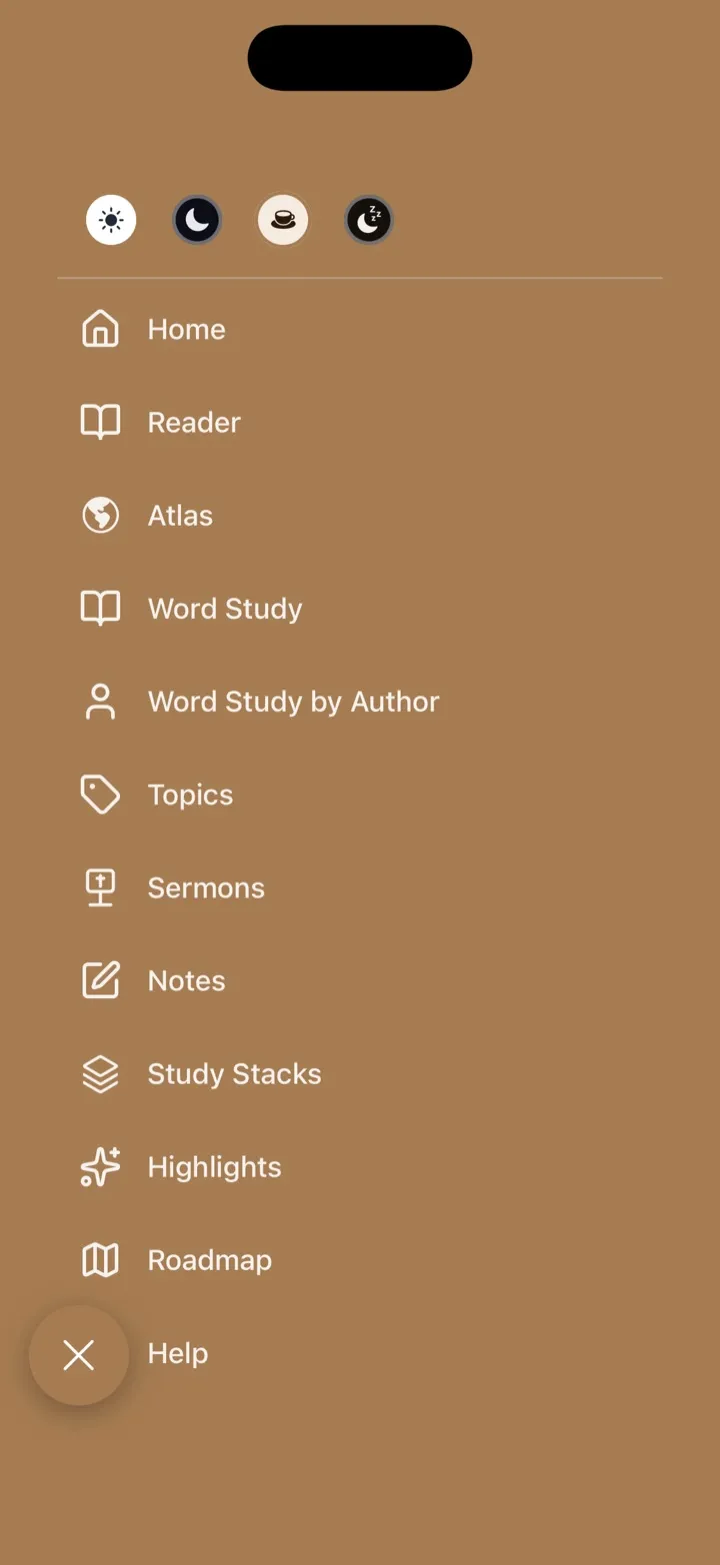
The Menu opens the main destinations without covering the entire screen.
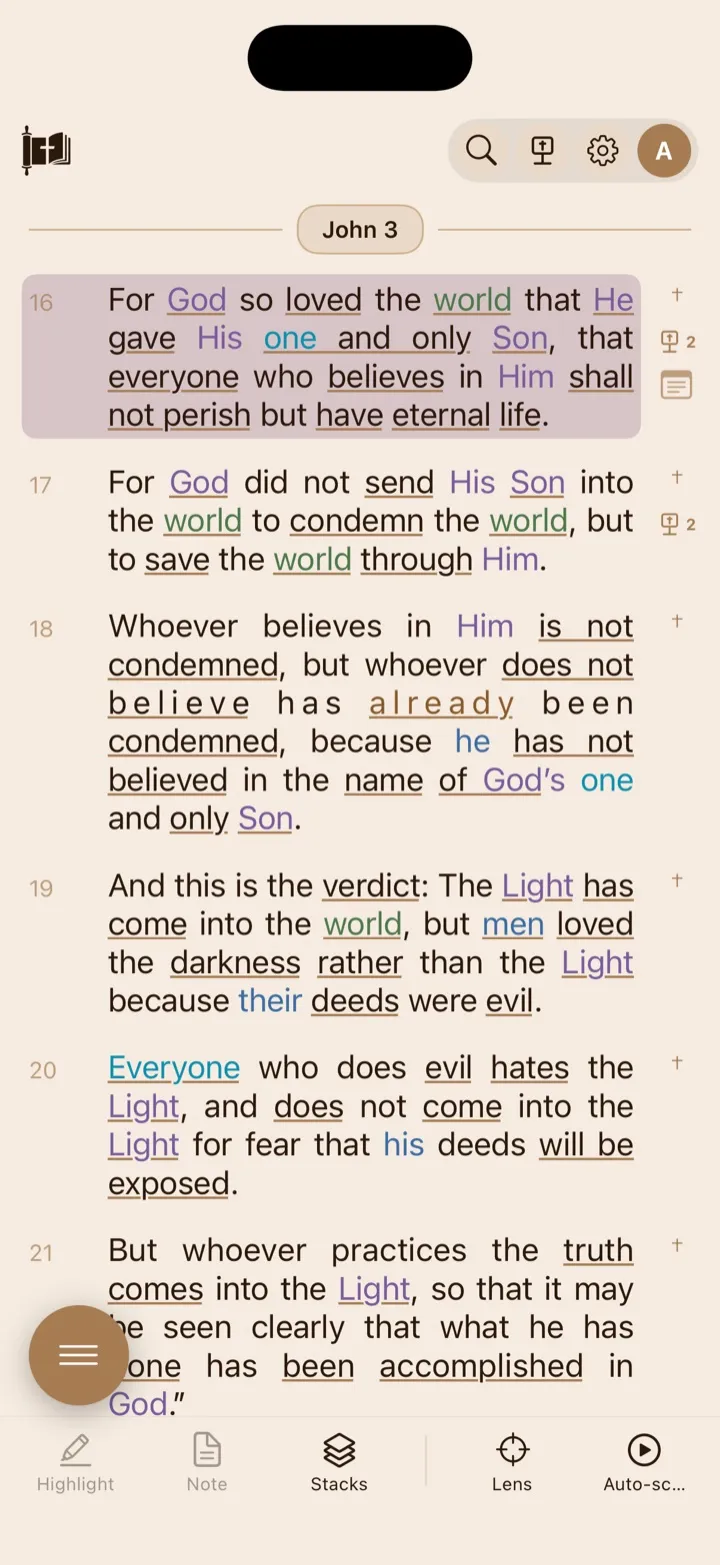
The four top controls stay together so they are easy to recognize throughout the app.
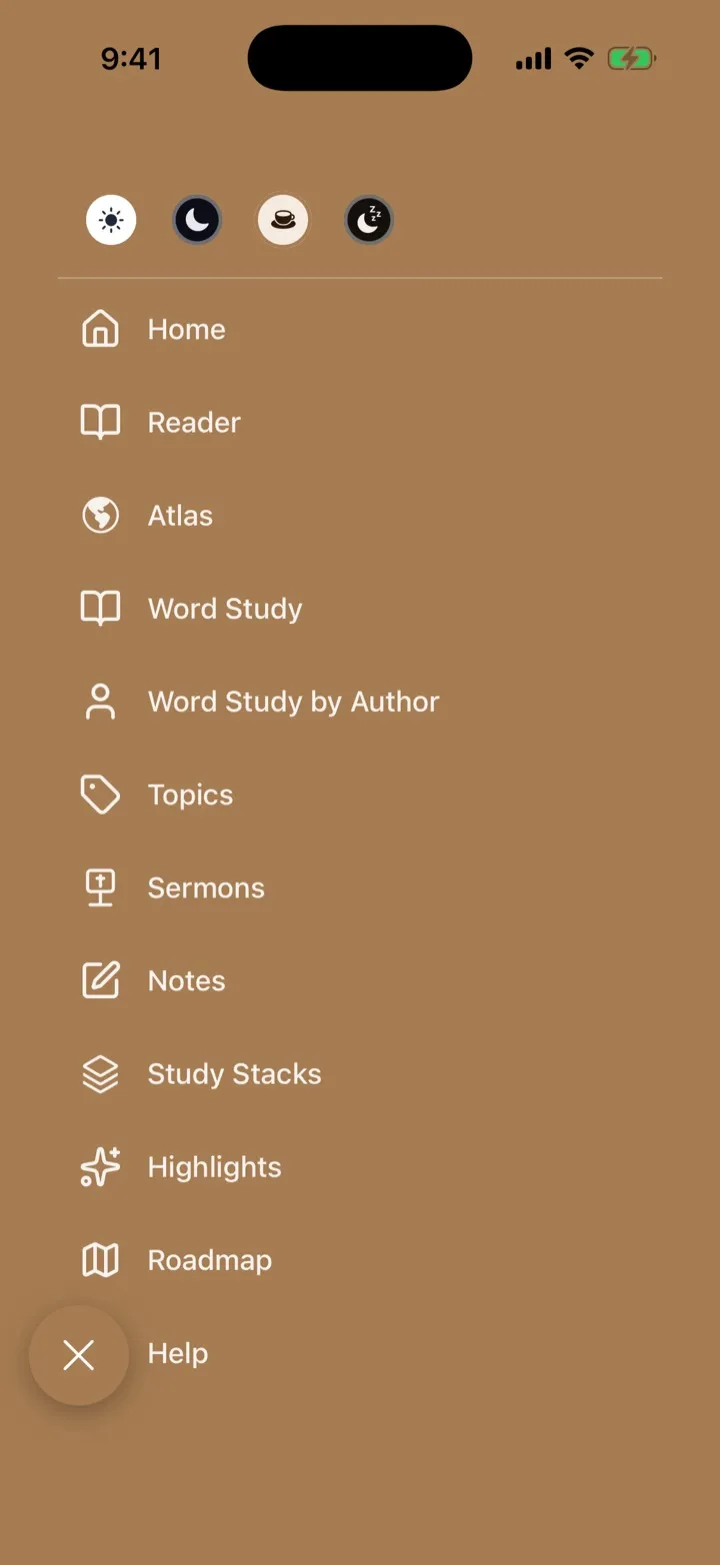
Theme buttons sit at the top of the menu; the highlighted icon shows the current theme.
How to use the main menu
Section titled “How to use the main menu”Open or close the menu
Section titled “Open or close the menu”- Tap the round Menu button in the lower-left corner.
- The menu opens over the current screen.
- To close it without going anywhere, tap the X in the lower-left corner or tap an empty area outside the list.
Choosing a destination closes the menu automatically.
Move to another part of GospelGrasp
Section titled “Move to another part of GospelGrasp”-
Open the Menu.
-
Tap the area you want to visit:
- Home shows your reading progress and Bible-book overview.
- Reader opens the Bible at your saved reading position.
- Atlas shows biblical places and the Scripture stories connected to them.
- Word Study helps you explore how a word is used in Scripture.
- Word Study by Author helps you study an author’s background, books, and vocabulary.
- Topics gathers passages connected to a subject.
- Sermons opens your sermon library.
- Notes opens your saved Scripture notes.
- Study Stacks opens your named collections of saved verses.
- Highlights opens the passages you have highlighted.
Most choices replace the main screen. Notes, Study Stacks, and Highlights open as a card or tray over your current screen. When you close one of these, you return to what was underneath it.
How to change the app’s theme
Section titled “How to change the app’s theme”A theme changes the app’s background, text, and accent colors.
-
Open the Menu.
-
At the top of the menu, tap one of the four theme buttons:
- Light uses a light background.
- Dark uses a dark background with light text.
- Sepia uses warm, paper-like colors.
- Bedtime uses warm, dark colors and reduces the amount of blue light produced by GospelGrasp. Blue light at night can interfere with sleep, which is why this theme is called Bedtime.
The change takes effect immediately, and the menu closes. GospelGrasp saves your choice on your device. It also tries to save the choice to your account so your reader preferences can be available when you use another device.
You do not need an internet connection to change the theme on the device in your hand. If the account update cannot be completed, the local choice remains in place.
Bedtime minimizes blue in GospelGrasp’s default colors, but it does not override your personal highlight choices. For example, if you create a highlight category with a bright blue color, GospelGrasp will continue to show that highlight in the color you chose.
Bedtime also has a Text Brightness control in Settings, explained below.
How to use the top controls
Section titled “How to use the top controls”Search for Scripture or a topic
Section titled “Search for Scripture or a topic”- Tap Search, the magnifying-glass button.
- The top row changes into a search field labeled Search verse or topic.
- Type a Bible reference, such as
John 3:16, or a topic, such asgrace. - When matches appear, tap the passage or topic you want.
Start with at least two characters to give GospelGrasp enough information to find useful suggestions. Passage matches appear under SCRIPTURE. If your words do not look like a clear Bible reference, topic matches may appear under TOPICS. Topic suggestions require an internet connection.
You can also press Go on the keyboard. If GospelGrasp recognizes a Bible reference, it opens that passage in the Reader.
Use a shortcut for a Bible passage
Section titled “Use a shortcut for a Bible passage”You do not have to type a complete Bible reference. GospelGrasp ignores capitalization and accepts common abbreviations, spaces, and punctuation. It also recognizes compact shortcuts with no spaces.
For example:
J316,Jn316, andJohn 3:16can all find John 3:16.Ps23can find Psalm 23.Rom828can find Romans 8:28.1Cor1313can find 1 Corinthians 13:13.2Tim316can find 2 Timothy 3:16.
When you use a compact shortcut, GospelGrasp separates the numbers into a valid chapter and verse. A shortcut can occasionally match more than one valid passage. If that happens, Search shows the possible matches so you can tap the one you meant.
You can search for an entire chapter by leaving off the verse, such as Romans 8 or Rom8.
Search for a topic
Section titled “Search for a topic”If your entry is not recognized as a Bible reference, GospelGrasp can suggest related topics. Type at least two letters, then choose a result under TOPICS. Topic suggestions need an internet connection; Bible-reference shortcuts do not.
Clear or close Search
Section titled “Clear or close Search”- If the search field contains text, tap the X at the right side of the field to clear the text and keep searching.
- If the field is empty, tap the X to close Search.
- You can also tap outside the search area to close it.
- Pressing Go while the field is empty closes Search.
Search text is temporary. GospelGrasp does not save it when you close the field.
Browse by book, chapter, and verse
Section titled “Browse by book, chapter, and verse”When the book-browser option is available, you can choose a passage without typing its reference.
- Open Search.
- Tap the grid-shaped Bento button inside the search field, or tap Browse All Books → below the search results.
- Choose a Bible book. The books are divided into OT and NT. These mean Old Testament and New Testament.
- Choose a chapter.
- Choose a verse.
Selecting a verse opens it in the Reader. Use the left arrow in the browser to return to the previous list. The right arrow moves from a selected chapter to its verse list.
Book browsing is currently available from Home, the Reader, Atlas, and Sermons. If it is not available on the screen you are using, open one of those areas from the main menu first.
Open Settings
Section titled “Open Settings”- Tap Settings, the gear button.
- Reader Settings opens over the current screen.
- Tap a section name to open it. Only one section is open at a time, which makes it easier to skip controls you do not need.
- Use the close button to return to the screen underneath it.
Changes appear in the preview at the top of Reader Settings. These settings affect reading throughout GospelGrasp, even when you open them from a screen other than the Reader.
Appearance
Section titled “Appearance”Appearance controls how Scripture looks on the screen.
Choose Light, Dark, Sepia, or Bedtime. This is the same choice available at the top of the main menu. Bedtime reduces GospelGrasp’s default blue light and adds the Bedtime Text Brightness control described below.
Bible Version
Section titled “Bible Version”Choose the translation used in the Reader:
- BSB — Berean Standard Bible.
- WEB — World English Bible.
- KJV — King James Version.
Changing the version changes the wording displayed in the Reader. It does not change your saved notes, highlights, or reading position. Some study aids are available only with a supported version, as explained under Study Aids.
Font Family
Section titled “Font Family”Choose the style of the Bible text:
- Sans uses clean letters without decorative strokes.
- Serif uses traditional, book-like letter shapes.
- Mono gives every character the same amount of horizontal space.
This changes appearance only; it does not change the Bible’s words.
Font Size
Section titled “Font Size”Move the slider to make the Bible text smaller or larger. The available range is 14 to 30 pixels. The preview changes as you move the slider.
Justified Text
Section titled “Justified Text”Turn this on to line up the text along both the left and right edges, similar to many printed books. Turn it off for a straight left edge and a natural, uneven right edge.
Bedtime Text Brightness
Section titled “Bedtime Text Brightness”This control appears only when Bedtime is selected. Move the slider between 20 and 100 percent to make GospelGrasp’s main Bedtime text dimmer or brighter. This works together with the theme’s warmer colors to reduce bright and blue light at night. It does not change your device’s screen brightness.
Study Aids
Section titled “Study Aids”Study Aids controls the extra information and visual markers shown with Scripture.
Lexicon
Section titled “Lexicon”A lexicon is a dictionary for the original Greek and Hebrew words behind a translation. Turn Lexicon on to show original-language word-study options where GospelGrasp has them.
Lexicon links are currently available only with the BSB. The control is unavailable when another Bible version is selected because those versions do not currently include the word links this feature needs.
Semantic Scripture Colors
Section titled “Semantic Scripture Colors”“Semantic” means based on meaning. Turn this on to let GospelGrasp use app-provided colors for certain kinds of words in Scripture, including:
- People and angels.
- Places.
- Names of God.
- Words spoken by Christ.
- References to time.
- Numbers.
These study colors are separate from highlights you create yourself. Turning them off does not remove or recolor your personal highlights.
Words of Christ
Section titled “Words of Christ”This control appears when Semantic Scripture Colors is on. Use it to show or hide the red color used for words spoken by Christ. Turning off all Semantic Scripture Colors also turns off this color layer.
Cross References
Section titled “Cross References”Turn this on to show a † marker where a verse has related Scripture references. Turn it off to hide those markers. The related passages are not deleted; only their markers are hidden.
Sermon References
Section titled “Sermon References”Turn this on to show a sermon badge beside verses referenced in your sermons. Tap the badge to open the sermon or sermons that reference that verse. If only one sermon matches, GospelGrasp opens that sermon directly. If more than one sermon matches, GospelGrasp shows a list so you can choose which sermon to open.
The number beside the badge tells you how many sermons reference that verse. Tap it to open the one matching sermon or choose from the matching sermons. Turn Sermon References off to hide the badges. Your sermons and their Scripture references remain saved.
Semantic Color Key
Section titled “Semantic Color Key”This key appears when Semantic Scripture Colors is on. It shows what each study color means, so you do not have to remember the categories.
Pronunciations
Section titled “Pronunciations”Pronunciation controls how GospelGrasp speaks biblical names and original-language words aloud.
Enhanced Pronunciations
Section titled “Enhanced Pronunciations”Turn this on to use recorded Greek and Hebrew pronunciations when they are available. GospelGrasp gets the recording when you request a pronunciation. If the recording is unavailable or the device is offline, the app falls back to the device’s built-in voice.
Turn this setting off if you always want to use the built-in voice.
All Pronunciations
Section titled “All Pronunciations”This option appears when Enhanced Pronunciations is on. Use it to download the complete pronunciation collection for offline use. The download is about 554 MB, so use a reliable connection and make sure your device has enough free space.
The progress circle shows the download status. Tap it while a download is active to cancel. When all files are ready, the row shows Downloaded ✓. If part of the download fails, you can try it again.
Sermon Recording
Section titled “Sermon Recording”This section controls how sermon audio is turned into written text. Turning speech into text is called transcription.
Local Transcription
Section titled “Local Transcription”Local Transcription is on by default on supported devices. It can be faster, keeps the transcription process private on your device, and can continue when an upload would have to wait for a connection. If local processing fails, GospelGrasp can fall back to online transcription. Turn it off if you prefer to use online transcription for every sermon recorded on this device.
Local Transcription currently requires:
- An iPhone 12 or newer, or an iPhone SE (3rd generation), running iOS 26 or later.
- An iPad with an A14 Bionic or newer chip, or an iPad with an Apple M-series chip, running iPadOS 26 or later.
- English as the device’s current language.
iPhone 11 models and iPhone SE (2nd generation) can run iOS 26, but they do not support Local Transcription. GospelGrasp checks compatibility for you and disables the control when the device, operating system, or language is not supported. This preference belongs to the device and does not follow your account to another device.
Open Account
Section titled “Open Account”- Tap Account, the circle with a letter inside it.
- The Account panel opens over the current screen.
- Scroll to see the available sections and actions.
- Use the close button to return to the screen underneath it.
The exact choices can vary with your account level and the features currently available to your account.
Profile and sync
Section titled “Profile and sync”The top of the panel shows the email address used for your account, an initial from that address, and your current account level, such as Free, Pro, or 4F.
The Synced label shows that you are viewing the signed-in account used for sync. Changes still need an internet connection before they can reach another device.
Progress
Section titled “Progress”When progress information is available, this section summarizes study activity across your account:
- Day Streak shows consecutive qualifying study days.
- Sessions shows the number of recorded study sessions.
- Total Time shows the combined time recorded for study.
- Books shows how many Bible books you have studied.
Open Recent Study to see recent passages and the time spent in them. The list may be hidden when progress cannot be loaded from the account.
Subscription
Section titled “Subscription”This section shows your current plan and any details that apply to it. A 4F plan may also show qualifying days, the date it began, and a trial end date. 4F means Free for Faithful Followers, a plan connected to a regular study rhythm. The current goal shown to eligible Free users is at least 30 minutes of study on four days each week.
View all plans appears only when plan upgrades are being shown in the app. The plans page can describe available levels and identify your current one. Plan enrollment or payment may still direct you elsewhere or be marked as coming soon.
Export My Data
Section titled “Export My Data”Tap Export My Data to request a copy of your account data. GospelGrasp downloads it as a structured data file called JSON and opens the iOS sharing menu so you can save it or send it to another location.
This action needs an internet connection and is limited to two exports per day.
Invite Friends
Section titled “Invite Friends”This option appears only if your account has been given a referral code. The button shows how many uses remain. Tap it to open the iOS sharing menu with your invite.
The rewards depend on what the invited person does next:
- When someone follows your invite link, downloads GospelGrasp, and begins using it, you receive two weeks of Pro and two additional invites. One replaces the invite that was used, and one is an extra invite you can share.
- The invited person receives a 30-day Pro trial instead of the standard 14-day trial offered without an affiliate invite.
- If the invited person later signs up for Pro, your Pro reward is extended by another two weeks, giving you four weeks of Pro in total for that referral.
Someone using your invite does not immediately give you a full month of Pro. You receive two weeks when the person begins using GospelGrasp and the other two weeks only if that person later signs up for Pro.
Redeem an invite code
Section titled “Redeem an invite code”Tap Have an invite code? to enter a code you received. Invite codes currently work only during the first 14 days after an account is created and grant 30 days of Pro when accepted. Redeeming a code needs an internet connection.
Sign Out
Section titled “Sign Out”Signing out only removes your access to the account on this device. It does not delete your GospelGrasp account or your locally stored notes, highlights, reading progress, sermons, recordings, or pending sermon uploads. GospelGrasp also keeps your display choices and bundled Bible and Atlas content.
GospelGrasp clears the signed-in session and saved login credentials, so you must sign in again to use the account. Signing back into the same account makes its retained local content available again.
To sign out:
- Tap Sign Out.
- GospelGrasp clears authentication and returns to the sign-in screen.
If a sermon is being recorded when authentication closes, GospelGrasp stops and saves the recording locally instead of discarding it.
Delete Account
Section titled “Delete Account”Deleting an account is different from signing out. GospelGrasp first asks the server to deactivate the account. The server then permanently deletes the account and its data within 30 days, including notes, highlights, sermon recordings, and reading progress. After the server accepts the request, GospelGrasp immediately removes the local copy from this device.
To delete the account:
- Tap Delete Account.
- Read the confirmation message carefully.
- Confirm only if you want to request deletion of the account and its data.
The deletion must succeed online before GospelGrasp clears the account from the device. If the request fails, the account remains in place and the app shows an error.
Open sermon recording
Section titled “Open sermon recording”- Tap Record sermon.
- GospelGrasp opens the recording screen in its Ready to Record state.
- Recording does not begin until you use the start control on that screen.
If a recording is already in progress, the sermon button changes into a red timer. The timer remains visible when you move to another main area. Tap it to return to the active recording.
Recording permissions, moments, photos, processing, and recovery will be covered in the Sermons guide.
Open the GospelGrasp website
Section titled “Open the GospelGrasp website”Tap the GospelGrasp logo near the upper-left corner. GospelGrasp opens
gospelgrasp.com in your web browser. You need an internet connection to load
the website.
Opening a link that leads into GospelGrasp
Section titled “Opening a link that leads into GospelGrasp”Some GospelGrasp links can take you directly to a specific place in the app. Depending on the link, GospelGrasp can open:
- A Bible book, chapter, or verse.
- A sermon, including a particular section of that sermon.
- A Word Study term.
- A topic.
- Notes or a specific highlight.
You still need to be signed in. For now, open GospelGrasp and sign in before you use one of these links. If a link opens the app at the sign-in screen, finish signing in and then use the link again. A link that is incomplete or does not point to a supported GospelGrasp destination will not open a new screen.
What GospelGrasp saves or syncs
Section titled “What GospelGrasp saves or syncs”- Your theme choice is saved on your device and sent to your account when a connection is available.
- Reader appearance and study-aid choices are saved on the device and sent to your account when possible. Downloaded pronunciation audio and the Local Transcription preference stay on the device where you set them up.
- Search text is cleared when you close Search.
- GospelGrasp opens at Home when a new app session begins. Choosing a main area does not change the saved start screen.
- The Reader keeps its own saved reading position. Returning to Reader takes you back to that position. Reading progress is covered in the Reader guide.
- Opening or closing the menu does not change your notes, highlights, stacks, sermons, or Scripture data.
Requirements and limits
Section titled “Requirements and limits”- You must sign in before using the main app in a release version of GospelGrasp.
- The main menu, locally saved theme, Bible-reference matching, and Bible-book browser can work with Scripture data stored on the device.
- Topic suggestions, the GospelGrasp website, account updates, and other online content need an internet connection.
- Account progress, data export, invite sharing, invite redemption, and account deletion need a connection to GospelGrasp’s account service.
- Local Transcription requires iOS or iPadOS 26, English as the device language, and compatible hardware: iPhone 12 or newer, iPhone SE (3rd generation), or an iPad with an A14-or-newer or M-series chip.
- The full offline pronunciation collection uses about 554 MB of storage and requires a reliable connection to download.
- Starting a sermon recording requires permission to use your device’s microphone.
- Taking a photo during a sermon recording also requires permission to use your device’s camera. GospelGrasp asks for camera access when you first use the camera button.
- Direct GospelGrasp links require the app to be installed and the link to use a supported destination.
If something does not work
Section titled “If something does not work”The Menu button looks faint
Section titled “The Menu button looks faint”The button may fade while you scroll down in the Reader. Scroll up and it will return to full visibility. You can still tap it while it is faint.
Search does not show suggestions
Section titled “Search does not show suggestions”- Type at least two characters.
- For a passage, include the book and chapter, such as
Romans 8, or use a shortcut such asRom8orJ316. - Check the spelling of the Bible book.
- Connect to the internet if you are looking for topic suggestions.
A setting is missing or unavailable
Section titled “A setting is missing or unavailable”- Bedtime Text Brightness appears only when the Bedtime theme is selected.
- Words of Christ and the Semantic Color Key appear only when Semantic Scripture Colors is on.
- Lexicon is currently available only with the BSB.
- All Pronunciations appears only when Enhanced Pronunciations is on.
- Local Transcription requires iOS or iPadOS 26, English as the device language, and compatible hardware. It is unavailable on the iPhone 11 family and iPhone SE (2nd generation). GospelGrasp disables the control when Local Transcription is not supported on the device.
Account progress or plan information is missing
Section titled “Account progress or plan information is missing”Check your internet connection and reopen Account. Some sections are shown only when the information is available for your account. Invite Friends requires a referral code, and View all plans appears only while plan information is being offered in the app.
The book browser does not open
Section titled “The book browser does not open”The book browser is currently available from Home, the Reader, Atlas, and Sermons. Use the main menu to open one of those areas, then try again.
The GospelGrasp website does not open
Section titled “The GospelGrasp website does not open”Check your internet connection. You can continue using features that rely on content already stored on your device.
A GospelGrasp link does not open the expected content
Section titled “A GospelGrasp link does not open the expected content”Make sure you are signed in, then try the link again. The content may also have been removed, or the link may be incomplete.
Common questions
Section titled “Common questions”Will changing screens stop an active sermon recording?
Section titled “Will changing screens stop an active sermon recording?”No. The recording continues, and the red timer remains in the top row. Tap the timer to return to the recording screen.
Why do Notes, Study Stacks, and Highlights open over another screen?
Section titled “Why do Notes, Study Stacks, and Highlights open over another screen?”They are designed as quick-access panels. Closing the panel returns you to the screen you were using before.
Does changing the theme change my Bible text or saved work?
Section titled “Does changing the theme change my Bible text or saved work?”No. A theme only changes how GospelGrasp looks. It does not change your Bible version, notes, highlights, Study Stacks, or sermons.
Why can I still see blue while using Bedtime?
Section titled “Why can I still see blue while using Bedtime?”Bedtime reduces blue in GospelGrasp’s default colors, but it honors colors you choose for personal highlight categories. A bright blue personal highlight will therefore remain blue.
Does signing out delete my account?
Section titled “Does signing out delete my account?”No. Signing out clears authentication but keeps the account and its local user content. Delete Account is the separate action that starts account and data deletion.
Does the GospelGrasp logo return to Home?
Section titled “Does the GospelGrasp logo return to Home?”No. The logo opens the GospelGrasp website. To return to the app’s Home screen, open the main Menu and tap Home.
Can I search without leaving the screen I am using?
Section titled “Can I search without leaving the screen I am using?”Yes. Open Search from the top row. GospelGrasp only moves you away from the current screen after you choose a result.