Reader Appearance and Study-Aid Settings
Reader Settings lets you shape how Scripture looks and choose which study aids appear while you read. A live preview shows most visual changes before you return to the Reader.
What Reader Settings controls
Section titled “What Reader Settings controls”Reader Settings is divided into four sections:
- Appearance controls the Bible version, theme, typeface, text size, and paragraph alignment.
- Study Aids controls original-language links, app-provided Scripture colors, cross-references, and sermon-reference badges.
- Pronunciations controls recorded Greek and Hebrew pronunciations and the optional offline download.
- Sermon Recording controls whether supported devices transcribe sermon audio locally or send it for online transcription.
Tap a section heading to open it. Opening one section closes the others, so you can move directly to the settings you need.
When you might change these settings
Section titled “When you might change these settings”- Make Scripture larger or choose a more book-like typeface.
- Use warm, dim colors when reading before bed.
- Read a different Bible translation.
- Hide study colors or margin markers for a less distracting reading view.
- Download recorded pronunciations before going offline.
- Keep sermon transcription on a supported iPhone or iPad.
Where to find Reader Settings
Section titled “Where to find Reader Settings”- Tap the gear-shaped Settings button in the quick-actions pill at the top of GospelGrasp.
- Reader Settings opens over your current screen.
- Adjust a setting or tap a section heading to see more controls.
- Tap the X to close Reader Settings.
The LIVE PREVIEW near the top uses John 3:16 in your selected Bible version. It updates as you change the version, theme, font, text size, paragraph alignment, and supported study colors.
See it in GospelGrasp
Section titled “See it in GospelGrasp”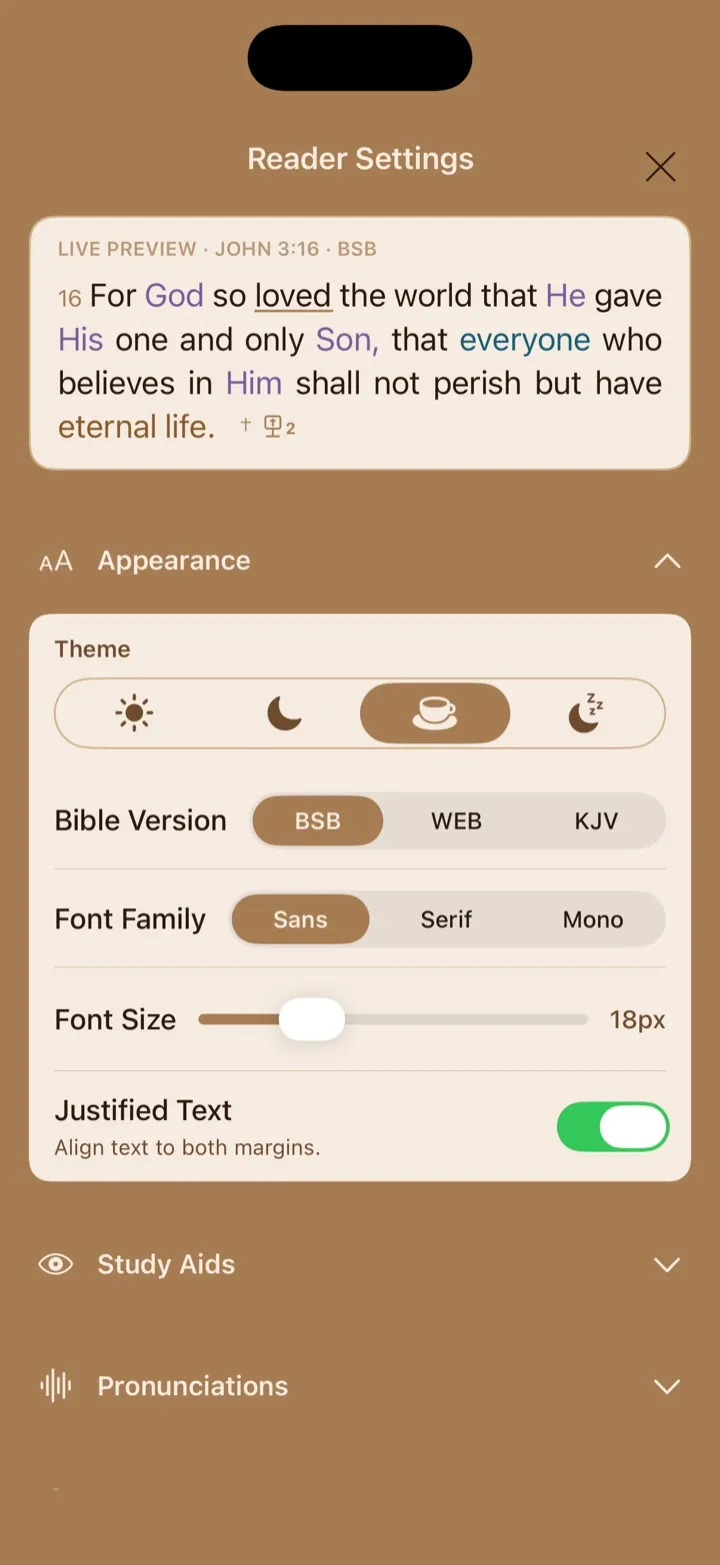
Appearance settings include a live Scripture preview.
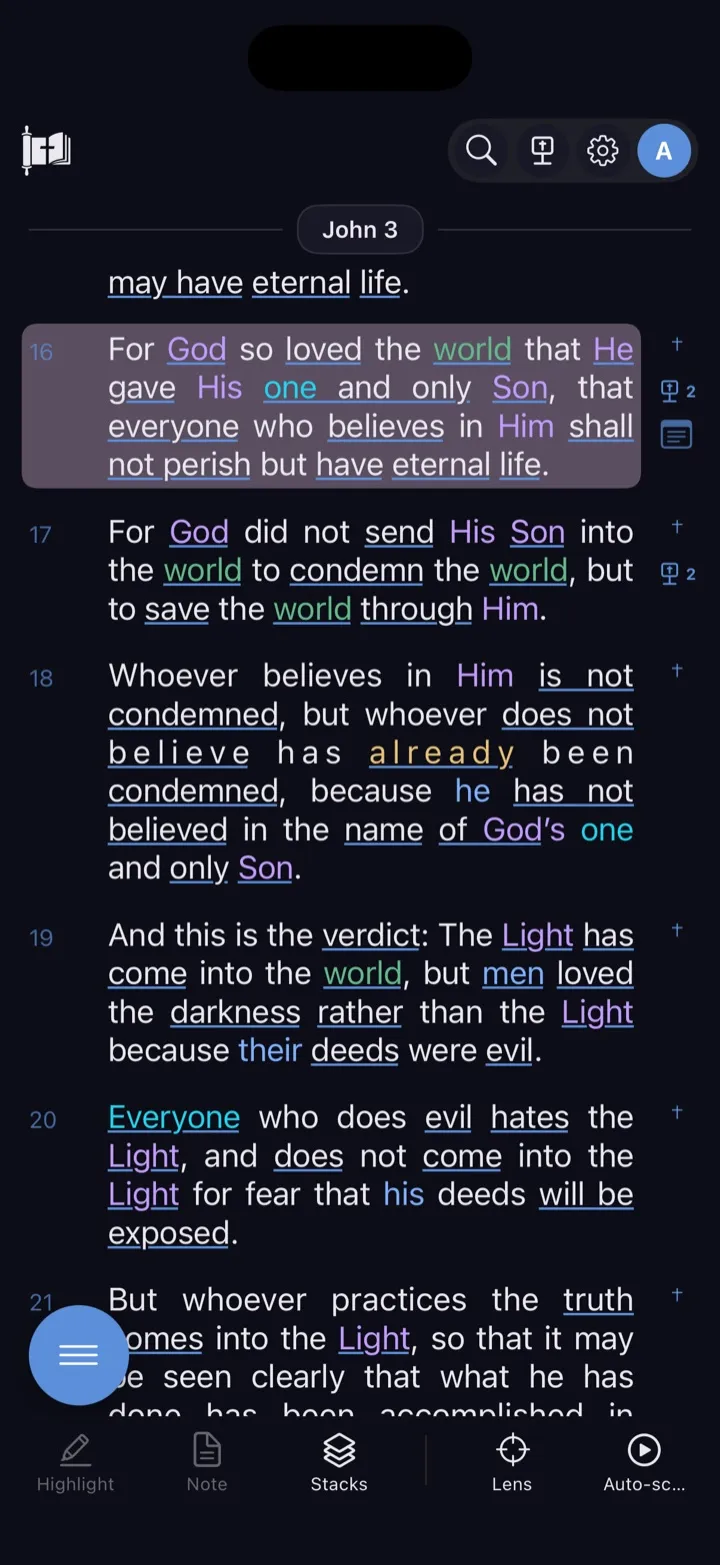
Dark uses a dark background while retaining the app’s normal study colors.
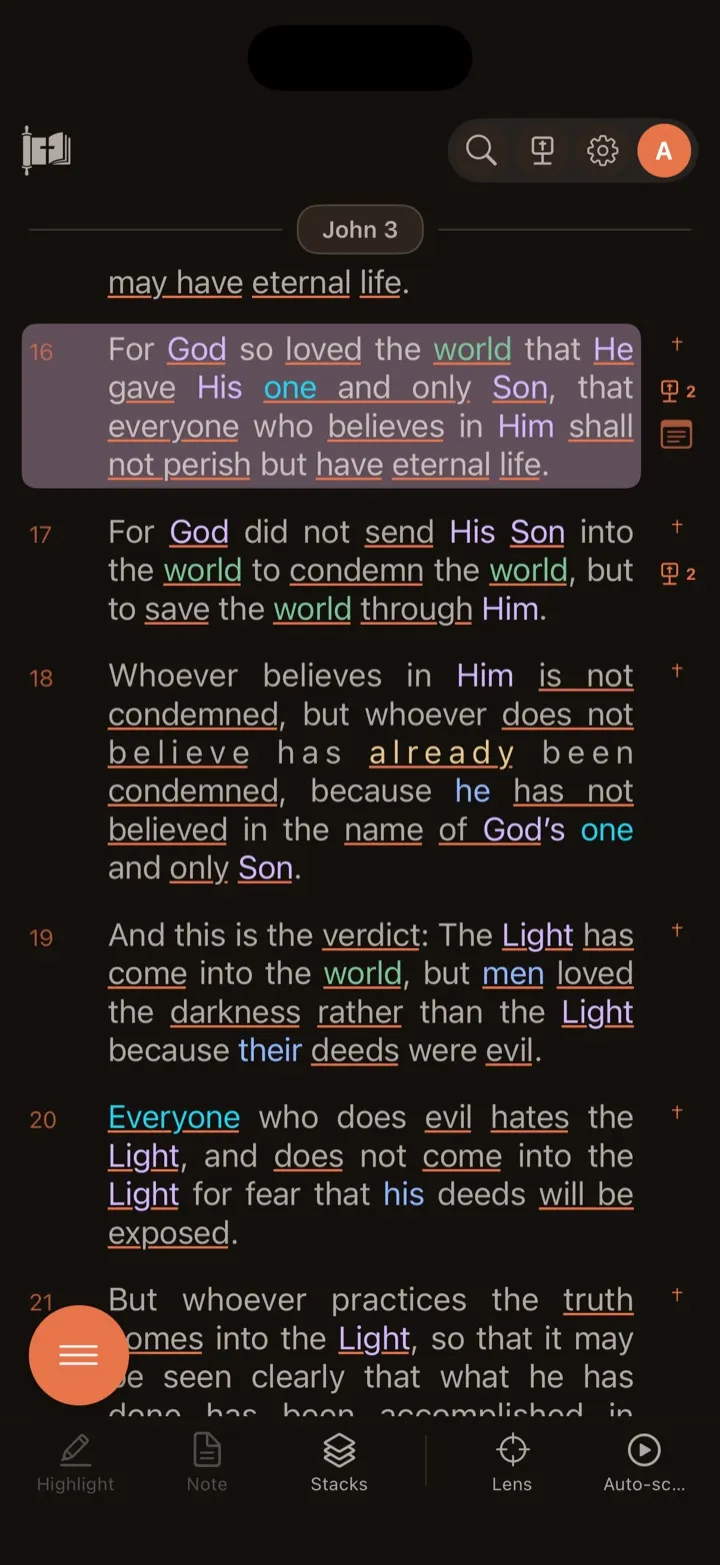
Bedtime reduces blue light by default for late-night reading.
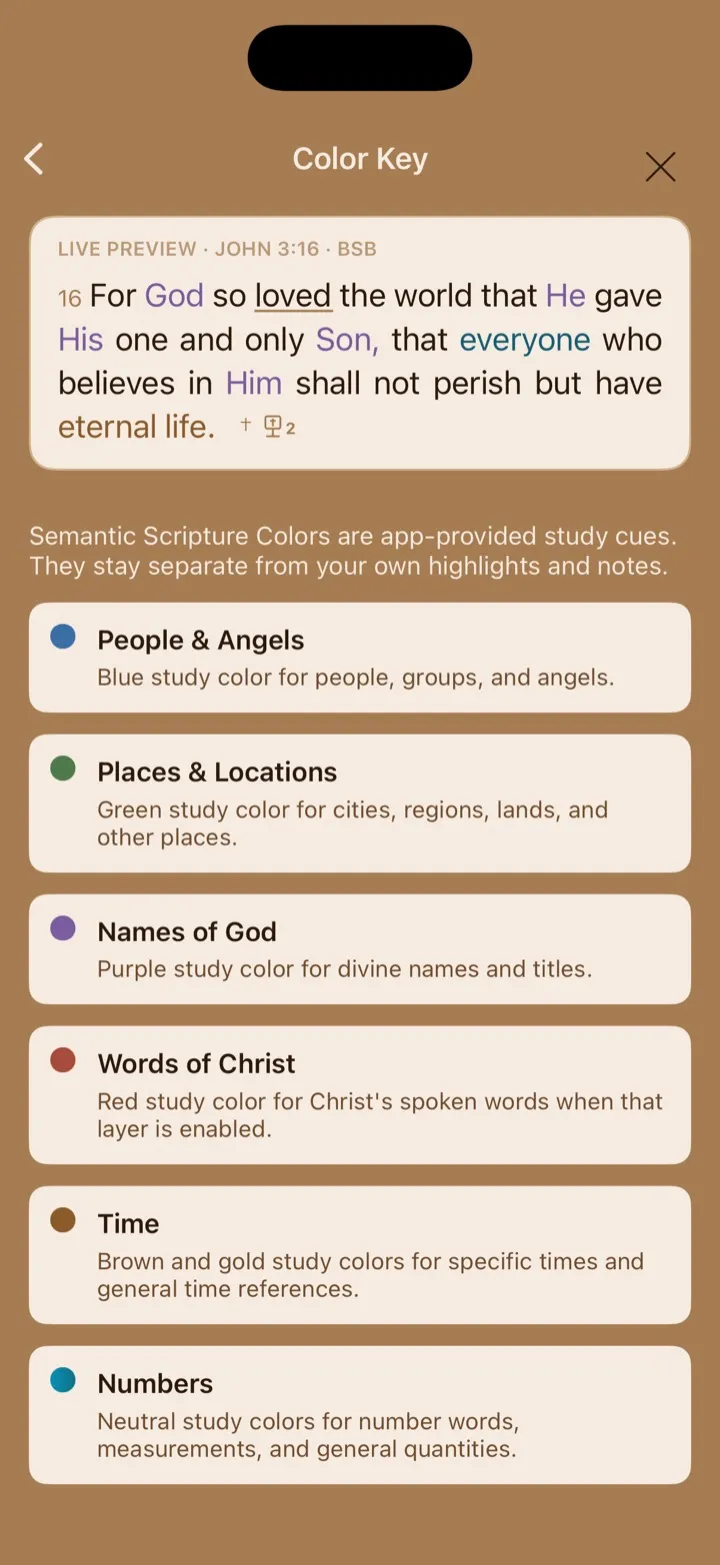
The Semantic Color Key explains what each study color means.
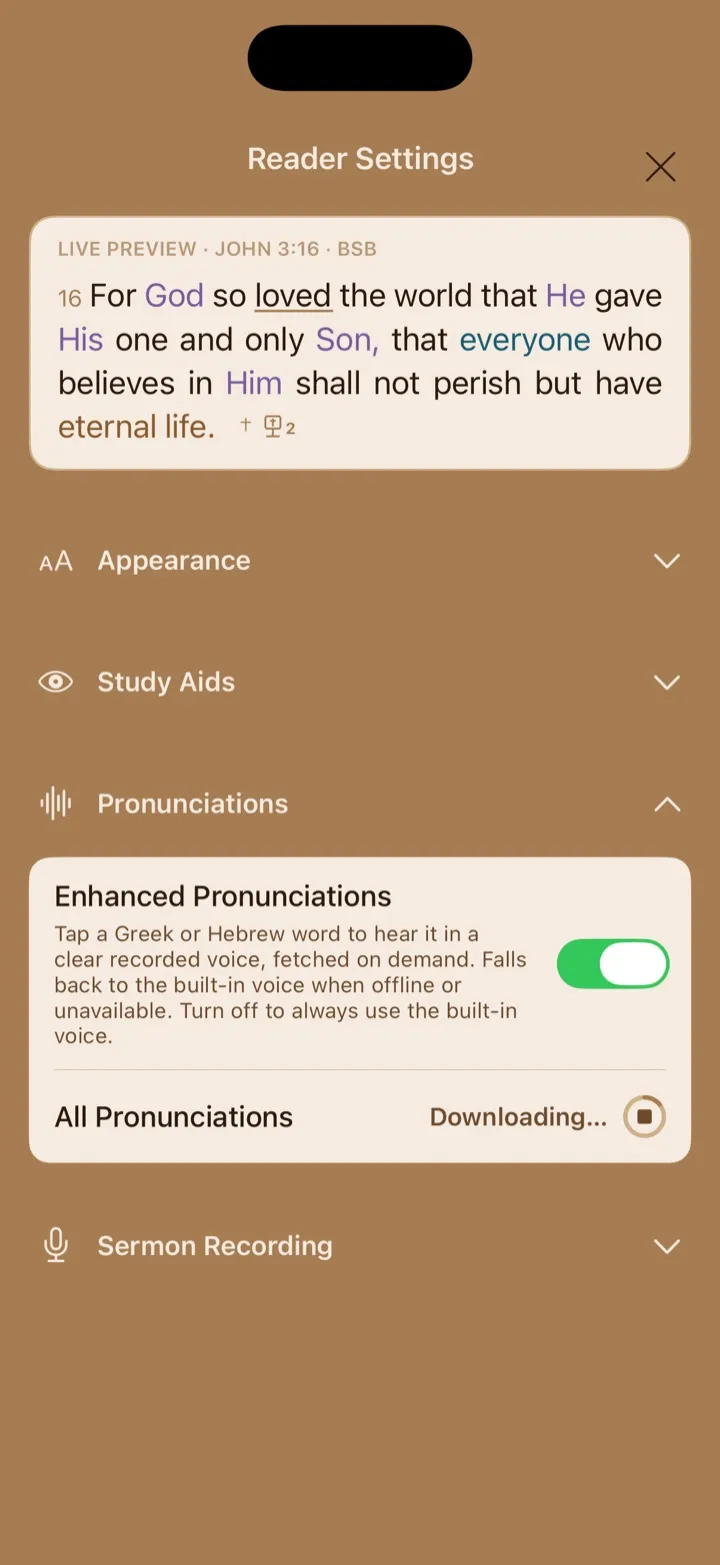
The progress circle shows the offline pronunciation download; tap it to cancel.
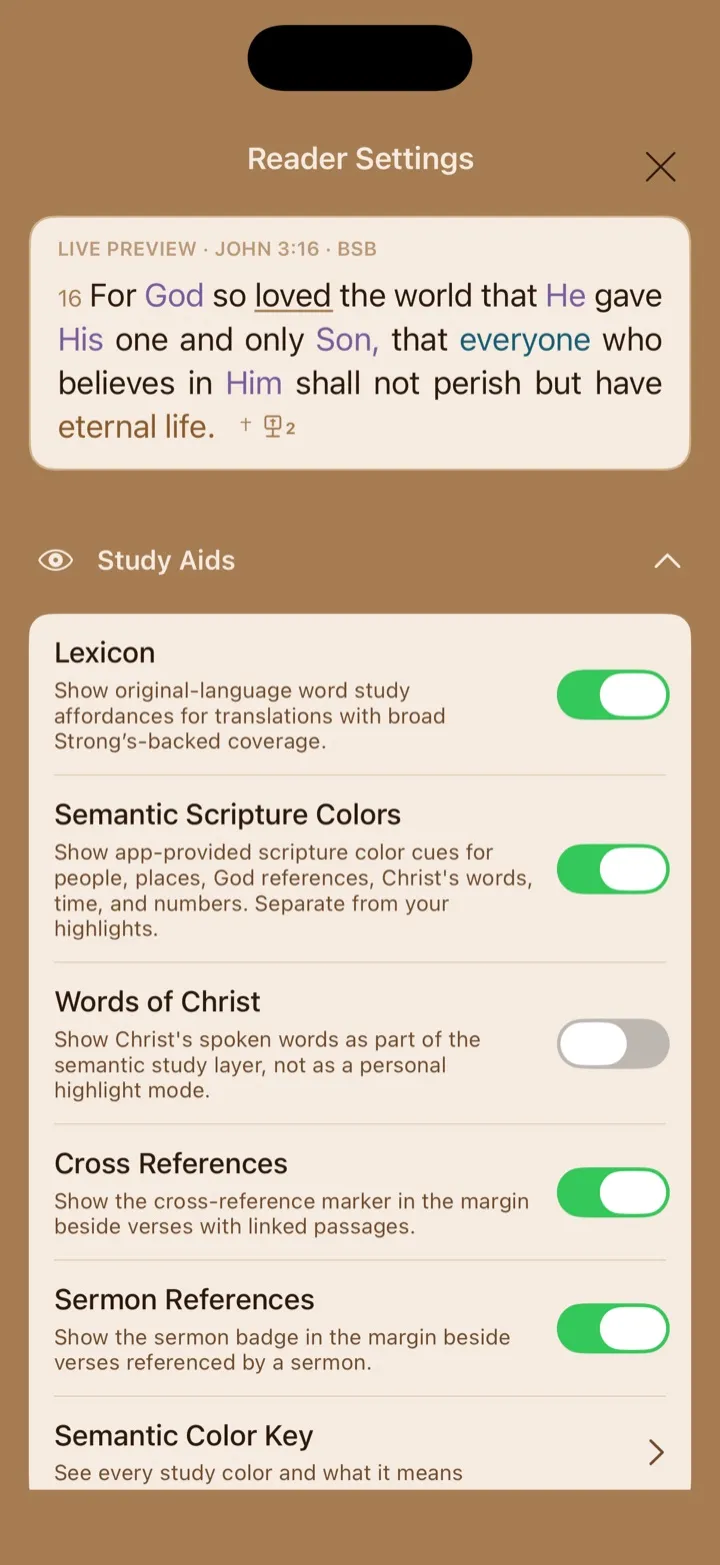
Study Aids controls which extra visual and reference tools appear while you read.
Change Scripture’s appearance
Section titled “Change Scripture’s appearance”Choose a theme
Section titled “Choose a theme”Open Appearance, then choose one of four themes:
- Light uses a light background.
- Dark uses a dark background with light text.
- Sepia uses warm, paper-like colors.
- Bedtime uses a warm, dark palette that reduces GospelGrasp’s default blue light. Blue light at night can interfere with sleep, which is why this theme is called Bedtime.
The theme changes immediately. You can also change the theme from the main menu.
Bedtime minimizes blue in GospelGrasp’s default palette, but it does not override colors you chose. If you create a personal highlight category with a bright blue color, GospelGrasp continues to honor that choice. Semantic Scripture Colors can also add blue, such as the color for People & Angels. To reduce blue further, open Study Aids and turn Semantic Scripture Colors off.
Adjust Bedtime brightness
Section titled “Adjust Bedtime brightness”Bedtime Text Brightness appears only while the Bedtime theme is selected. Move the slider from 20 to 100 percent to make GospelGrasp’s main Bedtime text dimmer or brighter. This changes the primary and secondary text used for Scripture and supporting labels. It does not change your device’s screen brightness, backgrounds, personal highlights, or Semantic Scripture Colors.
Change the Bible version
Section titled “Change the Bible version”Under Bible Version, choose:
- BSB — Berean Standard Bible.
- WEB — World English Bible.
- KJV — King James Version.
The Reader and live preview change to the selected translation. Changing the version does not delete or rewrite your notes, highlights, Study Stacks, or reading position.
Some study aids require information tied to a particular translation. The original-language Lexicon is currently available only with the BSB.
Change the font family
Section titled “Change the font family”Under Font Family, choose:
- Sans for clean letters without decorative strokes.
- Serif for a traditional, book-like typeface.
- Mono to give every character the same horizontal width.
This changes how Scripture looks, not its wording.
Change the font size
Section titled “Change the font size”Move the Font Size slider between 14 and 30. The number and live preview update as you move it.
Turn Justified Text on or off
Section titled “Turn Justified Text on or off”Turn Justified Text on to align paragraphs along both the left and right margins, similar to many printed books. Turn it off for a straight left edge and a natural, uneven right edge.
Choose which study aids appear
Section titled “Choose which study aids appear”Turn the Lexicon on or off
Section titled “Turn the Lexicon on or off”A lexicon is a dictionary for the original Greek and Hebrew words behind a translation. With the BSB selected, turn Lexicon on to show original-language word-study options where GospelGrasp has matching data.
Supported words that GospelGrasp marks for lexicon study appear underlined in the Reader. Tap an underlined word to open its original-language dictionary information. The live preview in Reader Settings also shows an example of the underline when Lexicon is on.
The switch is unavailable with WEB or KJV because those versions do not yet have the required word links in GospelGrasp. Lexicon data may require a connection the first time a chapter is loaded. Previously loaded information may remain available from the device’s cache.
Turn Semantic Scripture Colors on or off
Section titled “Turn Semantic Scripture Colors on or off”“Semantic” means based on meaning. Semantic Scripture Colors lets GospelGrasp apply study colors to supported words and phrases, including people, angels, places, names of God, time references, and numbers.
These colors come from GospelGrasp and are separate from highlights you create yourself. Turning Semantic Scripture Colors off does not remove or recolor your personal highlights.
Coverage can vary by passage. GospelGrasp may need a connection to load study color information for a chapter it has not loaded before. Cached information can remain available offline.
Show or hide Words of Christ
Section titled “Show or hide Words of Christ”Words of Christ appears after Semantic Scripture Colors is turned on. Turn it on to show supported words spoken by Christ in red. Turn it off to hide that color while leaving the other semantic categories visible.
Turning Semantic Scripture Colors off also turns Words of Christ off.
Open the Semantic Color Key
Section titled “Open the Semantic Color Key”Semantic Color Key appears while Semantic Scripture Colors is on. Tap it to review the current categories:
- People & Angels — people, groups, and angels.
- Places & Locations — cities, regions, lands, and other places.
- Names of God — divine names and titles.
- Words of Christ — Christ’s spoken words when that layer is enabled.
- Time — specific and general references to time.
- Numbers — number words, measurements, and general quantities.
Tap the back arrow to return to Reader Settings.
Show or hide Cross References
Section titled “Show or hide Cross References”Turn Cross References on to show a † marker beside verses with linked passages. Turn it off to hide the markers. The cross-reference data is not deleted, and you can show the markers again at any time.
Show or hide Sermon References
Section titled “Show or hide Sermon References”Turn Sermon References on to show a sermon badge beside verses referenced by your sermons. The number beside the badge tells you how many sermons match. Tap a badge to open the matching sermon. If several sermons match, GospelGrasp shows a list so you can choose one.
Turning the setting off hides the badges without deleting sermons or their Scripture references.
Choose how pronunciations work
Section titled “Choose how pronunciations work”Use Enhanced Pronunciations
Section titled “Use Enhanced Pronunciations”Turn Enhanced Pronunciations on to use recorded Greek and Hebrew pronunciations where GospelGrasp has a matching recording. When you request a pronunciation, GospelGrasp downloads that small recording and saves it on the device.
If the recording is unavailable or the device is offline, GospelGrasp uses the device’s built-in voice instead. Turn Enhanced Pronunciations off if you always want the built-in voice.
Download all pronunciations
Section titled “Download all pronunciations”All Pronunciations appears while Enhanced Pronunciations is on. This downloads the full collection so available recordings can be played offline. It can also make pronunciations start faster because GospelGrasp does not need to download each recording when you request it. The available recordings are already stored on your device and ready to play.
- Use a reliable internet connection. The download is about 554 MB, and the device needs additional free space while GospelGrasp unpacks it.
- Tap Download (554 MB).
- Keep GospelGrasp open while the progress ring advances.
- Wait for Downloaded ✓.
The square inside the progress ring is a stop control. Tap it to cancel the download. Files already saved remain on the device, and a later retry skips them.
If some files fail, the row shows how many failed. Tap it to try the missing files again. If the collection is already downloaded, tapping Downloaded ✓ asks before downloading the full collection again.
Pronunciation files are kept in temporary device storage. iOS or iPadOS may remove them when storage is low. If that happens, GospelGrasp returns the row to Download (554 MB).
Use Local Transcription
Section titled “Use Local Transcription”Transcription means turning spoken audio into written text. Local Transcription does that work on your phone or tablet. It is on by default on supported devices because it can be faster, keeps the transcription process private on your device, and can continue while an upload waits for a connection. If local transcription cannot finish, GospelGrasp falls back to online transcription.
Supported devices
Section titled “Supported devices”Local Transcription currently requires:
- An iPhone 12 or newer, or an iPhone SE (3rd generation), running iOS 26 or later.
- An iPad with an A14 Bionic or newer chip, or an iPad with an Apple M-series chip, running iPadOS 26 or later.
- English as the device’s current language.
iPhone 11 models and iPhone SE (2nd generation) can run iOS 26, but they do not support Local Transcription. GospelGrasp checks compatibility for you and disables the switch when the device, operating system, or language is not supported.
What happens when you record a sermon
Section titled “What happens when you record a sermon”When Local Transcription is on, GospelGrasp begins transcribing on the device after the recording ends. The sermon can wait to upload without preventing that local work.
Local Transcription does not turn off sermon syncing. When a connection is available, GospelGrasp still uploads the sermon and the information connected to it. If local transcription is unavailable or fails, GospelGrasp automatically requests online transcription instead; you do not need to record the sermon again.
Turn Local Transcription off if you prefer to use online transcription for every sermon recorded on that device.
What GospelGrasp saves or syncs
Section titled “What GospelGrasp saves or syncs”Every change is saved on the device as soon as you make it. Settings that belong to your reading experience are also sent to your account when the device is online.
The following settings are included in account sync:
- Bible version.
- Theme.
- Font family and font size.
- Justified Text.
- Semantic Scripture Colors.
- Lexicon.
- Cross References.
- Sermon References.
If an account update fails, the setting still works on the device where you changed it. GospelGrasp can try the account update again later.
Some choices and downloads belong only to the current device:
- Words of Christ is currently saved locally and is not included in account sync.
- Bedtime Text Brightness is saved locally. Moving its slider does not, by itself, send an account update in the current build.
- The Enhanced Pronunciations choice and downloaded recordings remain on the device.
- The Local Transcription choice remains on the device.
You must set up device-only features separately on each iPhone or iPad where you want to use them.
Requirements and limits
Section titled “Requirements and limits”- You must be signed in to open GospelGrasp and Reader Settings.
- Themes, fonts, paragraph alignment, Bible versions, and cross-reference data are available without an internet connection.
- Semantic colors and Lexicon information may need a connection the first time GospelGrasp loads them for a chapter. Information already saved on the device may remain available offline.
- Sermon-reference badges may need a connection before new sermon references appear in the Reader.
- Enhanced Pronunciations needs a connection to retrieve a recording that has not been downloaded. The built-in voice remains available as a fallback.
- The full pronunciation collection is about 554 MB. GospelGrasp needs extra free space while it downloads and prepares the collection.
- Local Transcription requires one of the supported devices listed above, iOS or iPadOS 26 or later, and English as the current device language.
If something does not work
Section titled “If something does not work”A visual setting does not appear in the Reader
Section titled “A visual setting does not appear in the Reader”Look at the live preview to confirm that the setting changed. Then close Reader Settings and return to the passage. If the passage still looks unchanged, reopen Reader Settings and check that you adjusted the intended control.
Words of Christ or the Semantic Color Key is missing
Section titled “Words of Christ or the Semantic Color Key is missing”Turn Semantic Scripture Colors on. Words of Christ and Semantic Color Key are hidden while the main semantic-color setting is off.
The Lexicon switch is unavailable
Section titled “The Lexicon switch is unavailable”Choose BSB under Bible Version. GospelGrasp does not currently provide Lexicon links for WEB or KJV.
A cross-reference marker is missing
Section titled “A cross-reference marker is missing”Confirm that Cross References is on. A † marker appears only beside a verse that has linked passages in GospelGrasp’s current cross-reference data.
A sermon-reference badge is missing
Section titled “A sermon-reference badge is missing”Confirm that Sermon References is on. Connect GospelGrasp to the internet so it can refresh the references found in your sermons. The badge appears only after matching sermon information is available for that verse.
A recorded pronunciation does not play
Section titled “A recorded pronunciation does not play”Confirm that Enhanced Pronunciations is on. If the recording has not been downloaded, connect the device and request the word again. GospelGrasp uses the built-in voice when no recording is available.
The full pronunciation download stops
Section titled “The full pronunciation download stops”Check your internet connection and available storage, then tap the download row to continue. Recordings already saved on the device do not need to be downloaded again.
If the row reports that some files failed, tap it to retry those files. If iOS or iPadOS later removes the collection to recover storage, the row returns to Download (554 MB).
Local Transcription is unavailable
Section titled “Local Transcription is unavailable”Check the device, operating-system, and language requirements above. The switch is disabled when Local Transcription is not supported on that device or for the current language.
Common questions
Section titled “Common questions”Do Semantic Scripture Colors replace my highlights?
Section titled “Do Semantic Scripture Colors replace my highlights?”No. Semantic Scripture Colors are study cues supplied by GospelGrasp. Your personal highlights remain separate and keep the colors you selected.
Why does Bedtime still show some blue?
Section titled “Why does Bedtime still show some blue?”Bedtime reduces blue in GospelGrasp’s main reading palette. It does not change your personal highlight colors. Semantic Scripture Colors can also add blue, including the color used for People & Angels. To reduce blue further, open Study Aids and turn Semantic Scripture Colors off. Personal blue highlights remain until you change or remove them.
Does changing the Bible version change my saved work?
Section titled “Does changing the Bible version change my saved work?”No. It changes the Scripture wording shown around your work. It does not delete notes, highlights, Study Stacks, sermons, or reading progress.
Must I download all pronunciations to hear a recorded voice?
Section titled “Must I download all pronunciations to hear a recorded voice?”No. Leave Enhanced Pronunciations on and request words as you need them. GospelGrasp downloads each available recording and keeps it on the device for later use. Downloading the full collection makes available recordings work offline and removes the wait for individual downloads.
Does Local Transcription stop sermon uploads?
Section titled “Does Local Transcription stop sermon uploads?”No. It changes where the speech-to-text work begins. GospelGrasp still uploads and syncs the sermon when a connection is available.
What happens if Local Transcription fails?
Section titled “What happens if Local Transcription fails?”GospelGrasp requests online transcription instead. The original recording is still available for the normal upload process, so you do not need to record the sermon again.