Study Lens
Study Lens keeps useful background information beside the Scripture you are reading. It follows your place in the Reader, helping you explore the passage, people, relationships, and locations without leaving the Bible text.
What Study Lens does
Section titled “What Study Lens does”Study Lens has two views:
- Study Lens is the compact view. It gives you a quick summary of the book and passage currently visible in the Reader.
- Explore Lens is the larger view. It adds detailed context, an interactive character graph, a map, and links connected to the passage.
Both views update as you move through Scripture. This allows Lens to work as a study partner while you read rather than remaining fixed on the passage where you first opened it.
When you might use it
Section titled “When you might use it”- See the setting and main idea of the passage currently in view.
- Learn who wrote the biblical book, when it was written, and whom it first addressed.
- Explore the people in a book, chapter, or nearby verses.
- Examine relationships between biblical characters.
- Locate places mentioned in the current chapter.
- Follow related people, places, and Scripture connections.
- Draw on the map and estimate distances or areas.
Where to find Study Lens
Section titled “Where to find Study Lens”Study Lens is available from the Reader toolbar:
- Open a passage in the Reader.
- Tap Lens in the bottom toolbar.
The compact Study Lens opens above the toolbar. Tap the close button when you are finished.
See it in GospelGrasp
Section titled “See it in GospelGrasp”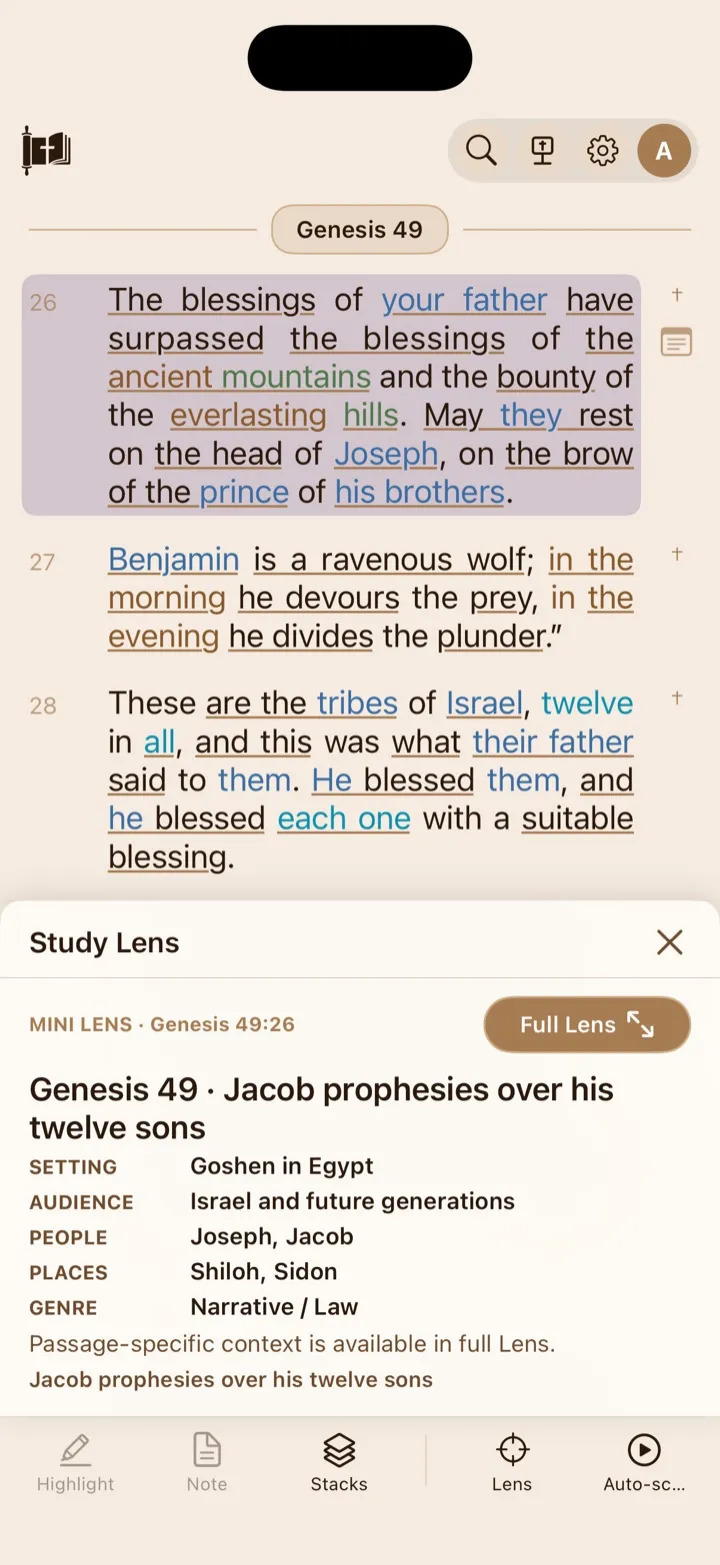
The compact Lens updates with the passage as you read.
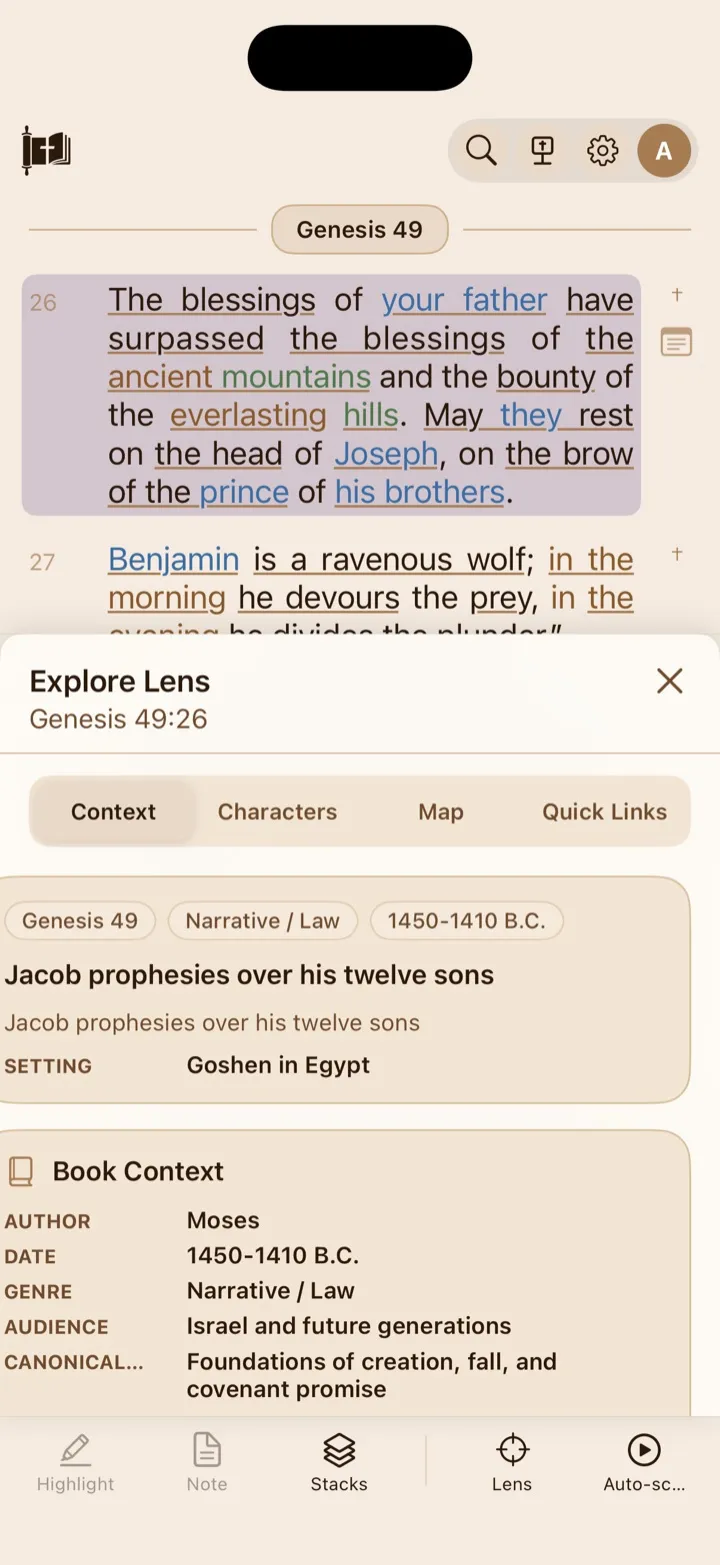
Full Lens gives each kind of study information its own tab.
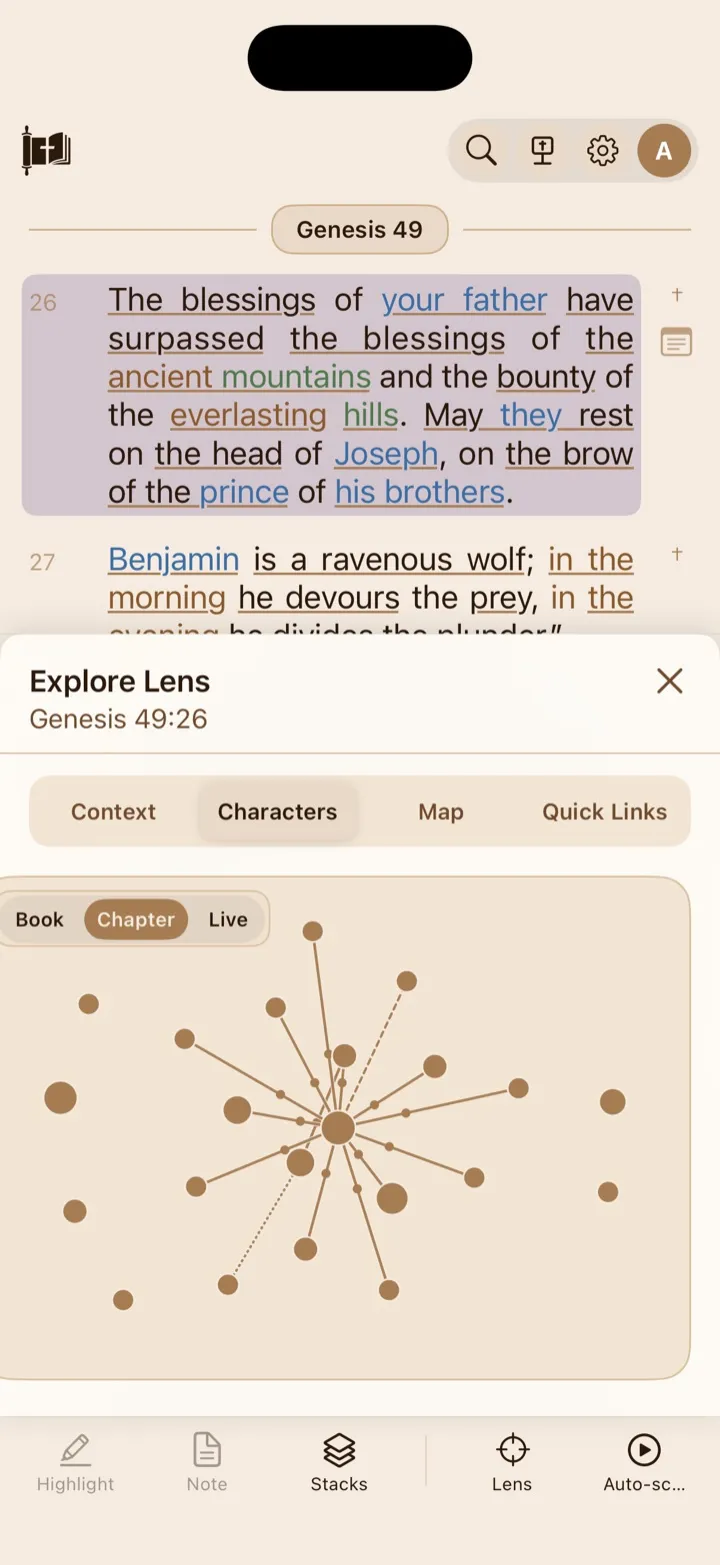
Genesis 49:26 is a useful example of the character graph’s family relationships.
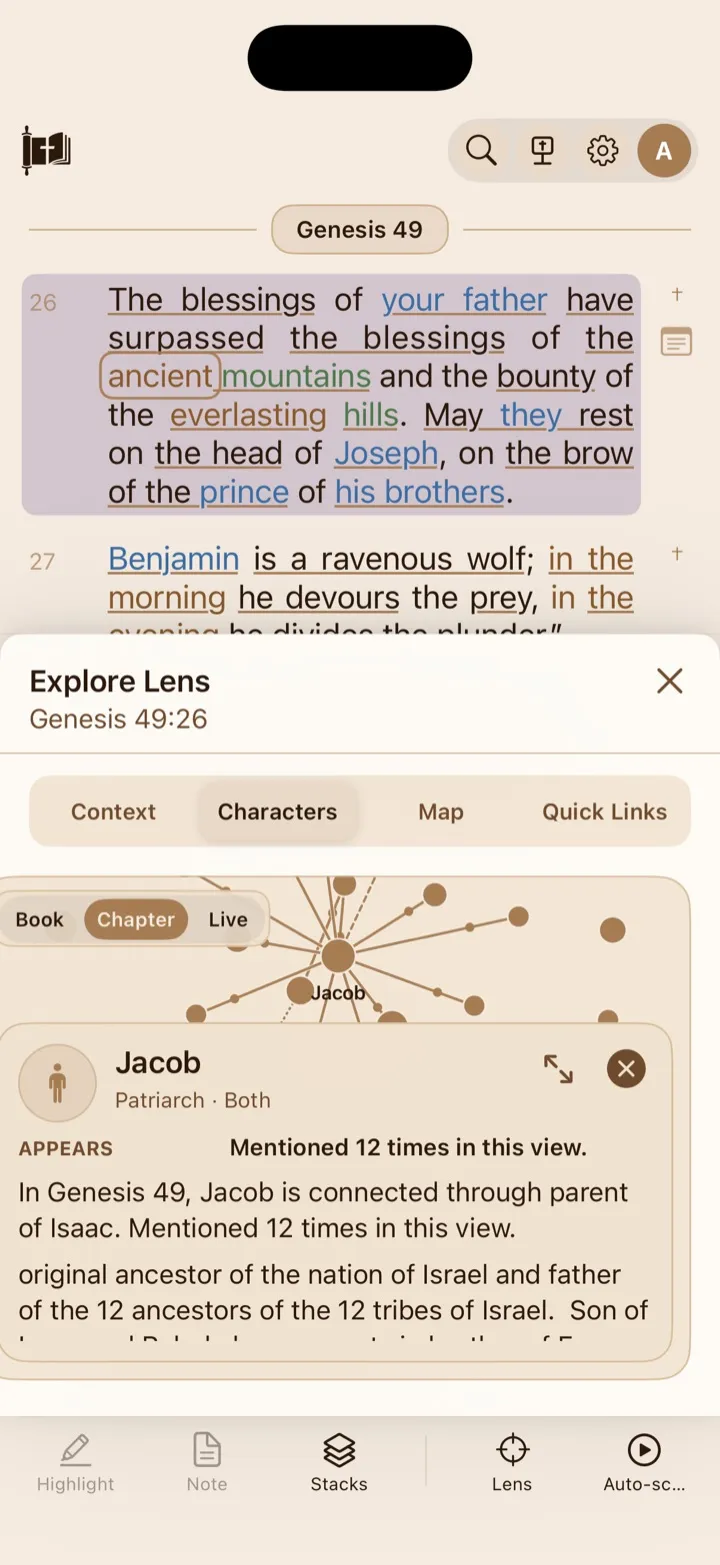
Tap a character to read its detail card without losing the surrounding relationships.
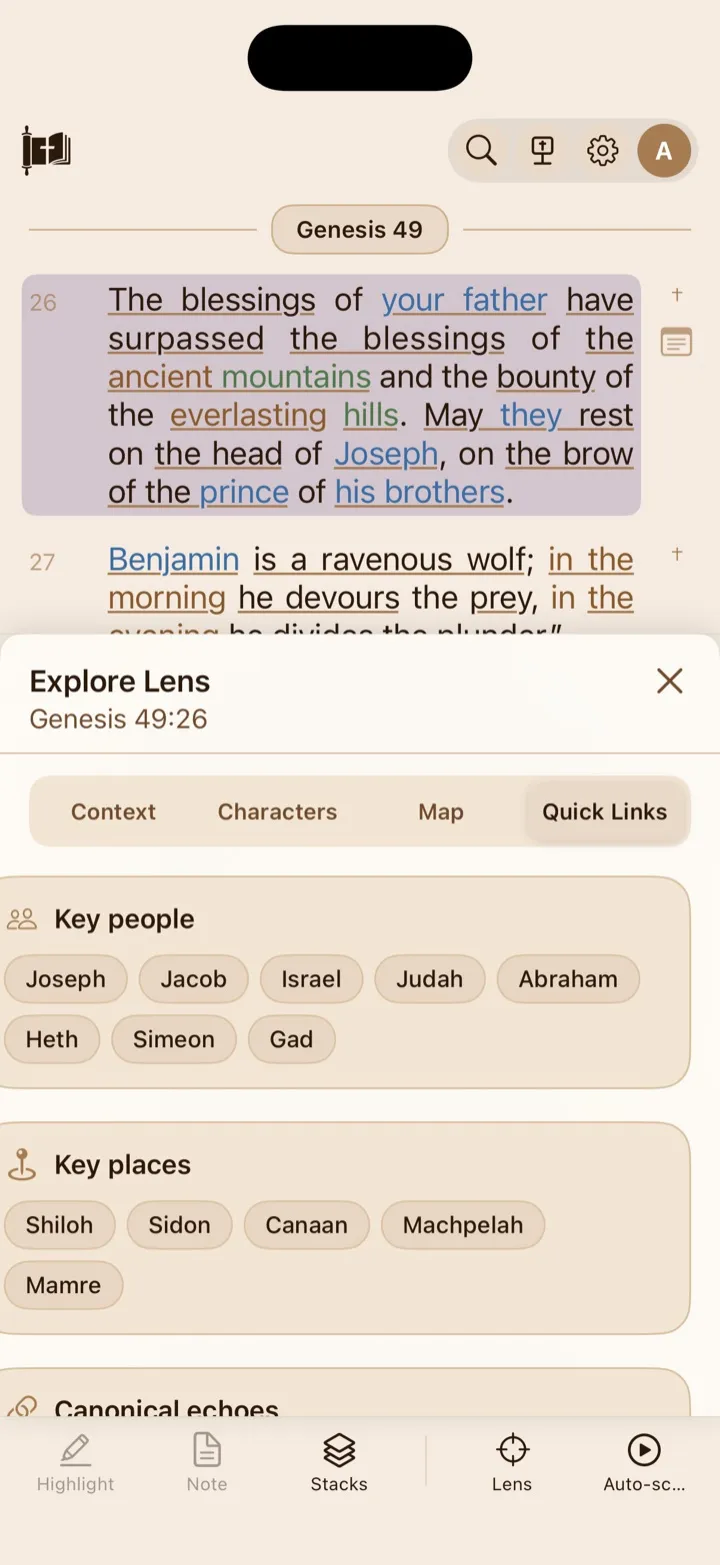
Quick Links collects the passage’s people, places, and connections to other Scripture.
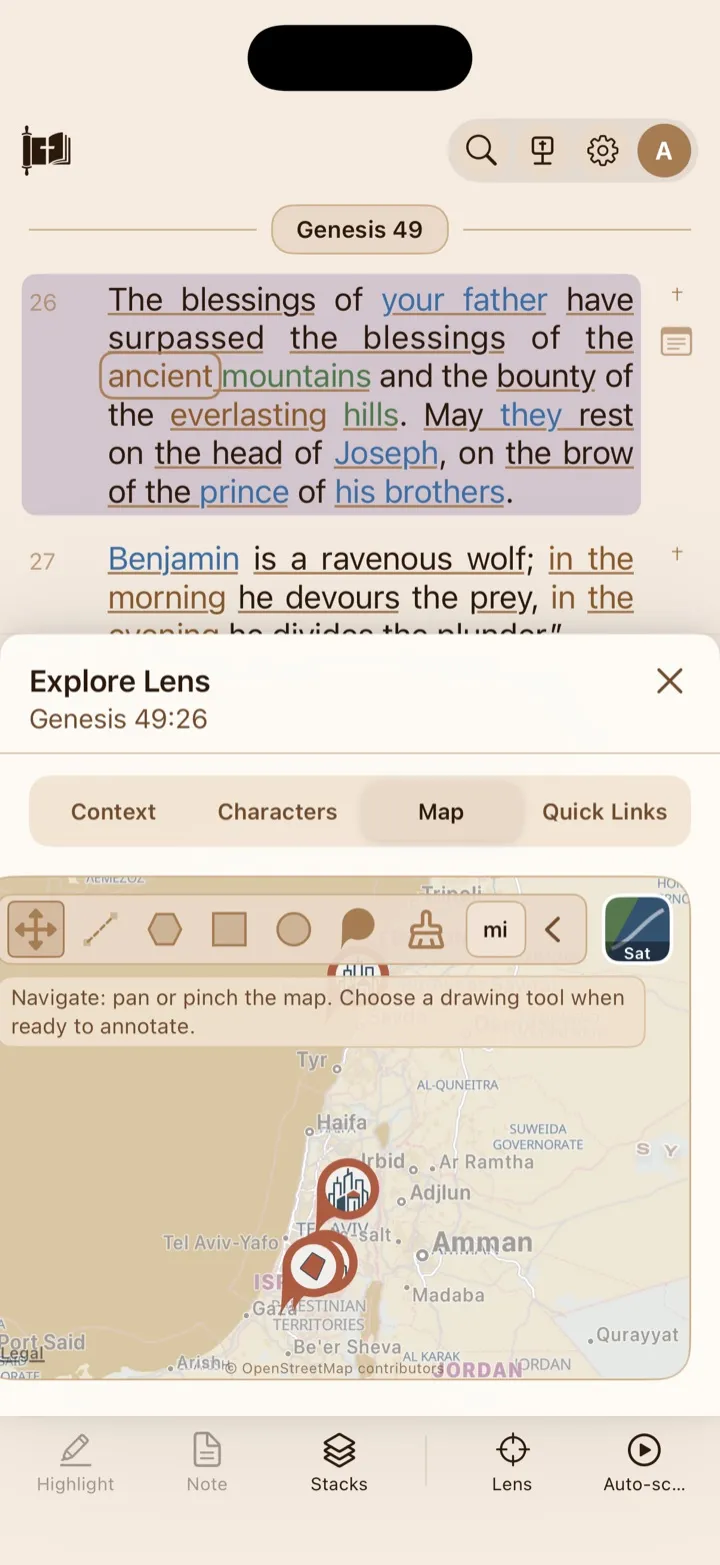
The pencil button opens drawing tools for lines, shapes, pins, and measurements.
Use the compact Study Lens
Section titled “Use the compact Study Lens”The compact view shows the Scripture reference it is currently following. Its available details can include:
- passage title;
- setting and theme;
- original audience;
- important people and places;
- the book’s genre, such as Gospel, history, poetry, or letter;
- a short passage summary or central tension; and
- a concise insight or related-Scripture connection.
Some passages have more supporting information than others. Lens leaves out details that are not available rather than filling the view with empty fields.
You can continue scrolling through Scripture while the compact Lens is open. After the visible verse changes, Lens updates to follow your new reading position. The Reader keeps the toolbar available while Lens is open so you can continue using it as you read.
Tap Full Lens to replace the compact view with Explore Lens.
Use Explore Lens
Section titled “Use Explore Lens”Explore Lens opens with the reference it is currently following beneath its title. It contains four tabs:
- Context
- Characters
- Map
- Quick Links
Tap a tab to switch views. Each tab opens at its top, and you can scroll within a tab when its information extends beyond the visible area.
Context
Section titled “Context”The Context tab begins with information about the passage currently in view. Depending on the available information, it can show:
- the complete passage reference and title;
- genre and approximate writing date;
- setting and central theme;
- a summary or conflict that shapes the passage;
- information about its original audience; and
- relevant historical or cultural background.
The Book Context section follows the passage information. It can include the book’s author, writing date, genre, audience, canonical role, and a short summary. A book’s canonical role is the part it plays within the Bible as a whole—for example, introducing the covenant story, recording Israel’s history, or explaining the meaning of Jesus’ life and work.
As you scroll to another verse, the passage information updates. When you move to another biblical book, the Book Context updates as well.
Characters
Section titled “Characters”The Characters tab displays people and their relationships as an interactive graph. A circle represents a person, and a connecting line represents a relationship found in GospelGrasp’s supporting data.
Read the relationship lines
Section titled “Read the relationship lines”Every line connects two people who have a recorded relationship. The line’s appearance provides more detail:
- A solid line represents a parent-child or ancestor-descendant relationship. A small animated dot moves along the line from the child or descendant toward the parent or ancestor, showing the direction of the family line.
- A dashed line represents a marriage or spousal relationship.
- A closely dotted line represents siblings or another family relationship that is not shown as a direct line of descent.
The moving dot is a direction marker, not another person in the graph.
For a useful example, open Genesis 49:26 and choose Chapter or Live. Its graph demonstrates all three treatments: parent-child lines, the dashed spousal line between Jacob and Leah, and the closely dotted sibling line between Abraham and Sarah.
Use the scope control in the corner of the graph to choose how much information you want to see:
- Book shows characters from the current biblical book.
- Chapter focuses on the current chapter.
- Live follows the verses near your current reading position.
Within the graph:
- Tap a person to open a summary and their relevant relationships.
- Tap the expand control to see more of the selected person’s details.
- Tap a person named in the relationship list to move to that person’s card.
- Drag the graph to move around it.
- Pinch with two fingers to zoom.
- Drag a person’s circle to reposition it. The detail card opens when you lift your finger, so it does not cover the graph while you drag.
- Close the detail card to return to the full graph.
The graph can contain family, personal, political, or other relationships. A missing person or relationship does not necessarily mean Scripture says nothing about it; it may mean that supporting graph information is not yet available for that scope.
The Map tab shows supported biblical locations connected to the current chapter. GospelGrasp uses different pin designs to help distinguish cities, towns, regions, bodies of water, mountains, and other kinds of places.
- Tap a location pin to see its name and available details.
- Use the location choices near the bottom of the map to move between mapped places.
- Drag the map to move around it.
- Pinch to zoom.
- Tap Map or Sat in the corner to switch between the simplified map and satellite imagery.
Location details can include the verse or verse range, what happens there, and why the place matters in the chapter. If the current chapter has no supported locations, Lens says that no mapped locations are available yet.
Add your own map pins
Section titled “Add your own map pins”Your map pins are temporary tools for exploring the current Lens. They are not saved or synced after you close Lens.
To add a pin:
- Open the Map tab.
- Tap the pencil button to open the map tools.
- Tap the pin tool.
- Choose a pin design, such as City, Village, Well, Mountain, or Key Location.
- Tap the map where you want to place it.
Drag one of your pins to move it. To remove one pin, tap it and then tap the trash button in its information bubble.
Draw and measure on the map
Section titled “Draw and measure on the map”The map tools let you add temporary lines and shapes. Tap the pencil button, then choose:
- Navigate to return to normal map movement and zooming.
- Line to measure between two points.
- Polygon to outline an area with three or more points.
- Rectangle to draw between two opposite corners.
- Circle to draw from a center point to its outside edge.
- Pin to place your own marker.
For a line, rectangle, or circle, you can drag across the map or tap the needed points. For a polygon, add at least three points, then tap near the first point to close the shape.
Lens automatically calculates:
- distance for a line;
- perimeter and area for a polygon, rectangle, or circle; and
- a live distance while you are drawing a line.
Tap a completed line or shape to review its measurement. Tap the displayed distance, perimeter, or area to choose a specific unit. Available distance units include miles, kilometers, feet, and meters. Available area units include acres, hectares, square miles, square kilometers, square feet, and square meters.
The mi or km button switches the default measurement system between imperial and metric units. Imperial uses measurements such as miles, feet, and acres. Metric uses measurements such as kilometers, meters, and hectares.
For a line, you can also:
- choose no marker, a circle, a square, or an arrow for either endpoint;
- reverse the line’s direction and endpoint markers; and
- drag its center handle to bend the line.
Tap Delete to remove the selected measurement. Use the clear tool to remove all of your temporary shapes and pins from the map.
Quick Links
Section titled “Quick Links”Quick Links gathers people, places, and related Scripture identified for the current passage. It organizes available information into separate Key people, Key places, and Canonical echoes cards.
Key people
Section titled “Key people”Tap a person’s name to open their profile and relationships. If that person is available in the current character graph, tap View in graph to open the Characters tab with that person selected.
Key places
Section titled “Key places”Tap a place to review its verse, context, and significance where available. Tap Open in Map tab to center the Map tab on that location.
Canonical echoes
Section titled “Canonical echoes”A canonical echo is a meaningful connection between the current passage and another part of the Bible, often through repeated language, imagery, or a shared theme. Tap an echo to preview its connected verse. Tap Go to verse to close Lens and open that passage in the Reader.
If no links are available for the passage, Quick Links explains that they have not been added yet.
Requirements and limits
Section titled “Requirements and limits”- Lens follows the passage currently visible in the Reader rather than a text selection.
- An internet connection is needed for passage, character, and location data. Basic book information may still be available from the app.
- Character, relationship, map, and Quick Links information appears only where supporting data is available.
- Map drawings and user pins are temporary. Closing Lens removes them; they are not saved or synced.
- Map measurements are estimates based on the points placed on the map. They should not be treated as exact historical travel routes or ancient boundaries.
If something does not work
Section titled “If something does not work”Lens does not match the passage I am reading
Section titled “Lens does not match the passage I am reading”Pause briefly after scrolling so Lens can follow the new visible verse. If it still shows the earlier passage, close Lens and open it again from the Reader toolbar.
Character or map information is missing
Section titled “Character or map information is missing”Not every passage contains people or places, and some supporting information may not be available yet. Try another scope in the Characters tab or continue reading to another passage. If information that should clearly be present is missing, report it through Support and include the Scripture reference.
Lens says its data is unavailable
Section titled “Lens says its data is unavailable”Confirm that you are connected to the internet. Close Lens and open it again. If the same passage continues to fail, report it through Support and include the Scripture reference.
A Quick Link does not open a graph or map
Section titled “A Quick Link does not open a graph or map”The person or place may be identified in the passage without having matching graph or map information for the current chapter. You can still read the details shown in Quick Links.
My map drawings disappeared
Section titled “My map drawings disappeared”Map drawings and user pins last only while the current Lens is open. Closing Lens clears them.
Common questions
Section titled “Common questions”Does Study Lens update while I read?
Section titled “Does Study Lens update while I read?”Yes. The compact Study Lens follows the visible passage as you scroll. Explore Lens also updates its passage context and Quick Links, while chapter-based information updates when you enter another chapter. Choose Live in the Characters tab when you want the graph to follow the verses near your reading position.
Is Study Lens the same as AI Study?
Section titled “Is Study Lens the same as AI Study?”No. Study Lens is a reading companion for quickly exploring context, people, relationships, and maps. AI Study opens a longer guided study of a complete passage with verse-by-verse explanations and additional study sections.
Are my map measurements exact?
Section titled “Are my map measurements exact?”No. Lens calculates measurements from the points you place on the modern map. They are useful for comparison and exploration, but they do not prove an exact ancient route, border, or property size.