Home
Home gives you a quick way to return to Scripture, see your study activity, and open any book of the Bible. It brings together activity from the current device and, when available, activity connected to your GospelGrasp account.
What Home does
Section titled “What Home does”From Home, you can:
- Continue from your latest reading position.
- Start at John 3:16 if you do not have any reading history yet.
- See totals for studied chapters, notes, highlights, and your study streak.
- Open all of your notes or highlights when you have saved some.
- Browse all 66 books through the Scripture Map.
- See how much of each book you have studied.
- Open a book summary with its study time, notes, highlights, and chapters.
- Return to your last position in a book or open a specific chapter.
Study depth describes how much of a book you have studied. On Home, it is based on the number of chapters GospelGrasp has counted as studied, not on a judgment about how well you understand the book.
When you might use Home
Section titled “When you might use Home”Home is useful when you want to:
- Pick up where you left off.
- Choose a Bible book without entering a reference in Search.
- Check your recent study activity.
- Find notes or highlights from across the Bible.
- Review your activity within one particular book.
- Open a chapter directly.
Where to find Home
Section titled “Where to find Home”Home is the first main screen GospelGrasp opens after you sign in and complete the first-time walkthrough.
To return to it from another part of the app:
- Open the main floating menu.
- Tap Home.
See it in GospelGrasp
Section titled “See it in GospelGrasp”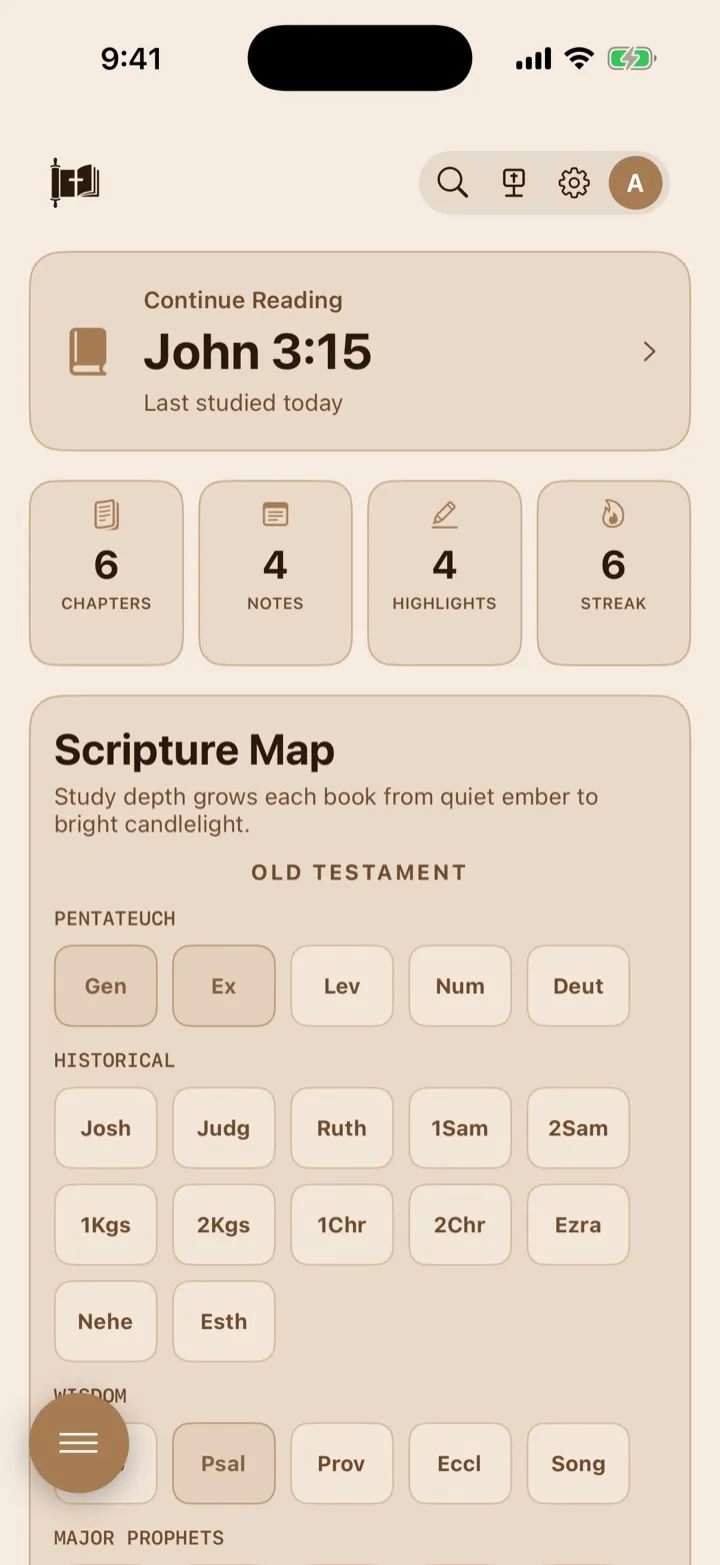
Home brings your reading progress and recent study activity together.
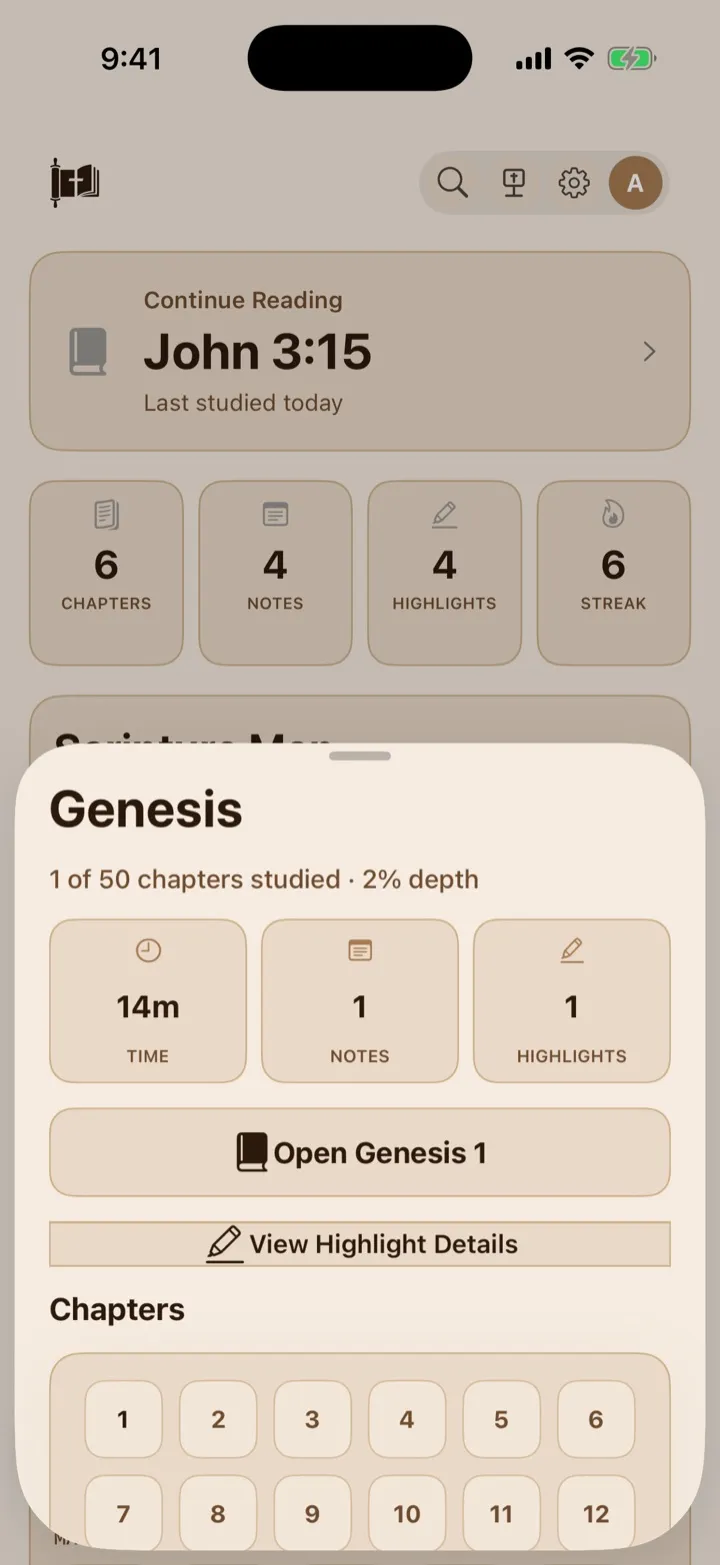
Tap a book in the Scripture Map to review its activity or open a chapter.
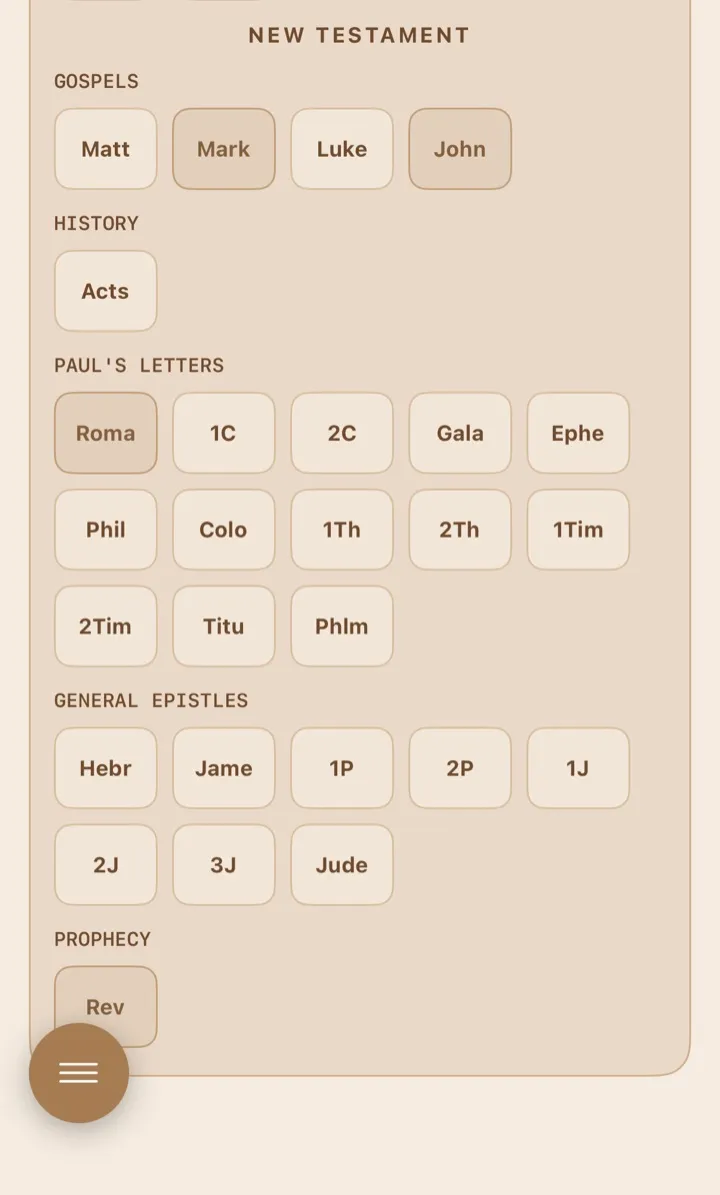
Deeper color means deeper study — the books you have studied most appear darkest.
How to use Home
Section titled “How to use Home”Continue reading or start at John 3:16
Section titled “Continue reading or start at John 3:16”The large card near the top of Home shows one of two choices:
- Continue Reading shows your most recent reading location and when it was last studied.
- Start Reading shows John 3:16 when GospelGrasp does not have a previous location for you.
Tap the card to open the Reader.
When GospelGrasp has a precise recent location, the card can return you to the last observed book, chapter, and verse even when that activity came from another device. Older activity may identify only the book or chapter.
Understand the activity totals
Section titled “Understand the activity totals”Home shows four totals:
- Chapters is the number of different chapters GospelGrasp has counted as studied. New reading counts after you move through nearly all of the chapter and spend enough active reading time there. This prevents a quick fling to the bottom or a chapter left open from counting by itself.
- Notes is the number of saved notes currently available in the app.
- Highlights is the number of saved personal highlights currently available in the app. This is separate from GospelGrasp’s built-in Scripture category colors.
- Streak is the number of consecutive days on which you recorded at least 30 seconds of active study. If you have not studied today, a streak through yesterday can still remain active.
The Notes and Highlights cards can be tapped when their count is greater than zero:
- Tap Notes to open notes from all Bible books.
- Tap Highlights to open highlights from all Bible books.
The Chapters and Streak cards show information only. Tapping them does not open another screen. A Notes or Highlights card with a count of zero also does not open anything.
Browse the Scripture Map
Section titled “Browse the Scripture Map”Scroll to Scripture Map to browse every book of the Bible. The books are divided into the Old Testament and New Testament, the Bible’s two main divisions. Within each testament, books are arranged in groups such as the Pentateuch (the Bible’s first five books), Gospels, letters, and prophecy. The map also uses General Epistles for several New Testament letters not written by Paul; an epistle is a letter.
Each small tile uses a shortened book name, such as Gen for Genesis or Matt for Matthew. Tap a tile to open that book’s detail card.
Understand the book colors
Section titled “Understand the book colors”Book tiles become brighter as you study more chapters in that book. The visual depth is based on the percentage of the book’s chapters counted as studied:
- No studied chapters: resting, unlit appearance.
- More than 0% through 25%: first level of color.
- More than 25% through 60%: stronger color and a light glow.
- More than 60% through 90%: deeper color and glow.
- More than 90%: brightest level.
These colors show study activity only. They do not measure comprehension, spiritual growth, or whether you have finished every verse in a chapter.
When Home opens, studied books may gradually brighten as GospelGrasp loads and combines your available study history.
Open a book detail card
Section titled “Open a book detail card”- Scroll to Scripture Map.
- Find the book under its testament and book group.
- Tap the book’s abbreviated tile.
The book detail card shows:
- The full book name.
- The number of chapters studied out of the book’s total chapters.
- The book’s study-depth percentage.
- Your recorded study time for the book.
- The number of notes and personal highlights in the book.
- A button for returning to the last saved position in that book.
- A numbered list of every chapter.
You can drag the card upward if you need more room to view its contents.
Resume a book
Section titled “Resume a book”The main button in a book detail card shows your last saved reference in that book, when one is available. Tap it to return there.
If the book does not have a saved position, the button reads Open [Book] 1 and opens chapter 1. For example, an untouched Matthew card shows Open Matthew 1.
Open a particular chapter
Section titled “Open a particular chapter”- Open a book detail card.
- Scroll to Chapters.
- Tap a chapter number.
GospelGrasp opens that chapter in the Reader.
Chapter tiles also use different color strengths. Unlike the book percentage, chapter color compares the recorded study time for each chapter with the most studied chapter in that same book. A brighter chapter has more recorded study time relative to the other chapters in the book.
Open notes or highlights for one book
Section titled “Open notes or highlights for one book”The Notes and Highlights totals in a book detail card can be tapped when their count is greater than zero:
- Tap Notes to open notes from that book only.
- Tap Highlights to open highlights from that book only.
If the book has highlights, you can also tap View Highlight Details. It opens the same book-filtered Highlights card.
When you close a book-filtered Notes or Highlights card, you return to the book detail card. If a count is zero, its card is not tappable.
What GospelGrasp saves or syncs
Section titled “What GospelGrasp saves or syncs”- GospelGrasp saves your current and most recent position in each book on the device. This can include the chapter, verse, and reading position within the chapter.
- GospelGrasp records active foreground study on the device and assigns the time to the chapters that were actually visible. When you are signed in and connected, that activity is sent to your account and can contribute to chapter totals, book depth, streaks, and recent locations on another device.
- Home compares local activity with account activity and uses the most recent available Continue Reading location. Precise account activity can restore the last observed verse; older activity may identify only the chapter.
- Notes and highlights are stored locally first. If your account includes cloud sync, GospelGrasp also brings synced notes and highlights into the Home totals when connected.
- If the device is offline, Home continues to use the reading positions, activity, notes, and highlights already stored on that device.
Requirements and limits
Section titled “Requirements and limits”- You must be signed in to use GospelGrasp and open Home.
- The Scripture Map and locally stored Home information are available without an internet connection.
- A connection is required to upload recent study sessions and retrieve study history from other devices.
- Cross-device note and highlight totals require an account that includes cloud sync.
- New reading must cover nearly all of a chapter and include enough active reading time before it contributes to the Chapters total or book completion percentage. The time needed adjusts for chapter length.
- Chapters counted under the older 30-second rule remain counted. GospelGrasp does not remove that existing history.
- The Time total in a book can include shorter study sessions even when they were not long enough to count the chapter as studied.
- Book depth measures the percentage of chapters studied. Chapter color is a separate comparison based on recorded time within that book.
- Home refreshes its totals when the screen opens or becomes active. It does not provide a manual refresh button.
If something does not work
Section titled “If something does not work”Continue Reading does not show the position you expected
Section titled “Continue Reading does not show the position you expected”Home uses the newest available local or account study location. Precise recent activity can identify its last observed verse across devices; older activity may identify only a chapter.
Open the passage you want in the Reader and begin reading. GospelGrasp updates the current device’s saved position as you move through Scripture.
A chapter is not included in the total
Section titled “A chapter is not included in the total”Move through nearly all of the chapter and spend active reading time there. A quick fling to the bottom passes through the text too quickly, while leaving the chapter open without moving through it does not provide enough coverage. Very short visits can add to recorded time without increasing the chapter total.
Home does not show activity from another device
Section titled “Home does not show activity from another device”Make sure this device is connected and signed into the same account. Home uses local information while offline and merges account study history after it can reach GospelGrasp.
A Notes or Highlights card does not open
Section titled “A Notes or Highlights card does not open”The Home card is tappable only when its displayed count is greater than zero. In a book detail card, the count must be greater than zero for that particular book.
If you expect synced content, confirm that the account includes cloud sync and that the device has a connection.
A book tile looks unchanged after a short visit
Section titled “A book tile looks unchanged after a short visit”Book depth is based on chapters counted as studied. Move through nearly all of the chapter while actively reading, then return to Home so the totals can refresh.
Common questions
Section titled “Common questions”Does a brighter book mean I have mastered it?
Section titled “Does a brighter book mean I have mastered it?”No. The brightness represents the percentage of chapters GospelGrasp has counted as studied. It does not evaluate your understanding of Scripture.
Why is a chapter brighter than another chapter?
Section titled “Why is a chapter brighter than another chapter?”Chapter color compares recorded study time within that book. The chapter with the most recorded time receives the strongest level, and the others are shown relative to it.
Do the Scripture Map colors change with the app theme?
Section titled “Do the Scripture Map colors change with the app theme?”Yes. The tiles use the current theme’s accent color. Their relative depth still shows which books have more recorded chapter progress.
Can I open all notes or highlights from Home?
Section titled “Can I open all notes or highlights from Home?”Yes. Tap the Notes or Highlights total near the top of Home. From a book detail card, those actions show content from that book only.
Can I use the Scripture Map offline?
Section titled “Can I use the Scripture Map offline?”Yes. The Bible-book list and data already saved on the device remain available. Account activity and synced content update after a connection is available.